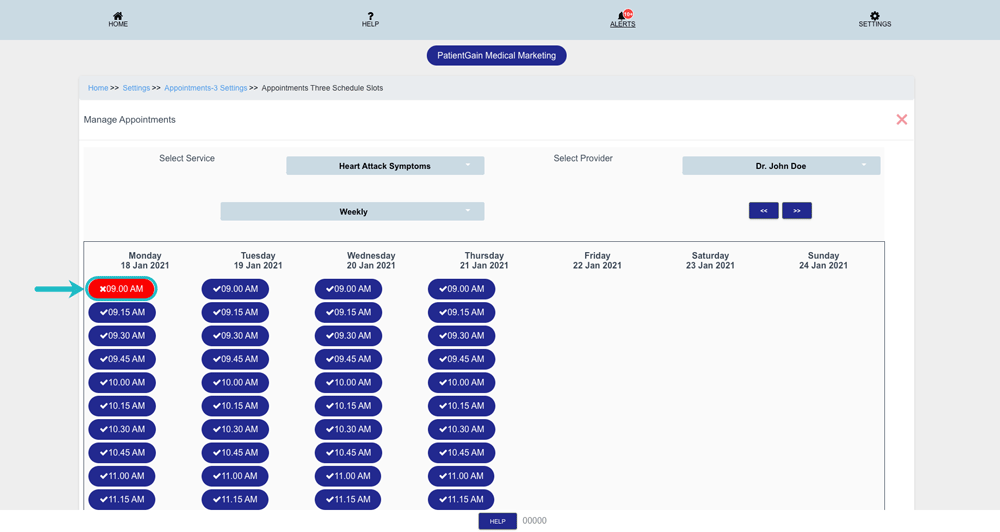
How to Use/Update Your Scheduler in Appointment App
Easily manage your meetings with the appointment request app. An online booking system allows customers to request appointments through an online platform.
Use/Update Your Scheduler in Appointment App
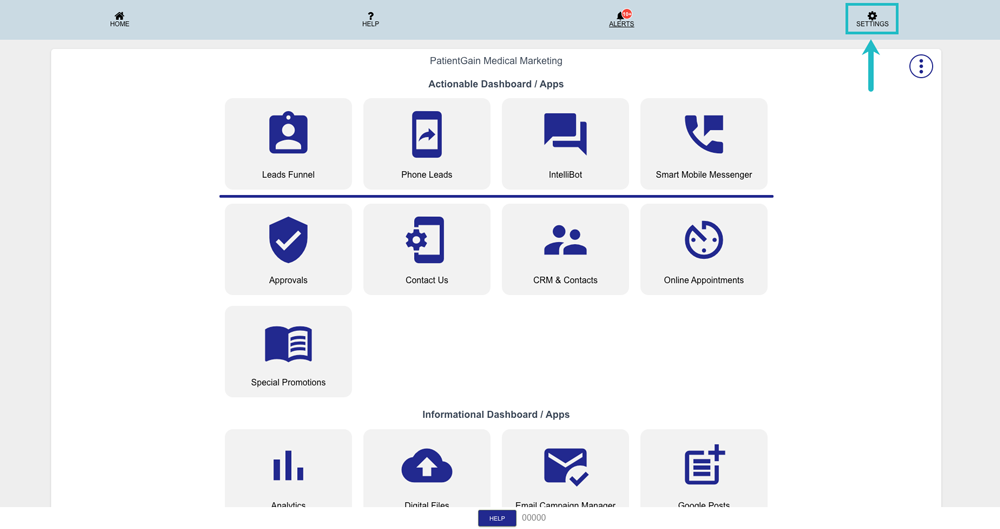
From your Main Dashboard – Click on “Settings” from the top right corner.
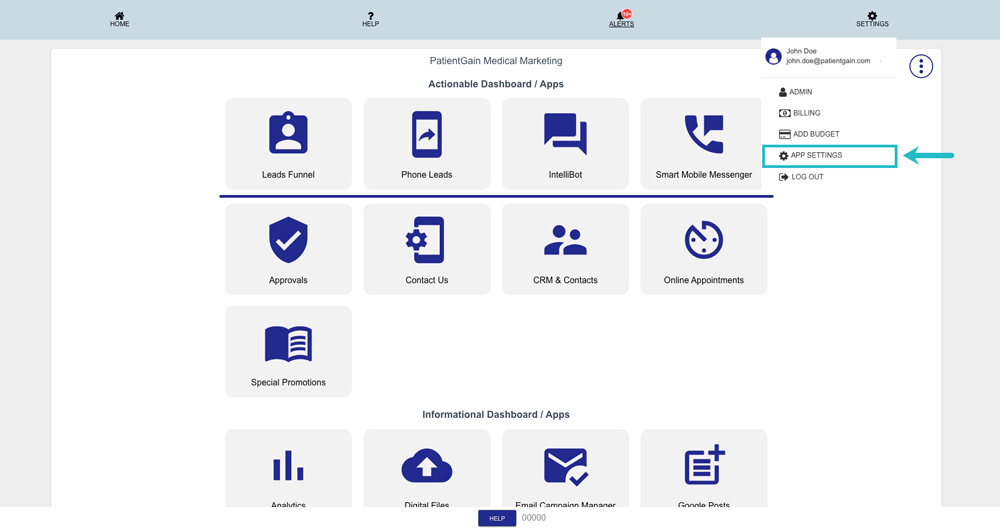
Then, click on the “App Settings” from the drop-down menu.
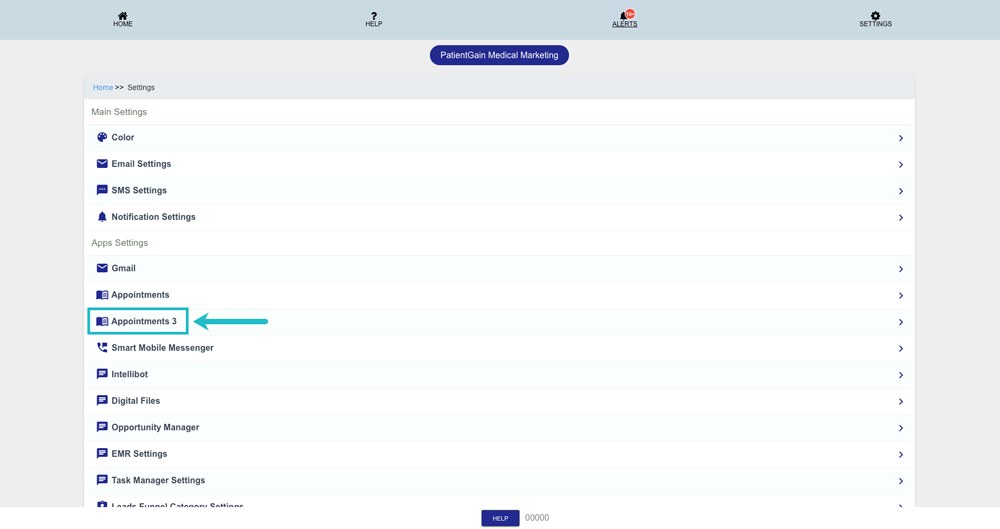
Now, from the main settings page click on “Appointments 3”.
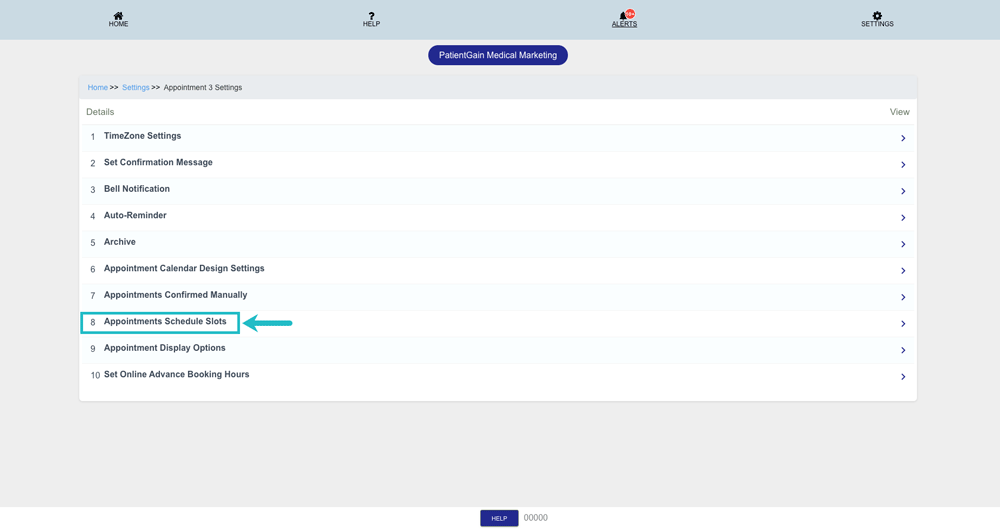
Then, click on the 8th option “Appointments Schedule Slots”.
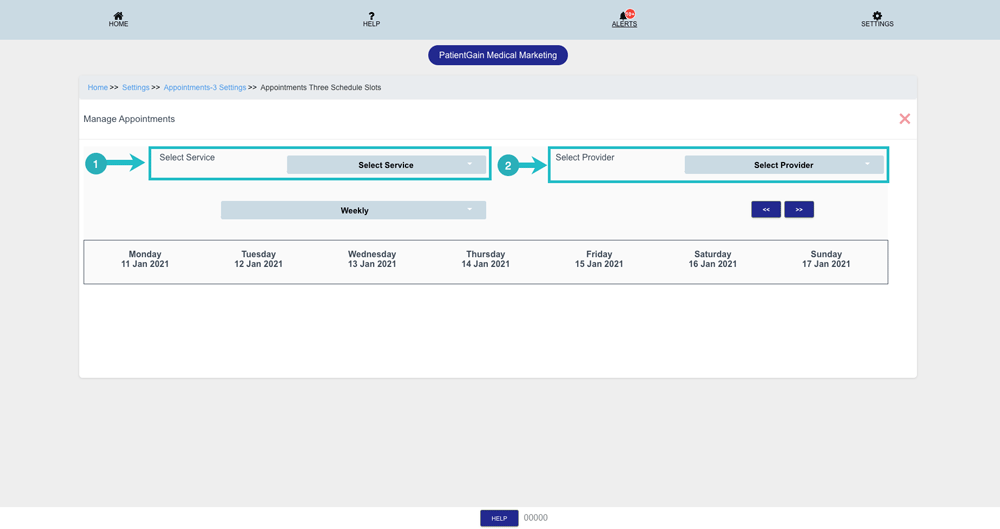
Now, on the scheduler page you will see the following options:
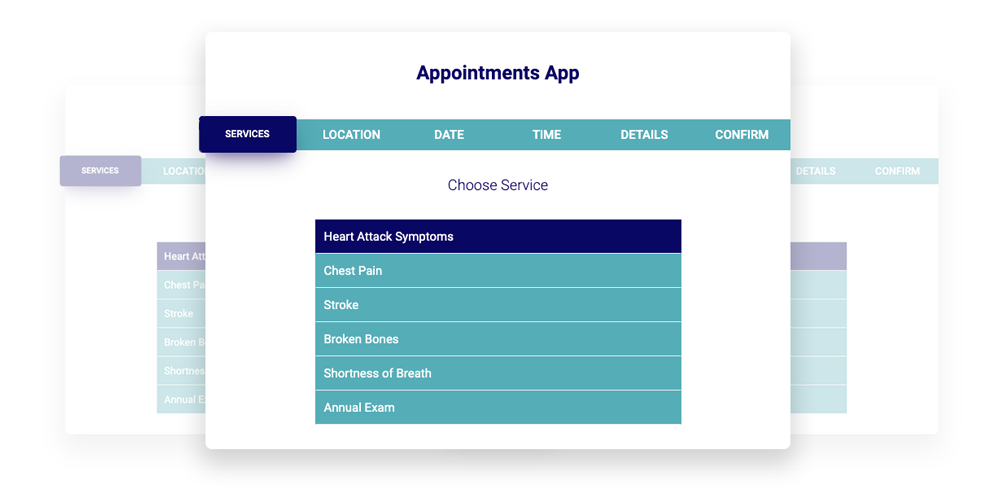
- Select Service: Select the service which you want to update the scheduler.
- Select Provider: Select the provider which you want to update the scheduler.
Note: Each service is linked with a provider. Please make sure you choose the correct provider which is associated with that service.
Now, You will be able to see all the time slots from the selected service.
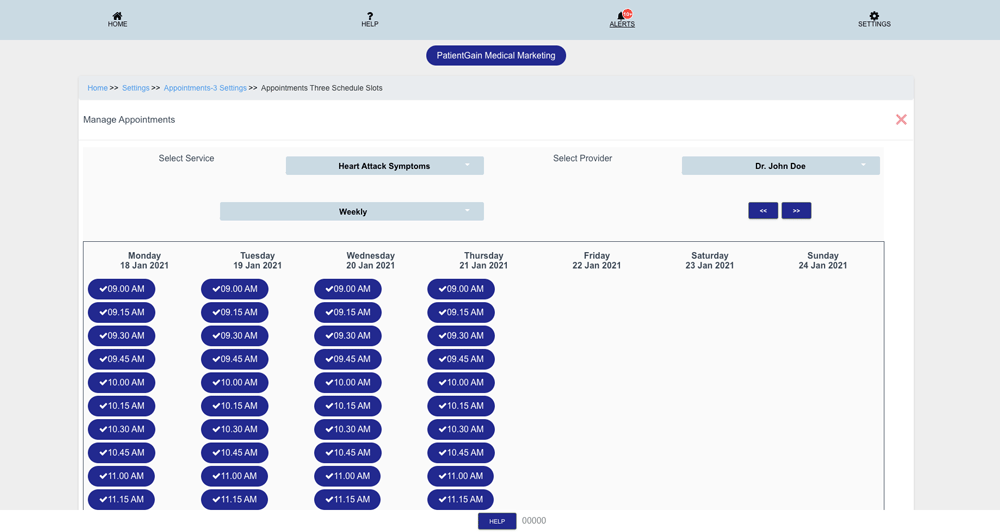
Then, Click on the time-slot which you want to disable from the app.