How to Upload Files in Digital Files App
Upload Files in Digital Files App
1) Upload Files in Digital Files App From Desktop
2) Upload Files in Digital Files App From iPhone

Upload Files in Digital Files App From Desktop
Login to your PatientGain/Logica7 account
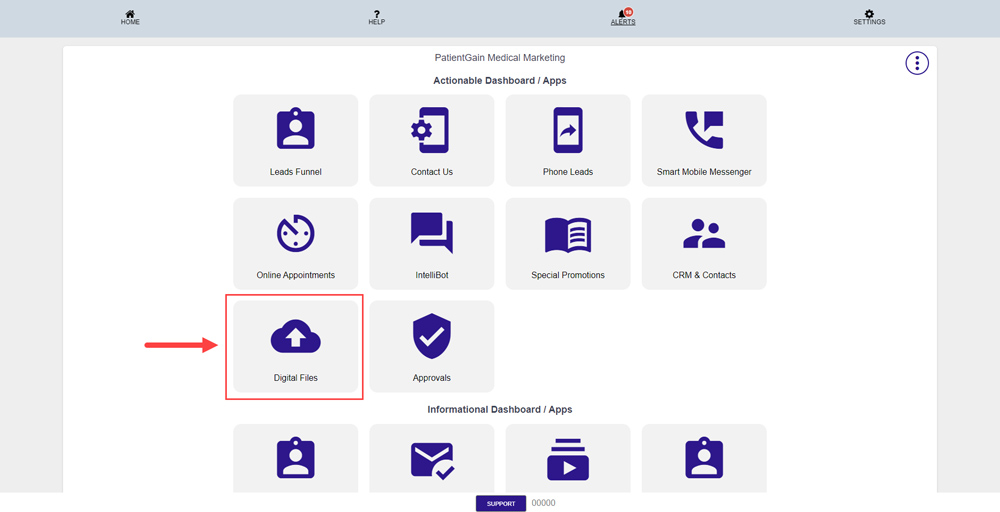
- From the Main Dashboard, Click on the “Digital Files App”.
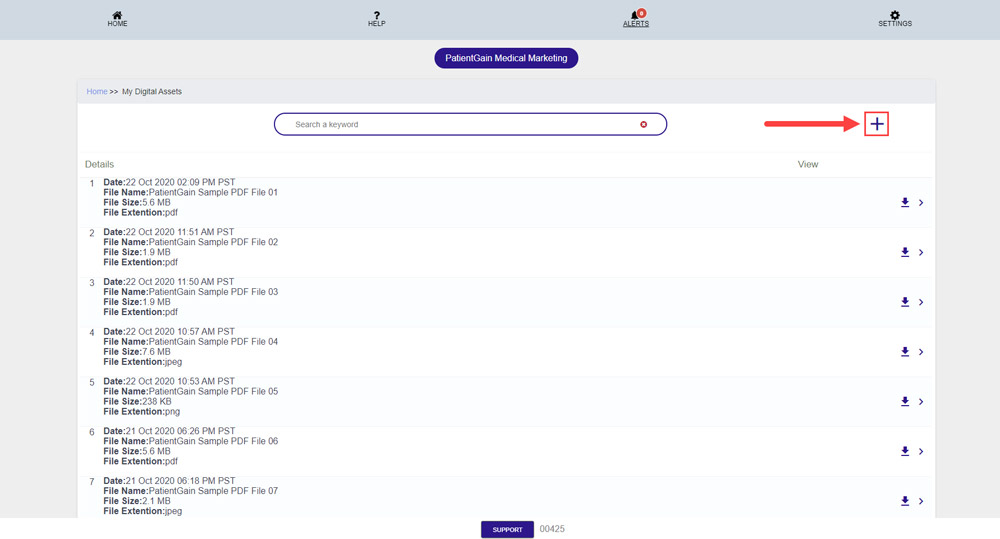
From the Top right corner click on the “+” plus icon to upload new files.
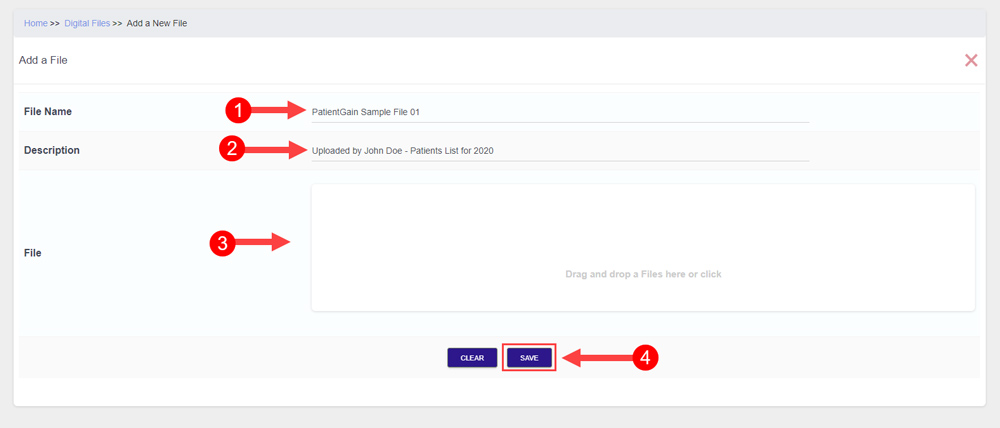
Now – On the Uploading Screen fill out the following fields:
- Name of the File – So you can search for this file from the files listing page.
- Description about the File – A little description about the file (For e.g. “Uploaded by John Doe – Patients List for 2020”)
- Upload the file or Drag and Drop into the upload box from your computer.
- Click on “Save” button to Upload the file.
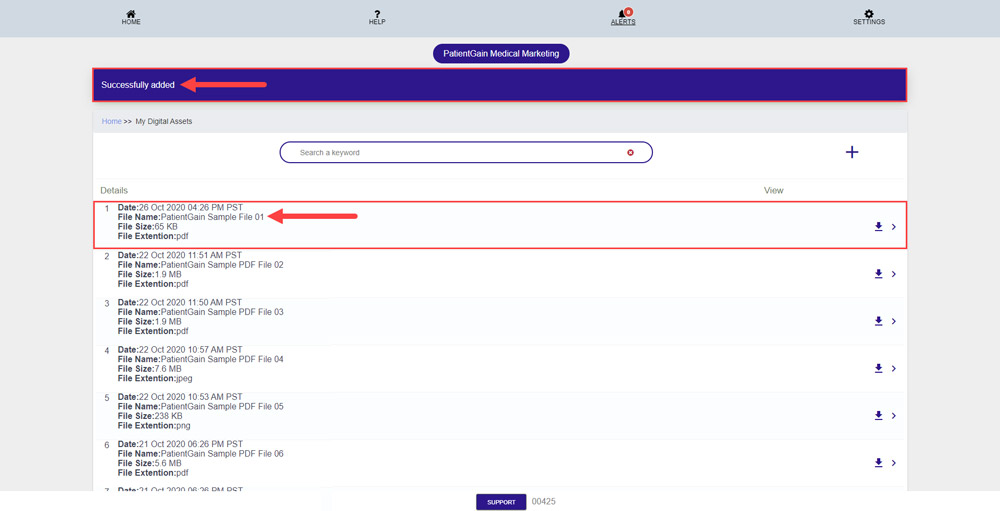
Once you see the success message “Successfully added” – This means your file has been successfully uploaded.

Upload Files in Digital Files App From iPhone
Login to your PatientGain/Logica7 account
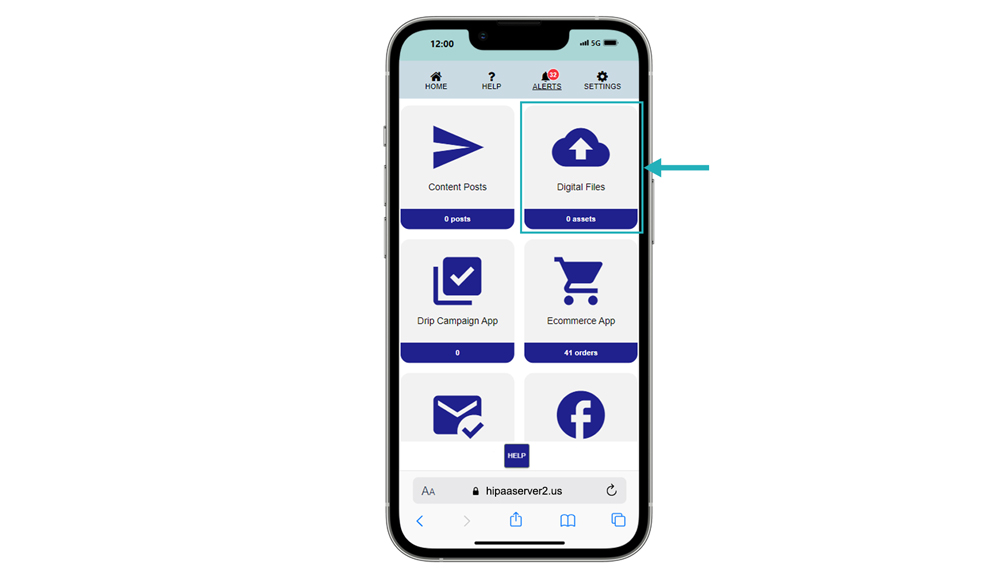
- From the Main Dashboard, Click on the “Digital Files App”.
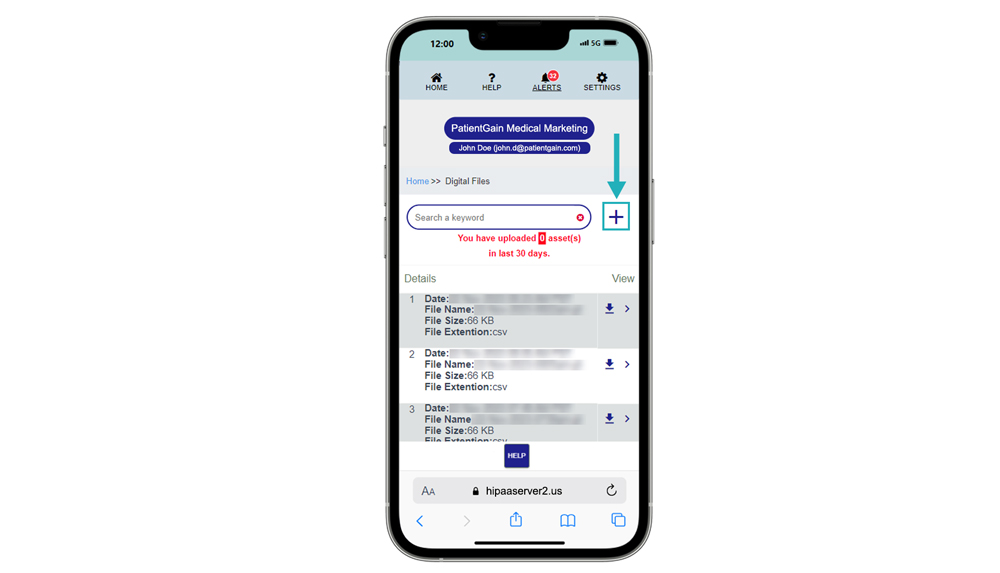
For the next step, please click the “+” symbol.
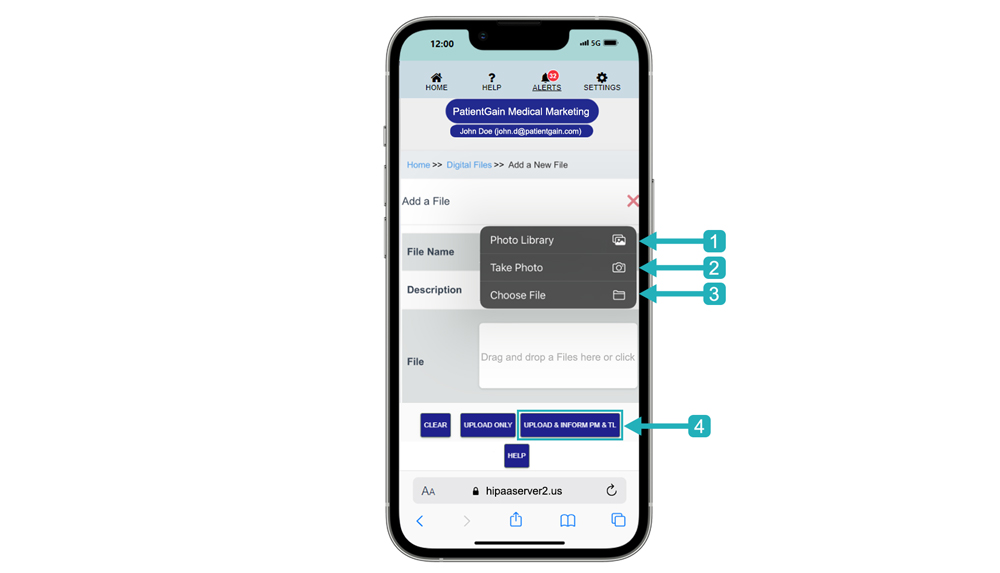
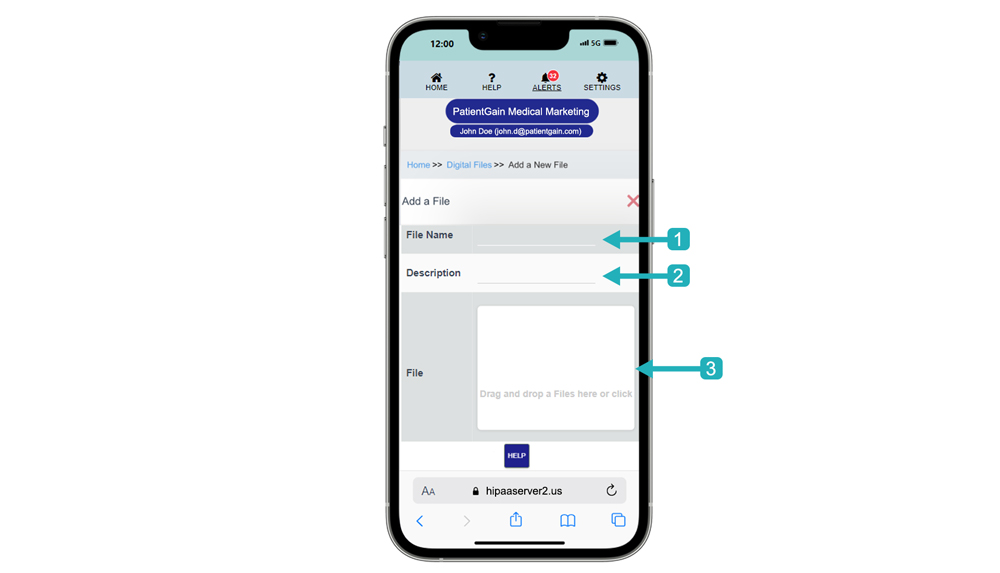
On this page, you can upload an image. First, enter a descriptive name for your file in the “File name” field. Next, provide a brief description of the image in the “Description” field. Finally, click the “File” section to browse and select the image file you want to upload.
Select Your Image Source:
- Photo Library: If you have an existing image, tap “Photo Library” and choose the desired image from your gallery.
- Take Photo: If you want to capture a new image, tap “Take Photo” and use your device’s camera to capture the image.
- Choose File: If the image is stored elsewhere on your device, tap “Choose File” and navigate to the file location for upload.
Once you’ve chosen your image, click “Upload and Inform PM & TL.”