
How to Send Review Requests to Specific Contact
Send Review Requests to Specific Contact
From your Main Dashboard – Click on the “CRM & Contacts App”.

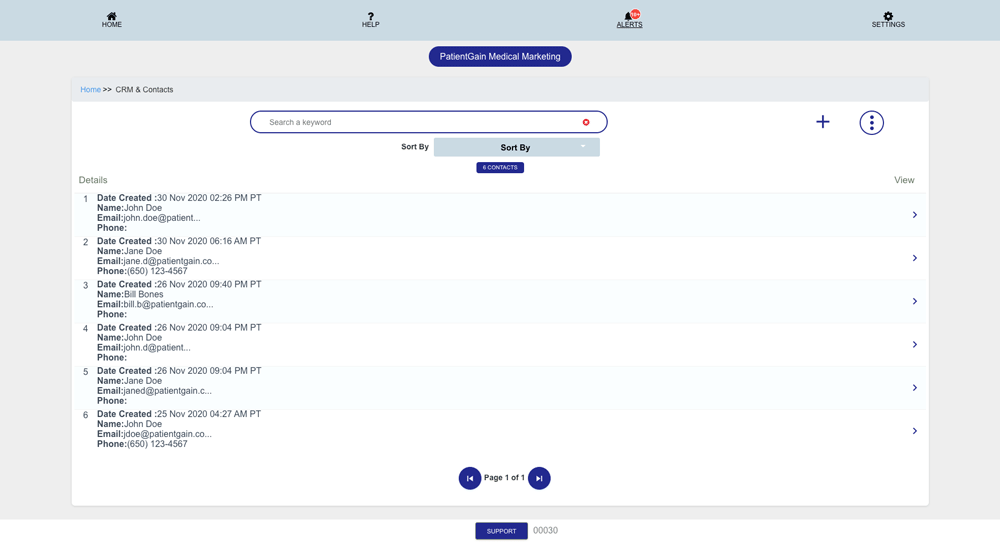
Then, You will see the list of all the contacts in your CRM/ Contacts App.
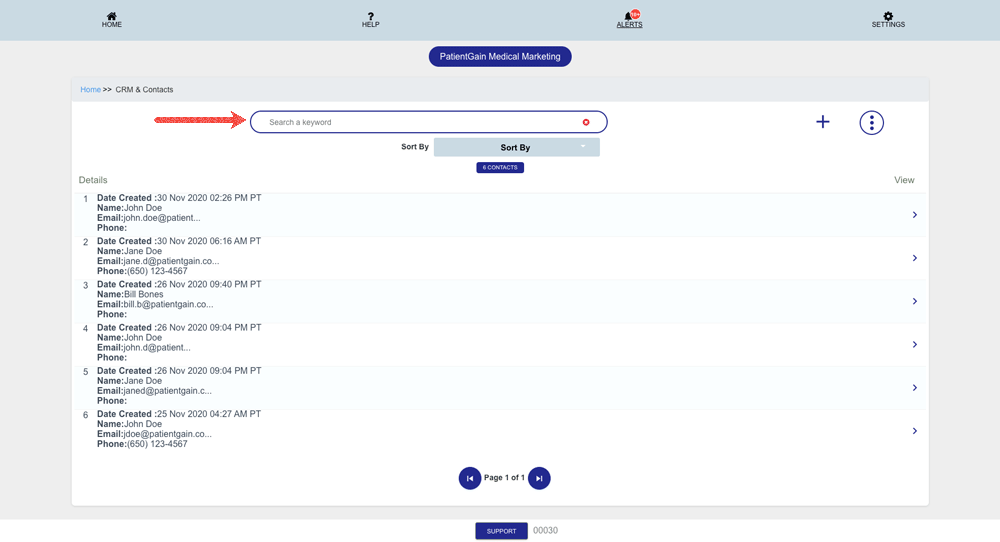
Search for the contact you want to send review request.
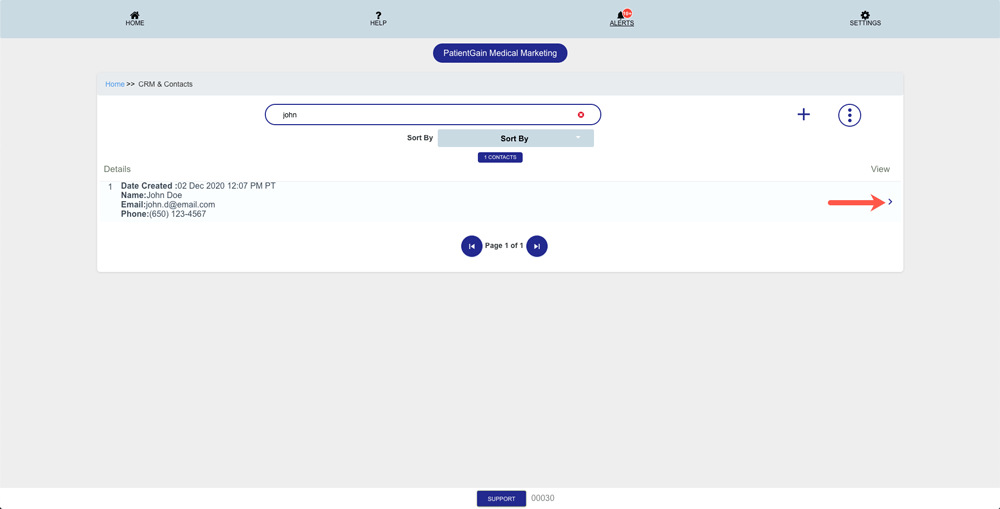
Now, Click on the one you want to send Review Request.
Then, on the details page you will see the complete profile of the patient.
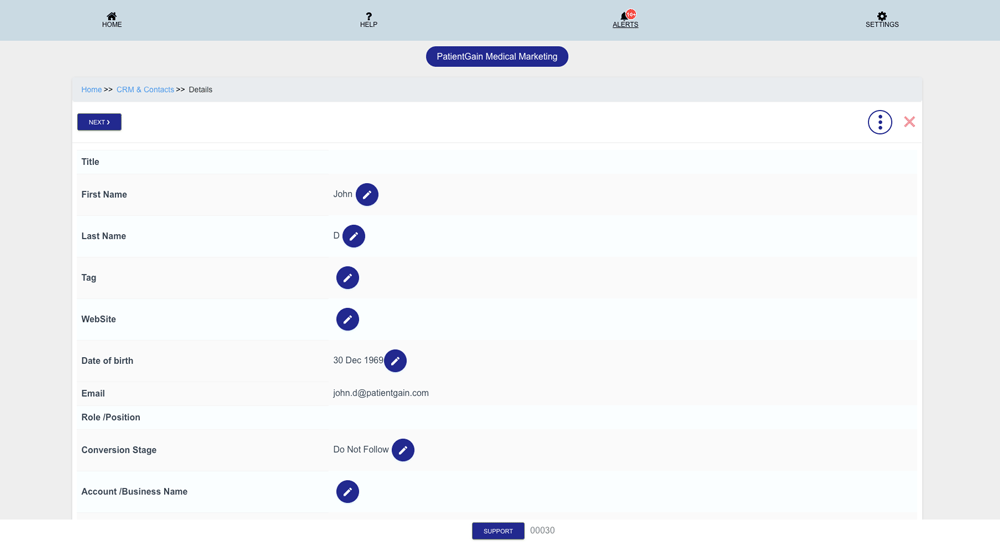
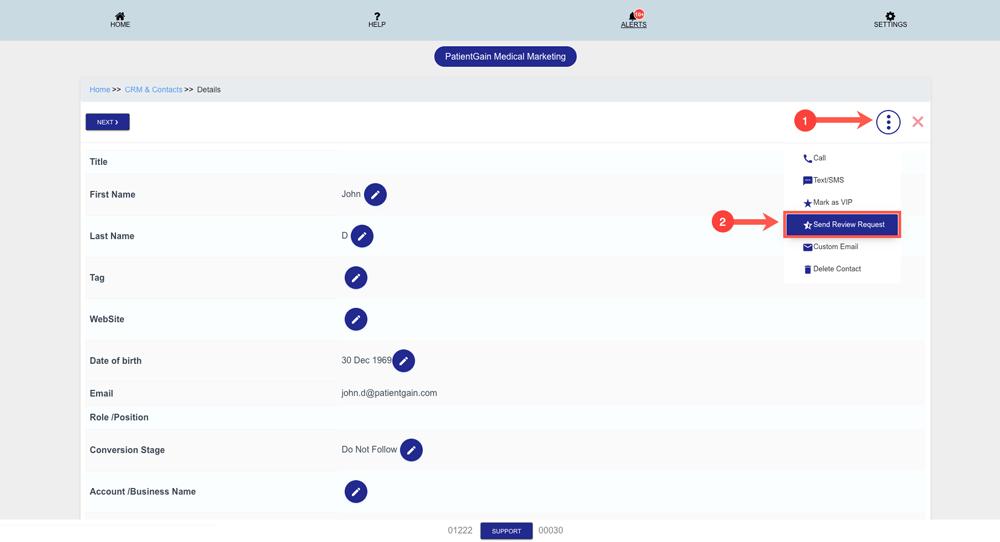
From the top right corner – Click on the “More Options” icon and then click on “Send Review Request”.
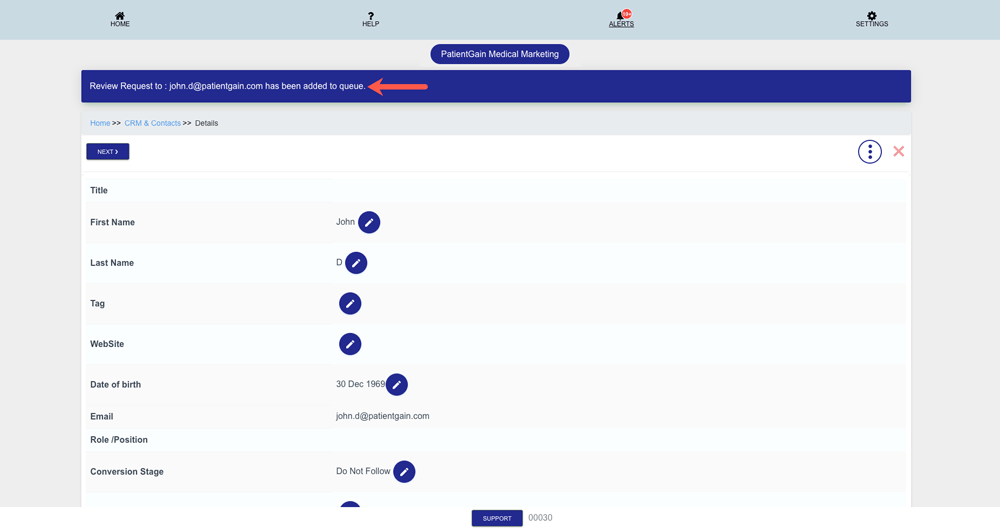
Now, You will see the Thank You message saying that Review Request has been added to queue. The system will process your request and will send it to your contact.
Once the system process your request – The contact will receive the request from the request.
Preview of the Review Request Email:

