
How to Save Password and Login on Phone
Save Password and Login on your Phone
1) For iPhone Users
2) For Android Users
Follow the steps to save Password and Login for iPhone Users
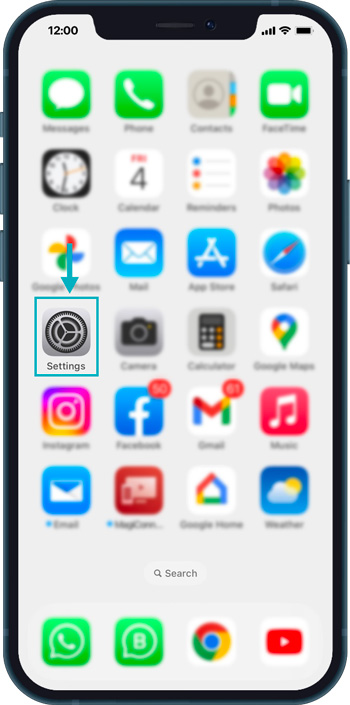
First, Open Settings on your iPhone.
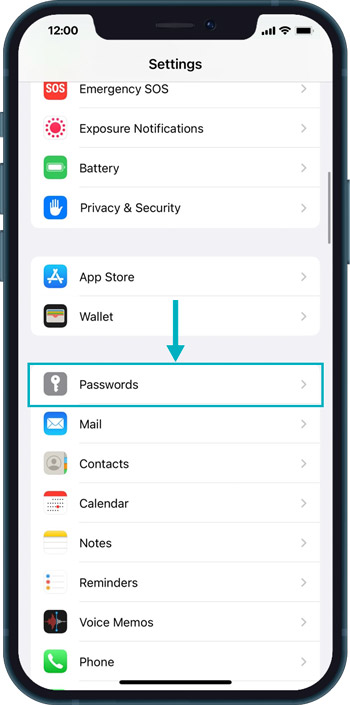
Then Tap on “Passwords”.
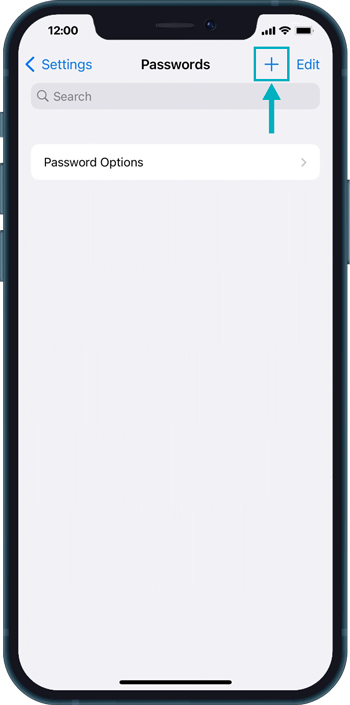
Then in Passwords, Tap on the right top “Plus” icon.
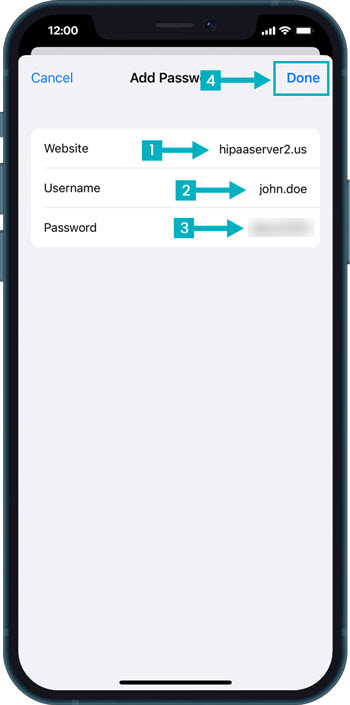
Then Enter the Details as follows:
- Website: hipaaserver2.us
- Username: Enter the username provided to you from Patientgain’s Team
- Password: Enter the password provided to you from Patientgain’s Team
- Then Tap on “Done” from the top right corner.
Then open Safari and go to “hipaaserver2.us” and Tap on username field.
Open a new Private/Incognito window in your browser (for e.g. Google Chrome or Firefox, etc)
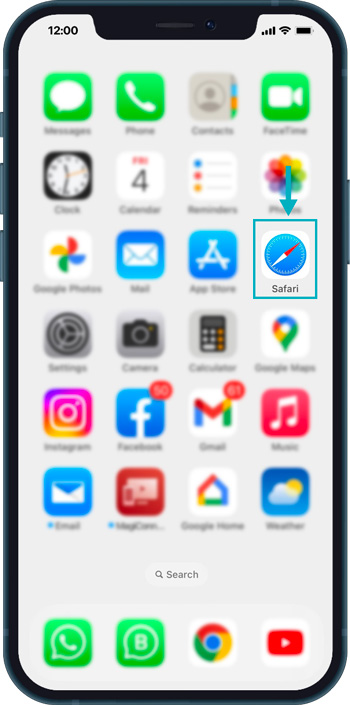
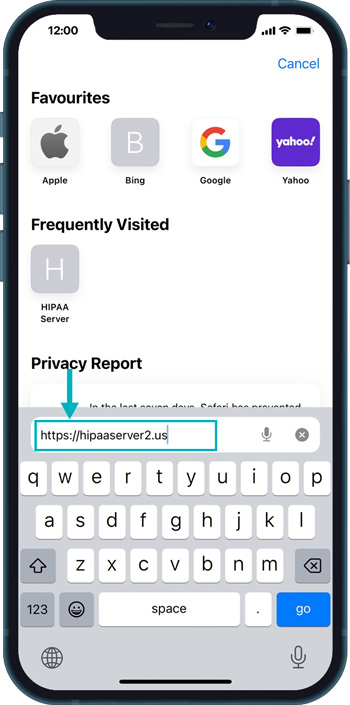
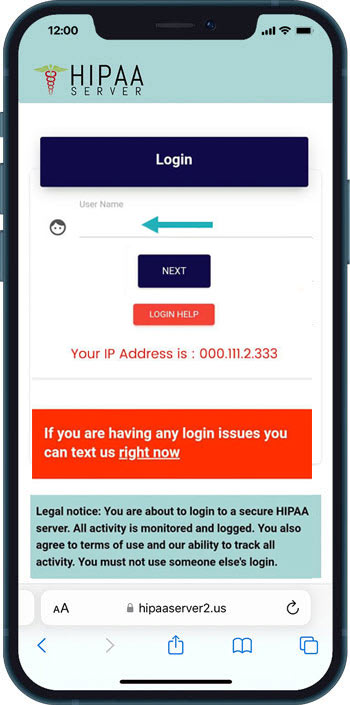
Then Tap on the “Use [username]” button.
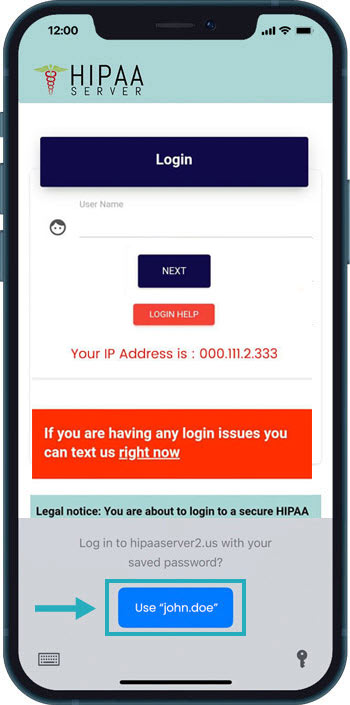
Now you will see that Username and Passwords are automatically filled in – You just need to type in the Security Code and Tap on the “LOGIN” button.
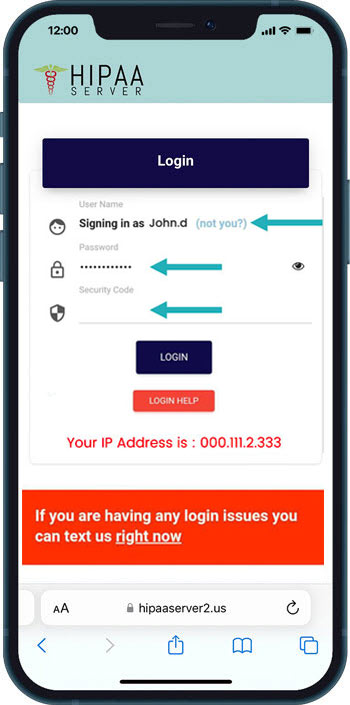
Now anytime you want to log-in to your HS2 Dashboard from your iPhone – Just go to hipaaserver2.us and You can login easily with One-Tap login Method.

Follow the steps to save Password and Login for Android Users
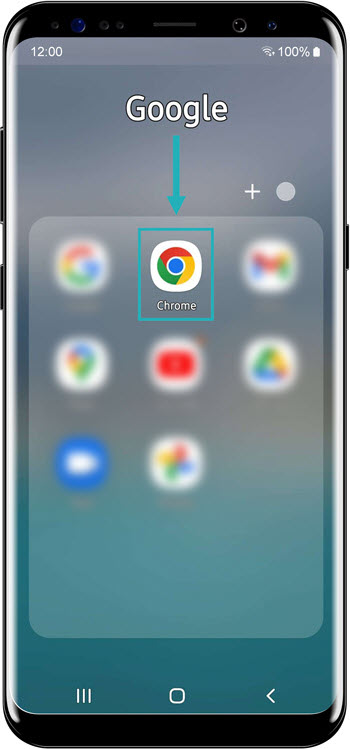
First, Open Google Chrome on your Android Phone.
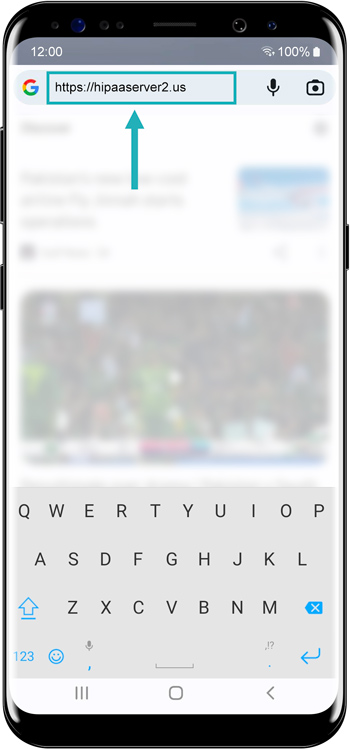
Then enter the URL “https://hipaaserver2.us“
Open a new Private/Incognito window in your browser (for e.g. Google Chrome or Firefox, etc)
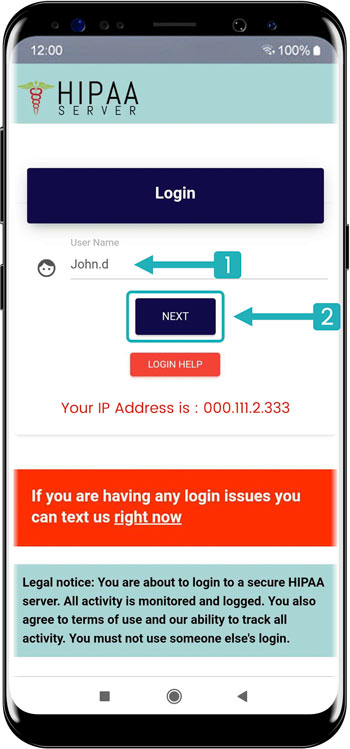
Username: Enter the username provided to you from Patientgain’s Team and click on the “Next” button.
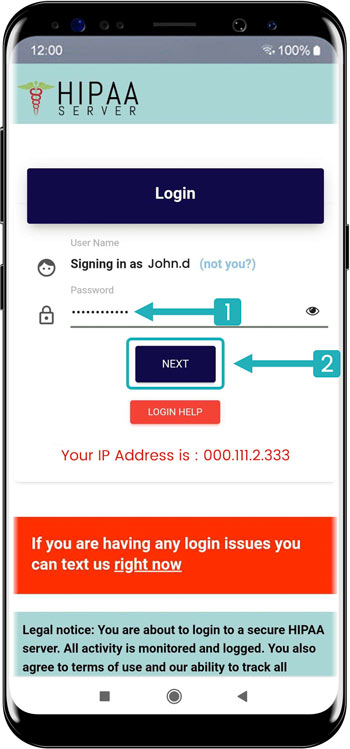
Password: Enter the password provided to you from Patientgain’s Team and click on the “Next” button.
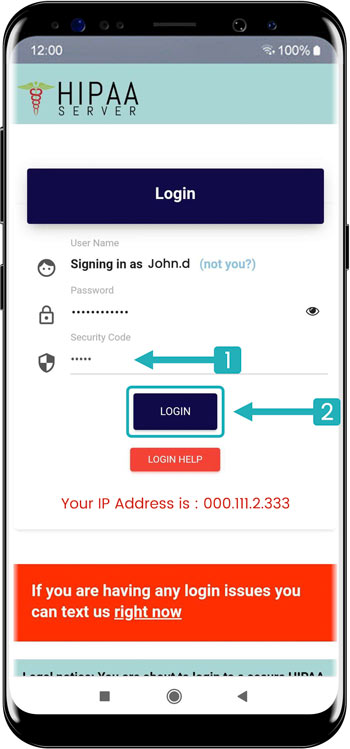
Security Code: Enter the security code provided to you from Patientgain’s Team and click on the “Login” button.
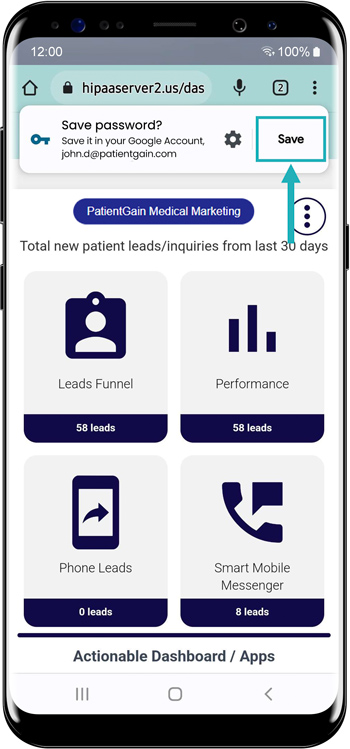
Click on SAVE button, to save this User Name and Password.
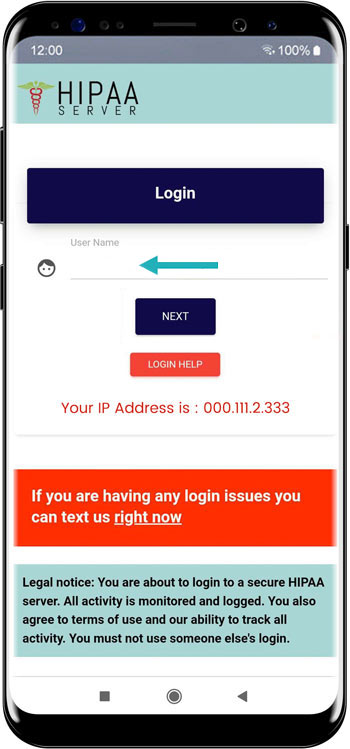
Now, open your chrome browser again in the Private/Incognito window and enter the URL “https://hipaaserver2.us” and just tap on Username.
This is the Auto-Fill request for your Save Password. Click on the ‘Continue’ Button.
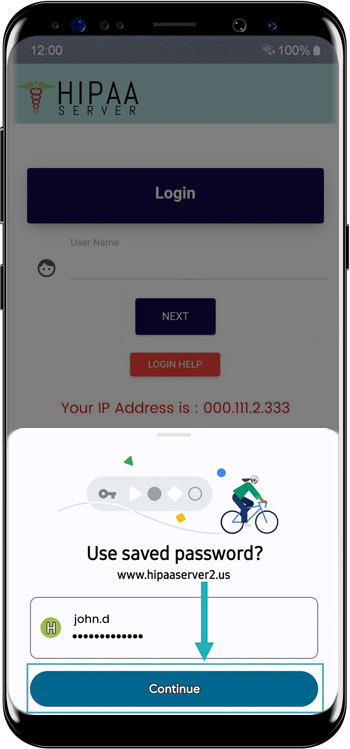
This is the Auto-Fill request for your Save Password. Click on the ‘Continue’ Button.
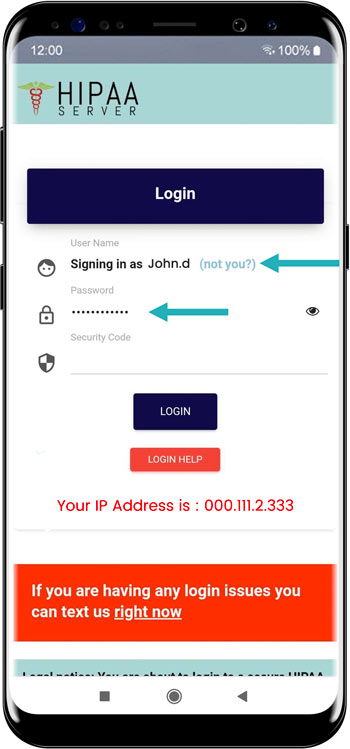
Now anytime you want to log-in to your HS2 Dashboard from your Android – Just go to hipaaserver2.us and You can login easily with One-Tap login Method.
