How to Login/Logout Into HIPAA Server 2 From Desktop, Iphone, Ipad and Android

How to Login/Logout Into HIPAA Server 2 From Desktop, Iphone, Ipad and Android

Login/Logout Into HIPAA Server 2 From Desktop, Iphone, Ipad and Android
How to Login/Logout Into HIPAA Server 2 From Desktop, Iphone, Ipad and Android

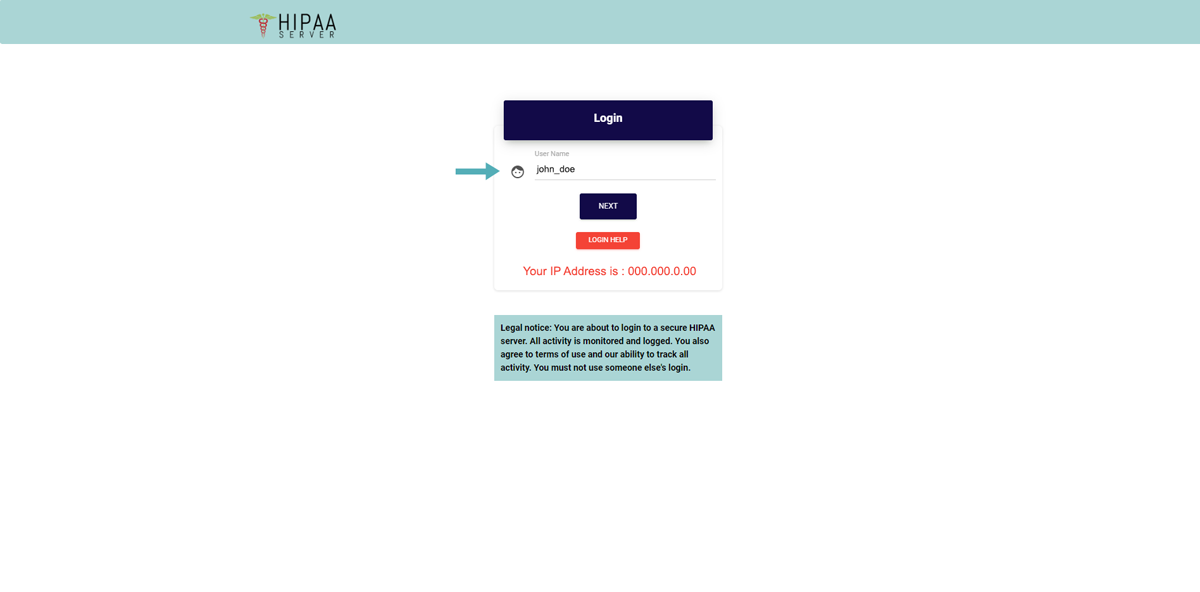
First Go to www.hipaaserver2.us

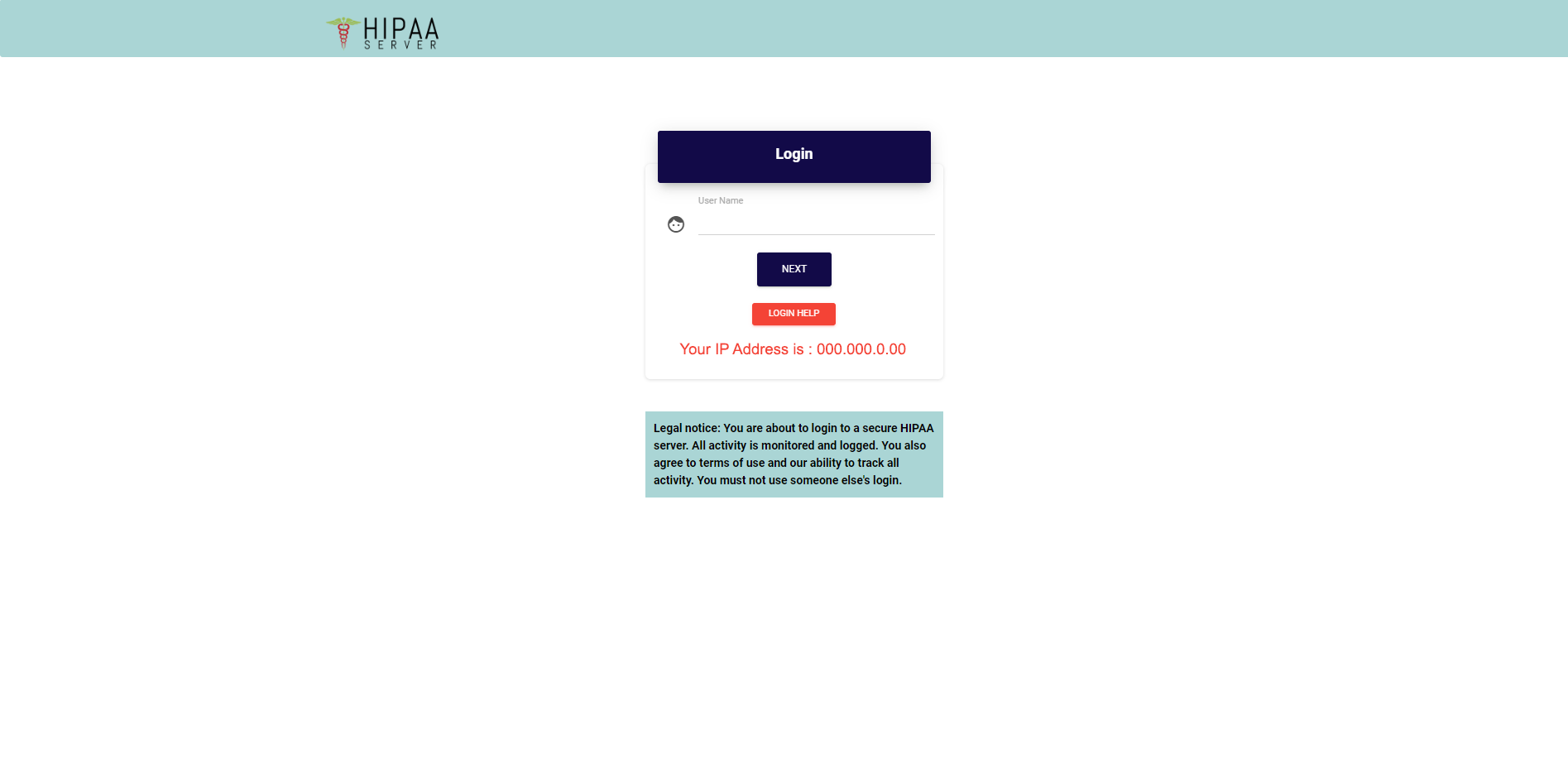
  • First enter the “User Name” then click on “Next” button
How to Login/Logout Into HIPAA Server 2 From Desktop, Iphone, Ipad and Android

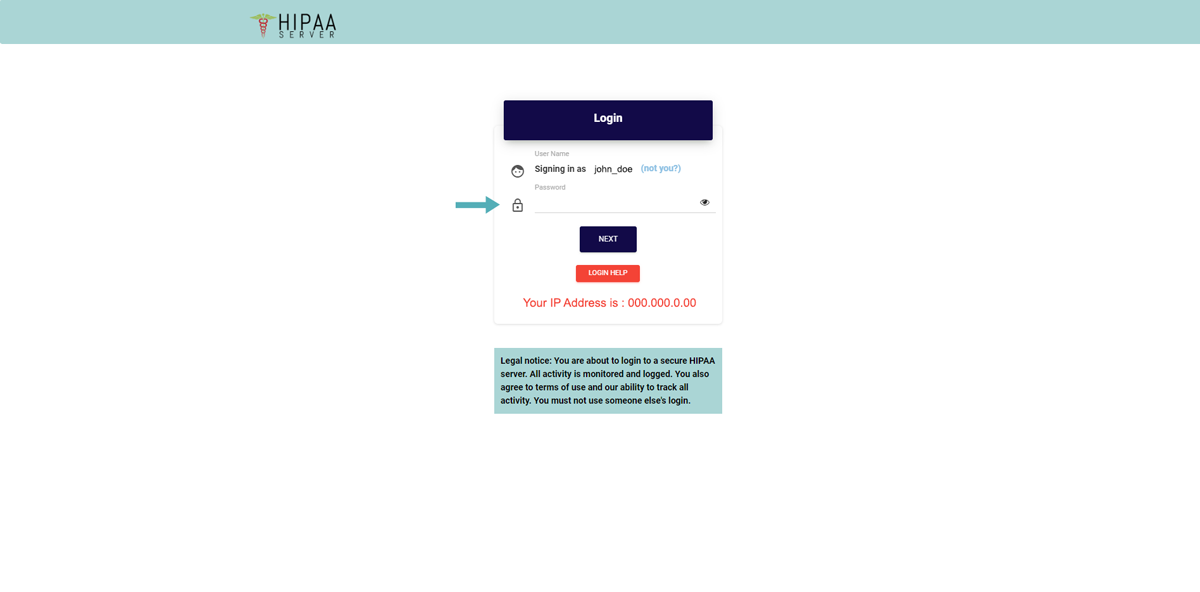
Enter your “Password” and click on “Next” button
How to Login/Logout Into HIPAA Server 2 From Desktop, Iphone, Ipad and Android

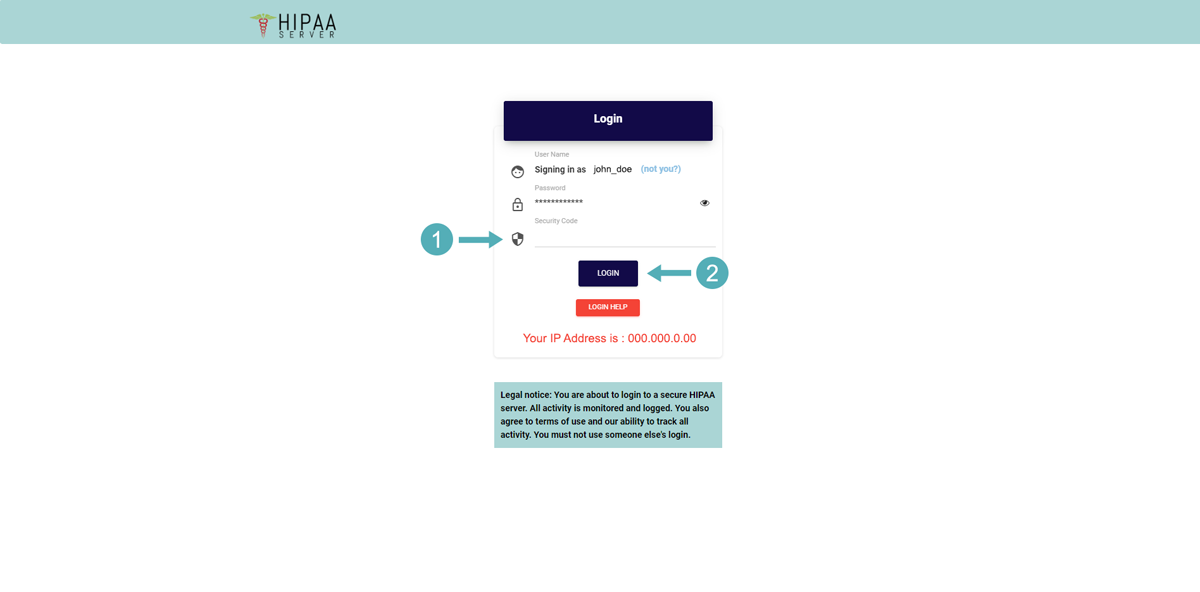
Enter the “Security Code” then click on “Login” button
How to Login/Logout Into HIPAA Server 2 From Desktop, Iphone, Ipad and Android

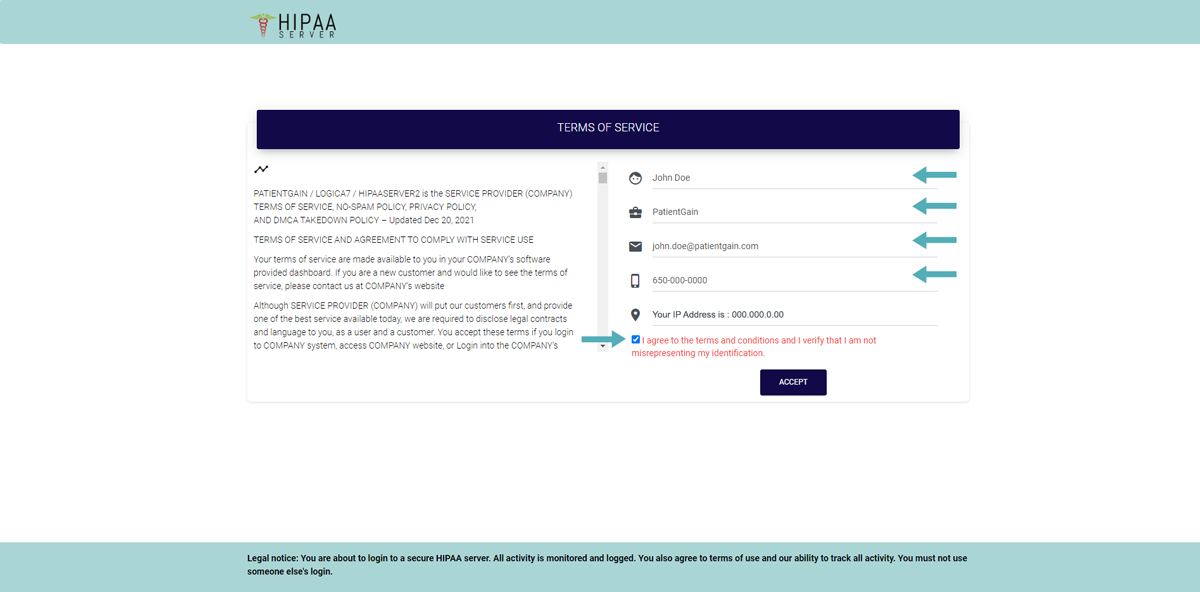
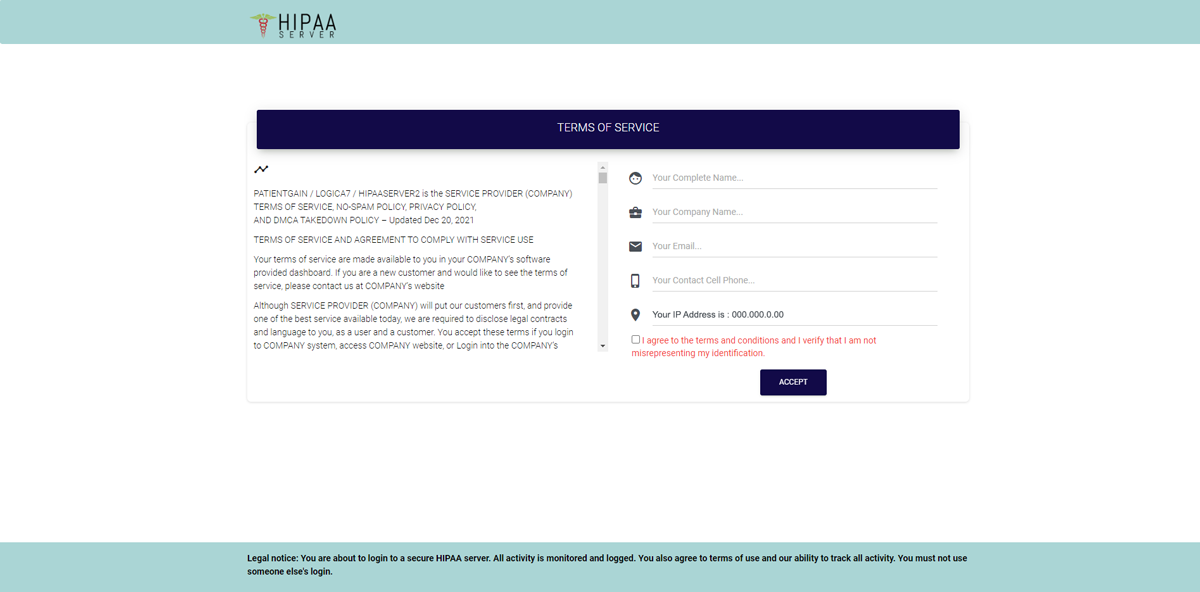
Fill all the required fields and enable the checkbox.
How to Login/Logout Into HIPAA Server 2 From Desktop, Iphone, Ipad and Android

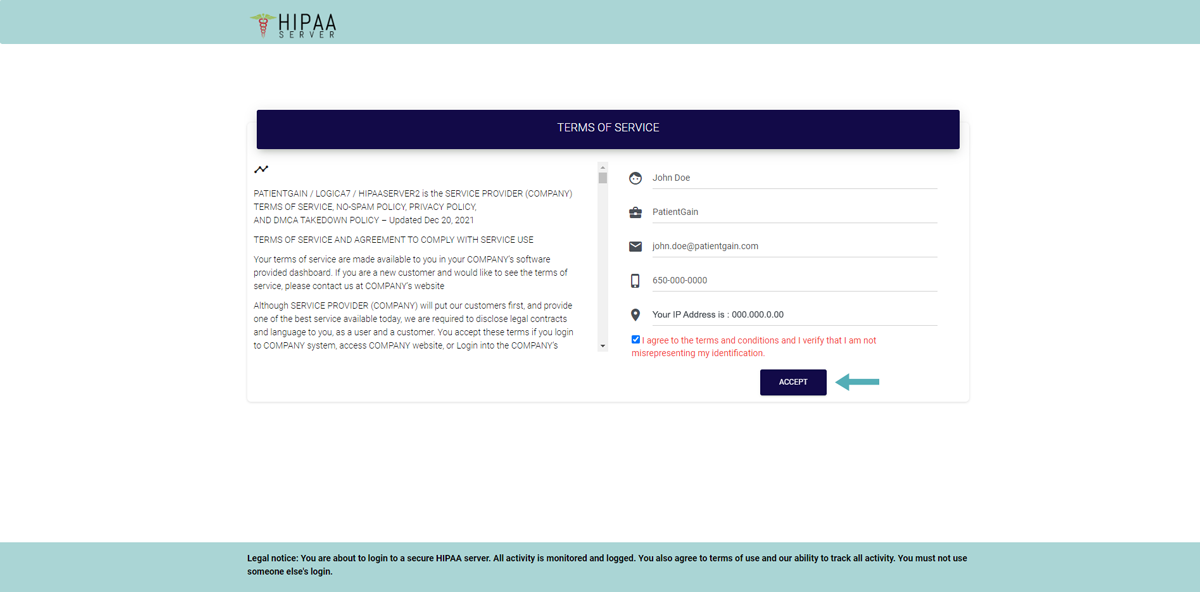
Now click on the “Accept” button.

How to Login/Logout Into HIPAA Server 2 From Desktop, Iphone, Ipad and Android

Once you have successfully logged into your account – You can start using your New Dashboard.
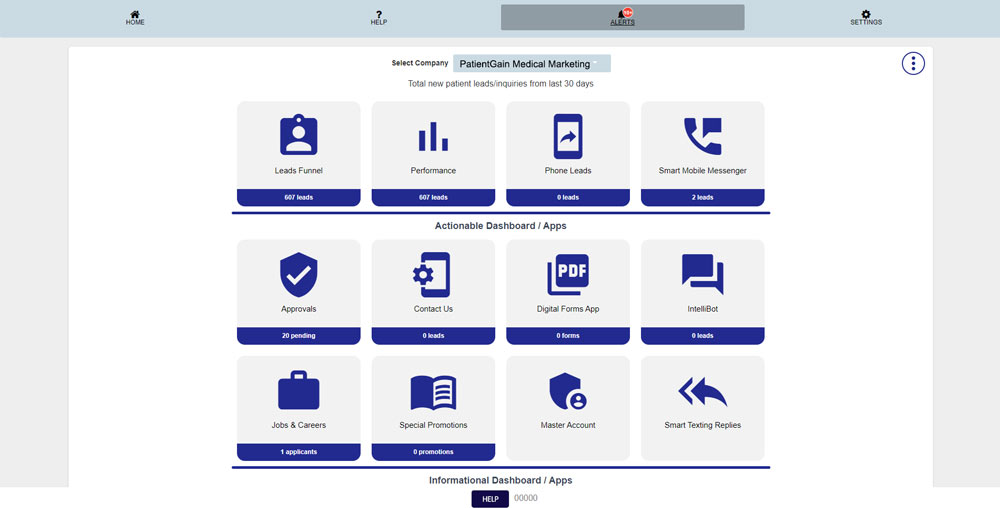
How to Login/Logout Into HIPAA Server 2 From Desktop, Iphone, Ipad and Android

Additional Information for Multi Location Customers:

Once you have successfully logged in to your New Dashboard – You can easily switch between your Child Locations from the “Locations Dropdown Menu”.
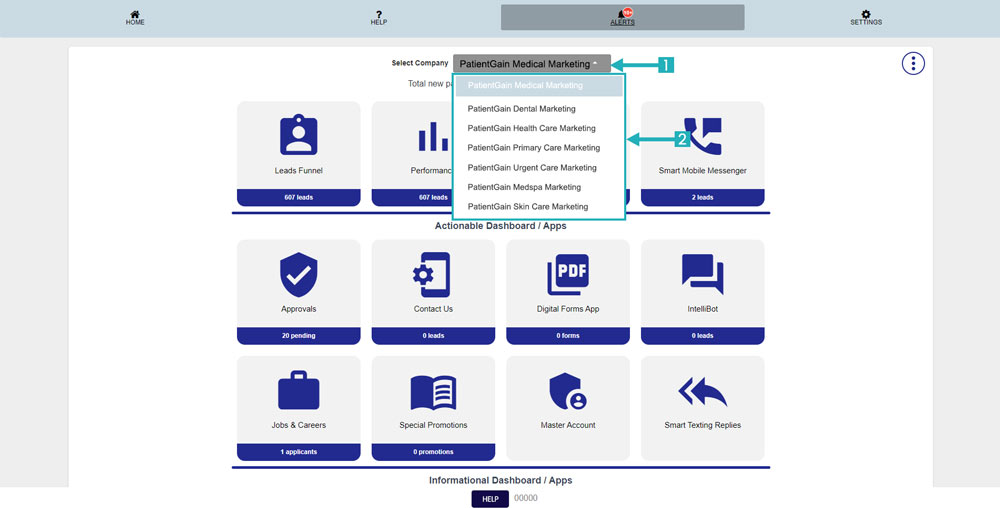
How to Login/Logout Into HIPAA Server 2 From Desktop, Iphone, Ipad and Android

User Log Out Guide

From your Main Dashboard – Click on the “Settings” icon from the Top right corner.
Then Click on the “Log Out” option.
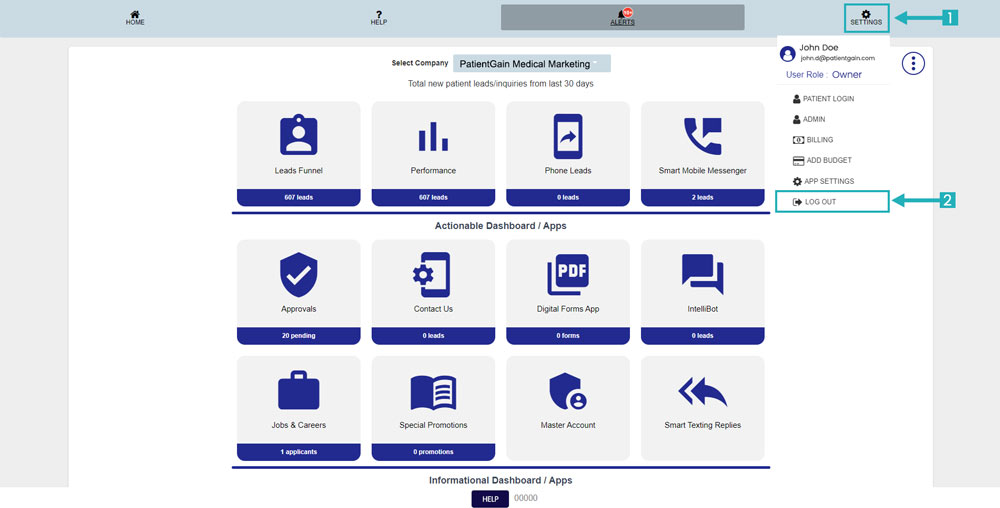
How to Login/Logout Into HIPAA Server 2 From Desktop, Iphone, Ipad and Android