How to Check Leads From Phone Leads App
Check Leads From Phone Leads App
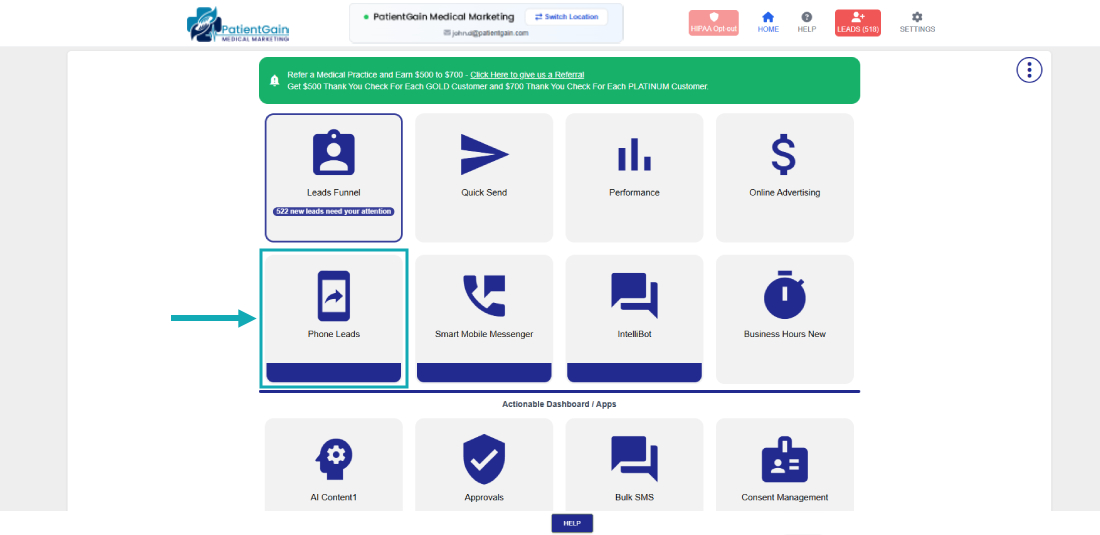
From your Main Dashboard – Click on “Phone Leads” app.
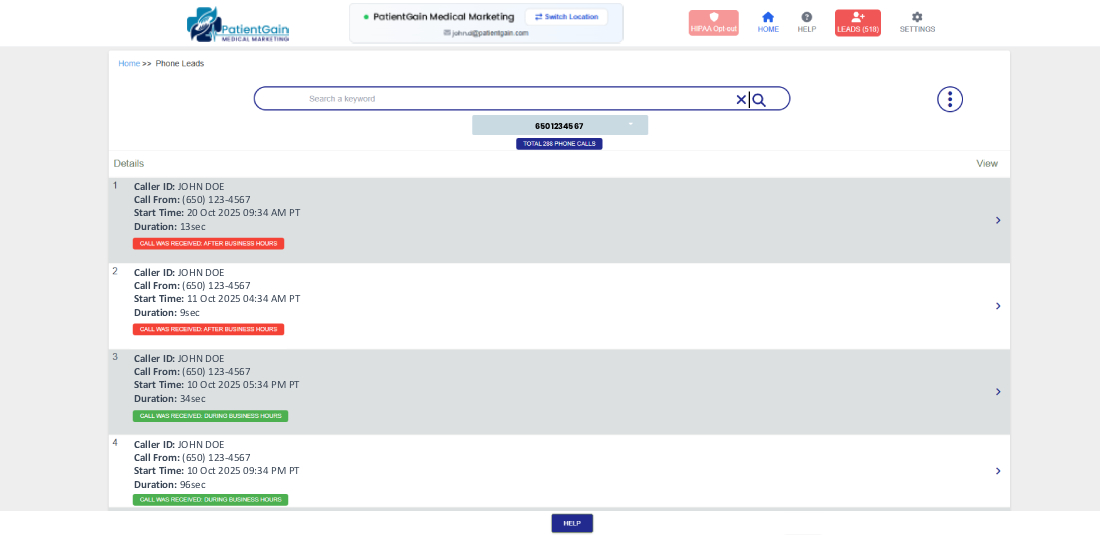
Then you will see the list of all phone calls you have received.
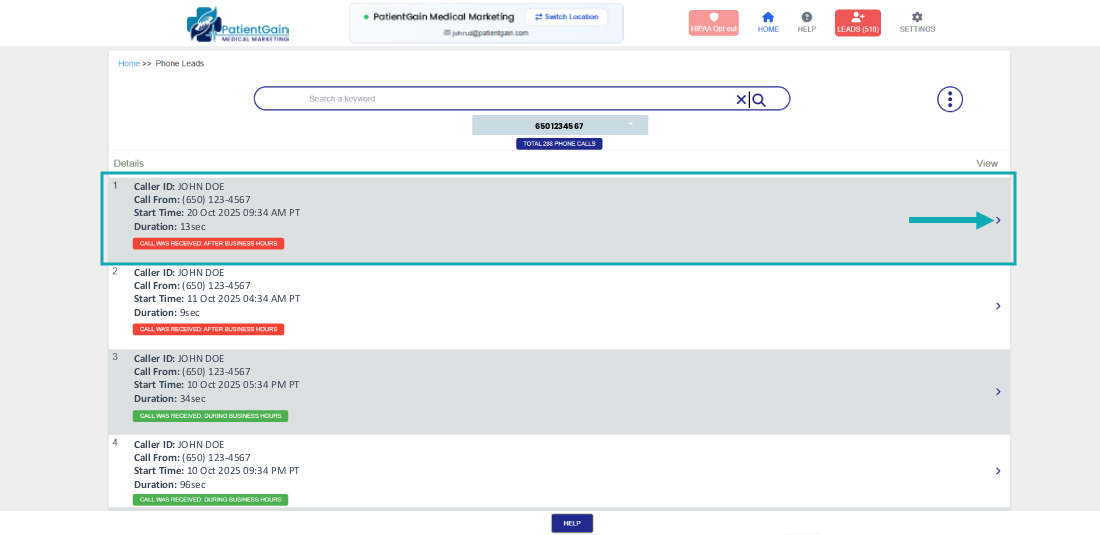
Now, click on the entry which you want to see the details.
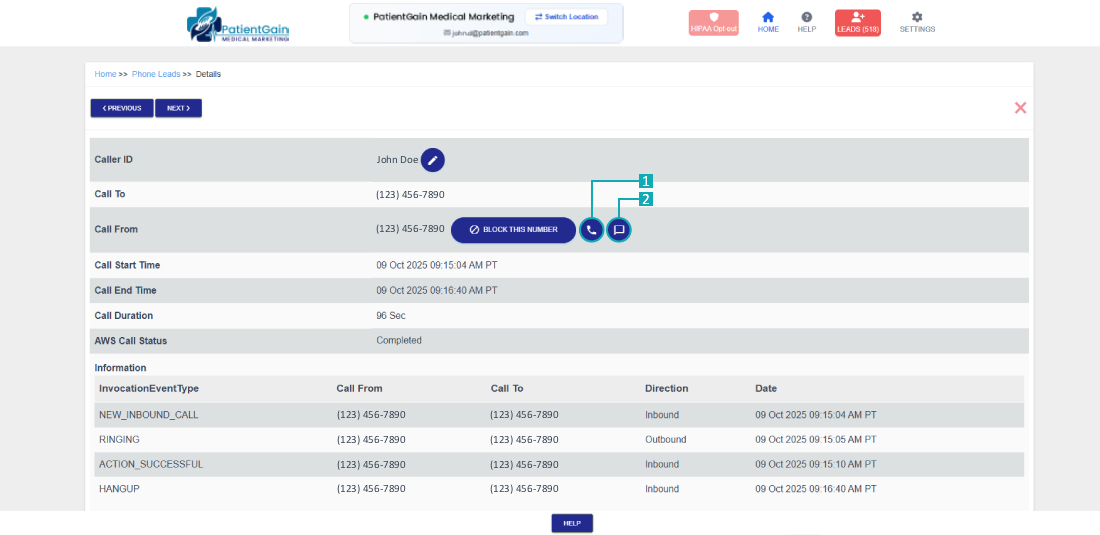
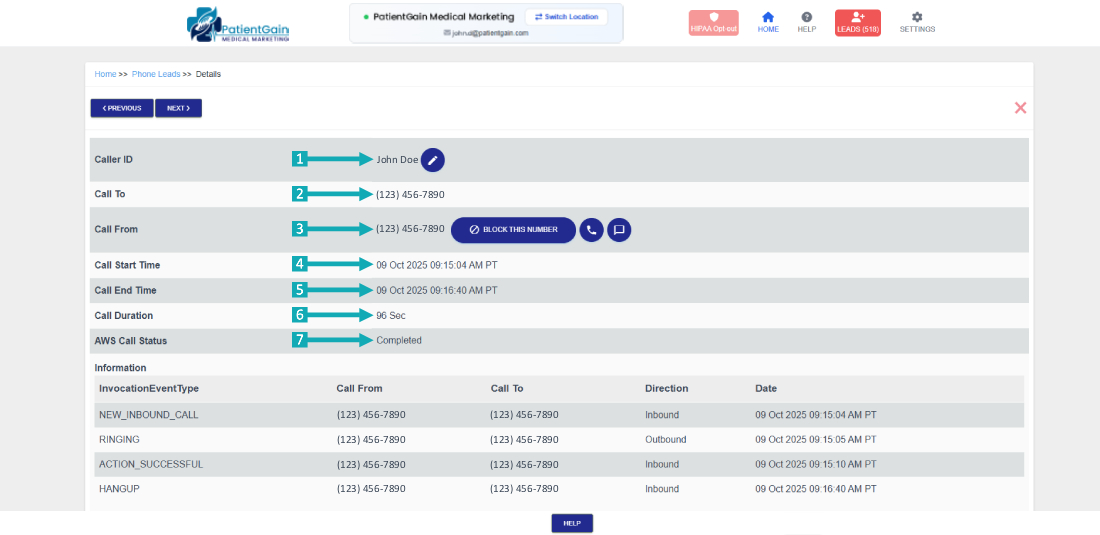
Then, on the details page you will see the following details:
- Caller ID: In this area the name of the Caller will be displayed here.
- Call To: This area will display your Call Tracking number.
- Call From: This area will display the phone number from which you have received the call from.
- Call Start Time: This area will display the time and date when the call was initiated.
- Call End Time: This area will display the time and date when the call was terminated.
- Call Duration: This area will display the duration of the Call in (Seconds).
- Call Status: This area will display the status of the Call (for e.g. Completed or Incomplete)
Additional Information:
You can also contact the Lead through the following options:
- Call Button: You can call back to your Patient by clicking on the Call Button (Note: If you are using the dashboard from your Mobile Phone then the call will be placed from your Mobile Number)
- Texting Button: You can also Text the patient using our Texting app “Smart Mobile Messenger” (Note: This feature is only available to GOLD Plus and above customers).