How to Confirm Appointments via Text and Email
Easily manage your meetings with the appointment request app. An online booking system allows customers to request appointments through an online platform.
Appointment Confirmation Guide
From your Main Dashboard click on the “Online Appointments App”.

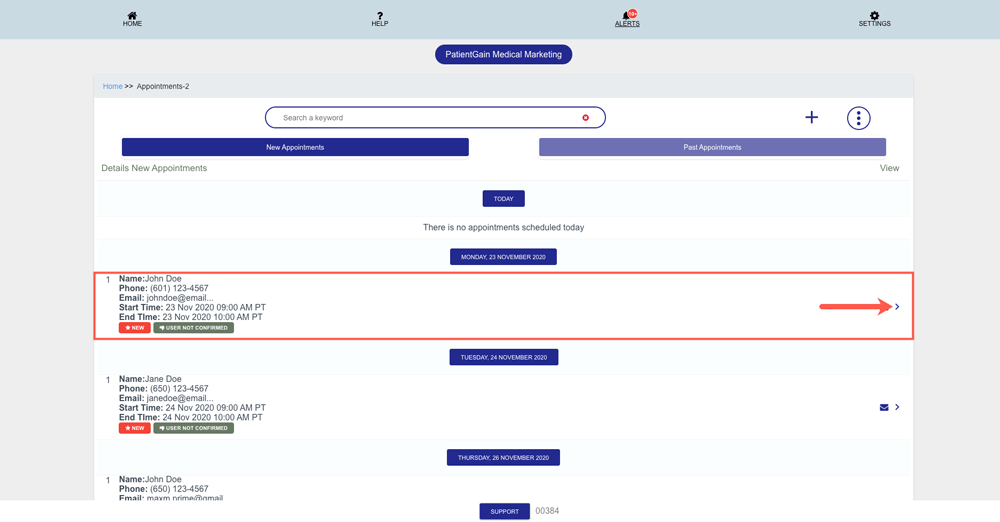
Now, You will see the list of all the appointments, click on the one which you want to send confirmation email or text.
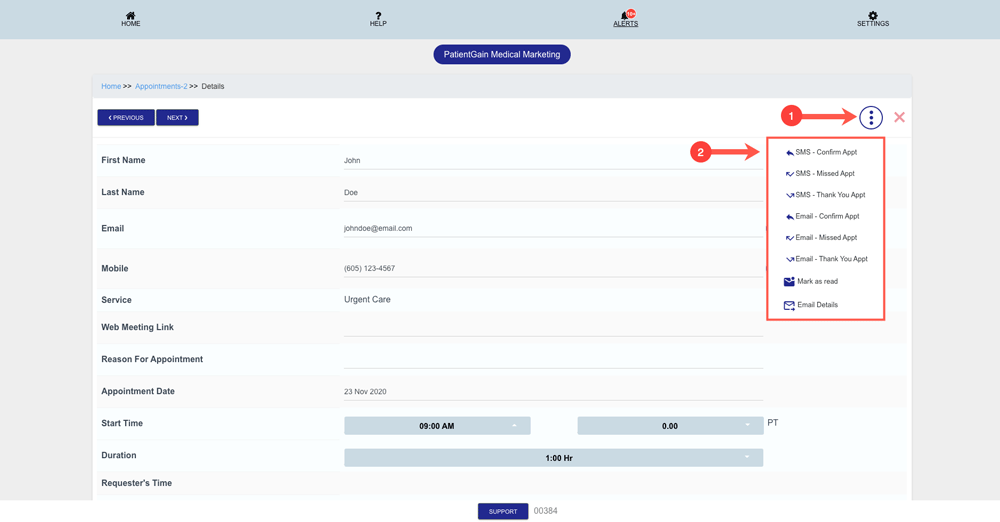
Then, On the details page – Click on the “More Options” icon and you will see the following options:
- SMS – Confirm Appt: Send confirmation appointment text message to patient. So they can confirm the appointment via text.
- SMS – Missed Appt: Send missed appointment message to patient so they can reschedule their appointment.
- SMS – Thank You Appt: Send thank you message to patient, so they can provide feedback about their visit.
- Email – Confirm Appt: Send confirmation email to patient. So they can confirm the appointment via email.
- Email – Missed Appt: Send missed appointment email to patient so they can reschedule their appointment.
- Email – Thank You Appt: Send thank you email to patient, so they can provide feedback about their visit.
- Mark as read: Once you have completed this patients appointment you can mark it as read.
- Email Details: You can also send this appointment details to your email.
Additional Steps:
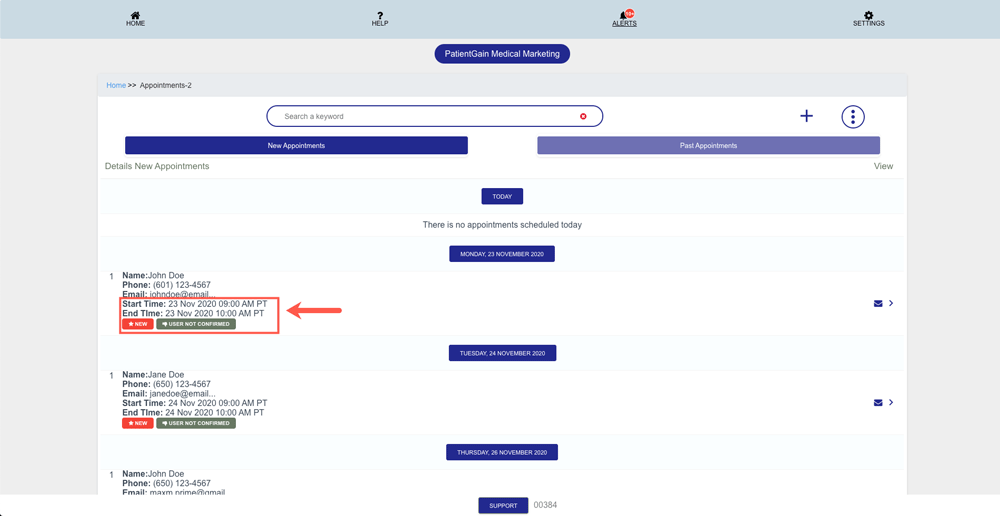
If the default time works for you – Then you can skip this step. Otherwise please follow the steps below to update the time before you confirm the appointment.
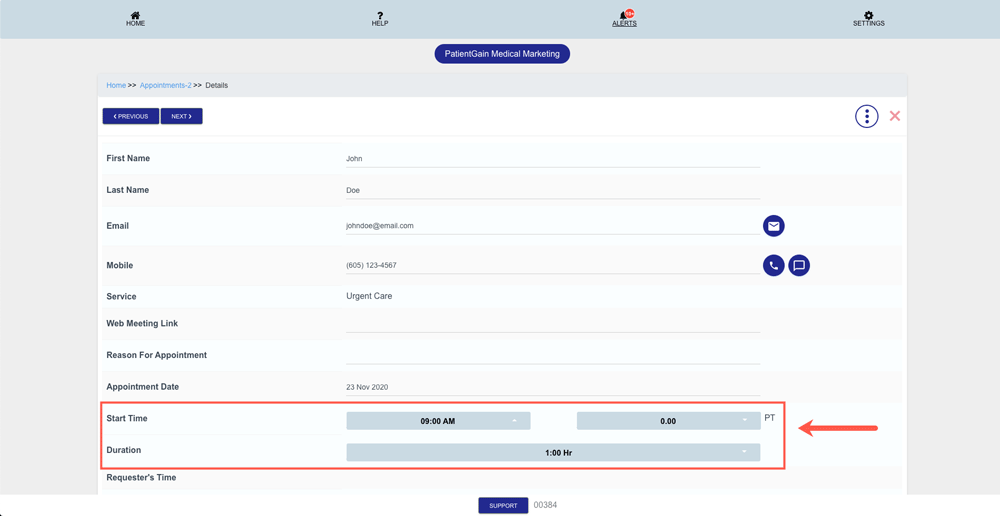
If you want to update the time, then on the details page – Please select the desire time you want to update.
Note: Please make sure you select the time as per Patients request AM/PM.