How To Approve The Posts From Your Dashboard
Approve The Posts From Your Dashboard
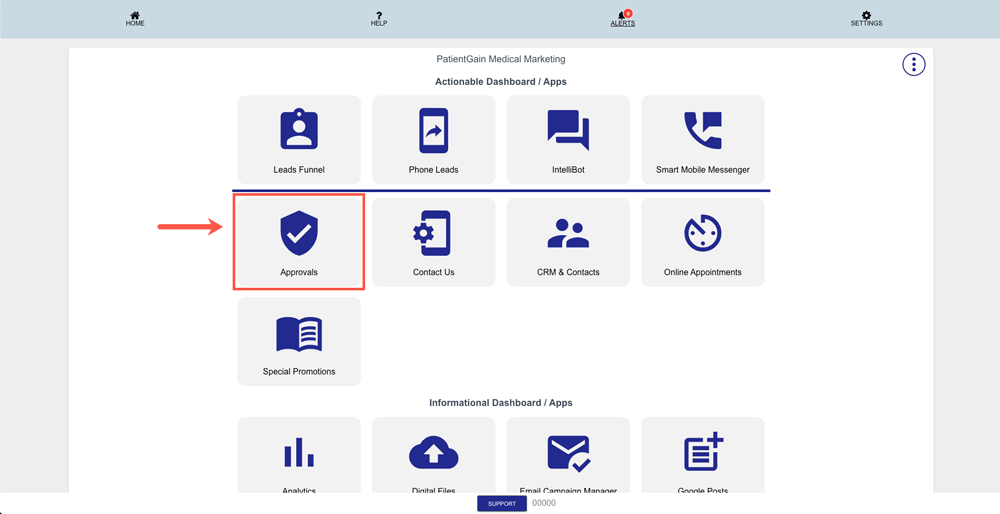
Login to your PatientGain/Logica7 account
- From the Main Dashboard – Click on the “Approvals App”.
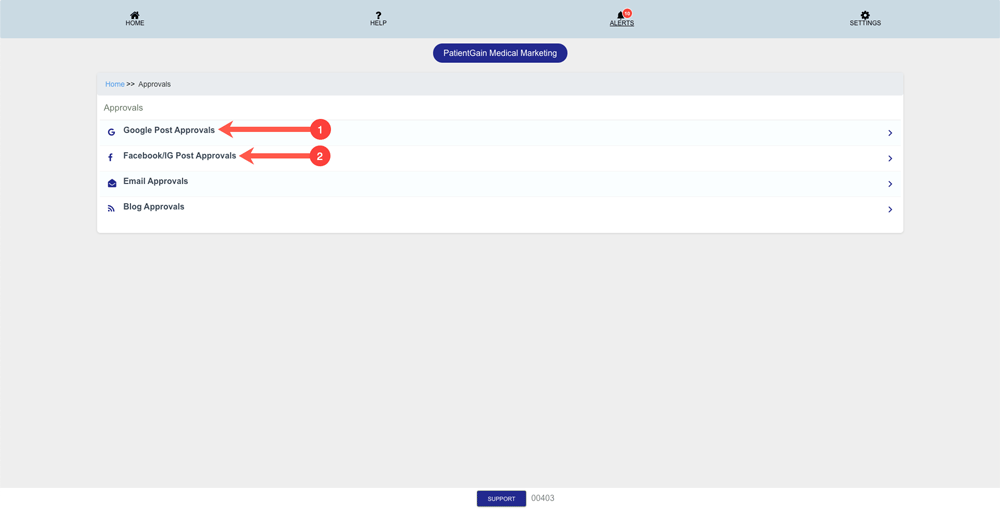
Now, You will see two options:
- Google Post Approvals (Click here to Read More)
- Facebook/IG Post Approvals (Click here to Read More)
Google Post Approvals:
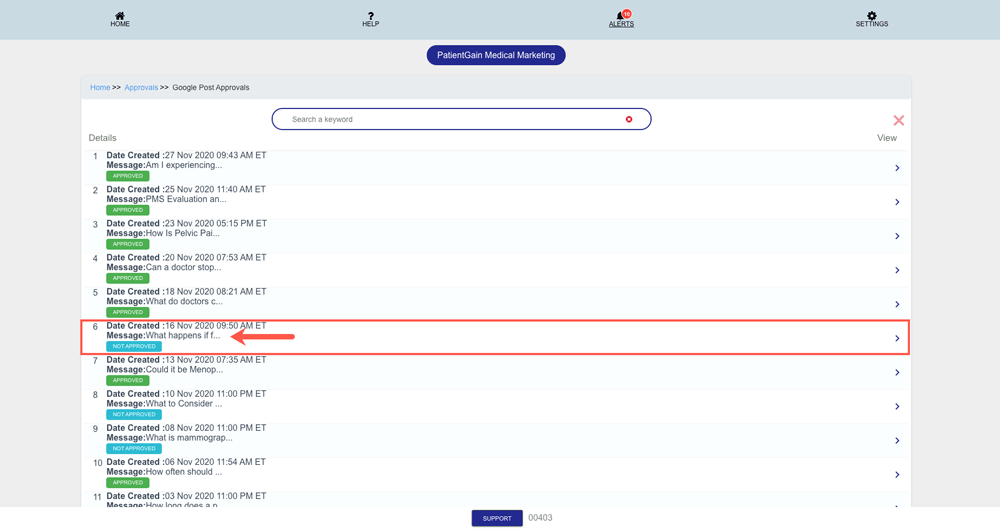
On the Google Post approvals page you will see the List of all the Posts – Including Approved and Not Approved.
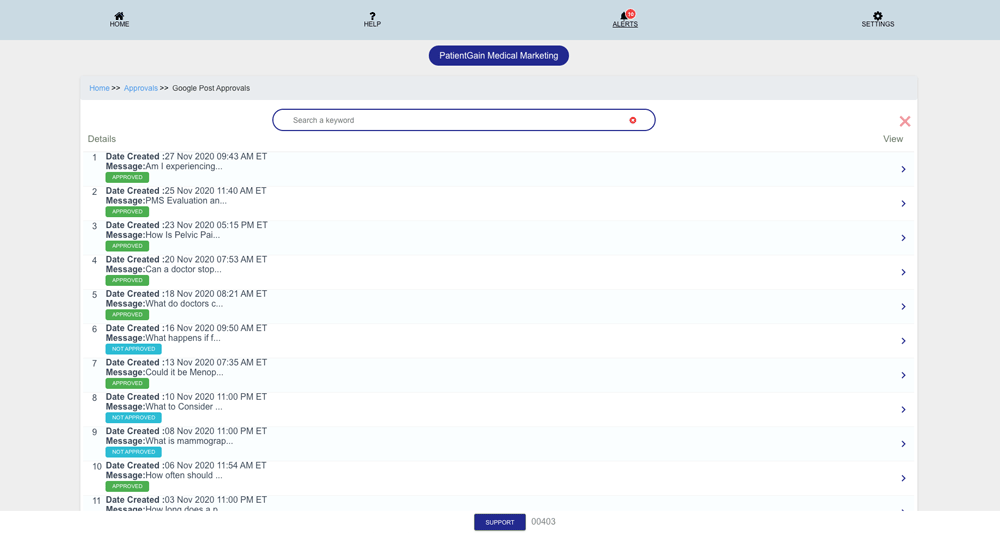
Then, click on the Post which you want to Approve.
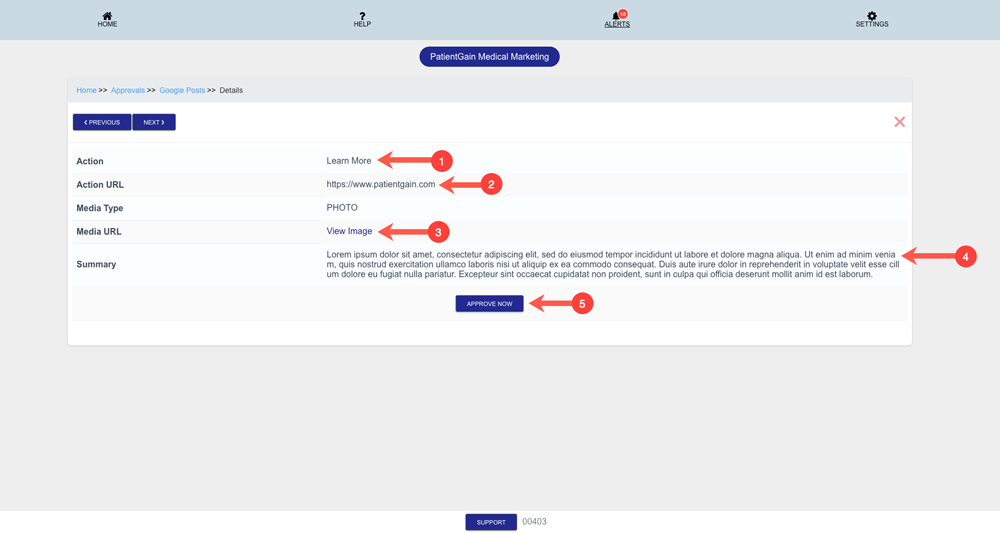
On the details page – You will see the following Information:
- Action Name: This means the Call to action button text which will be displayed on your Post.
- Action URL: This means where the Call to action button will go.
- Media URL: This means the Image which will be displayed on the Google Post. Click to see the preview.
- Summary: In this area you will see the actual content of the post.
- Approve Now: After you have reviewed the above mentioned information you can click on the “Approve Now” button and it will be posted on your GMB page.
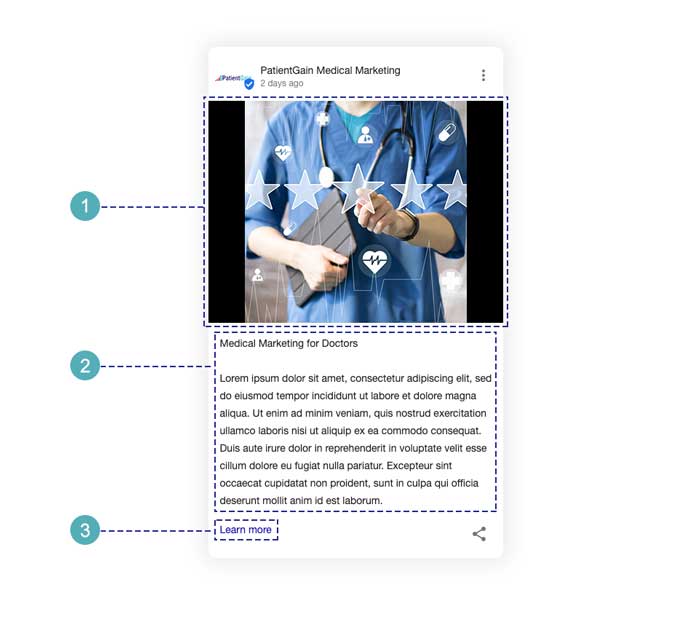
Final Google Post Preview:
- Medial Image
- Summary
- Call to Action Link with Text
Facebook/Instagram Post Approvals:
On the Facebook/IG Post approvals page you will see the List of all the Posts – Including Approved and Not Approved.
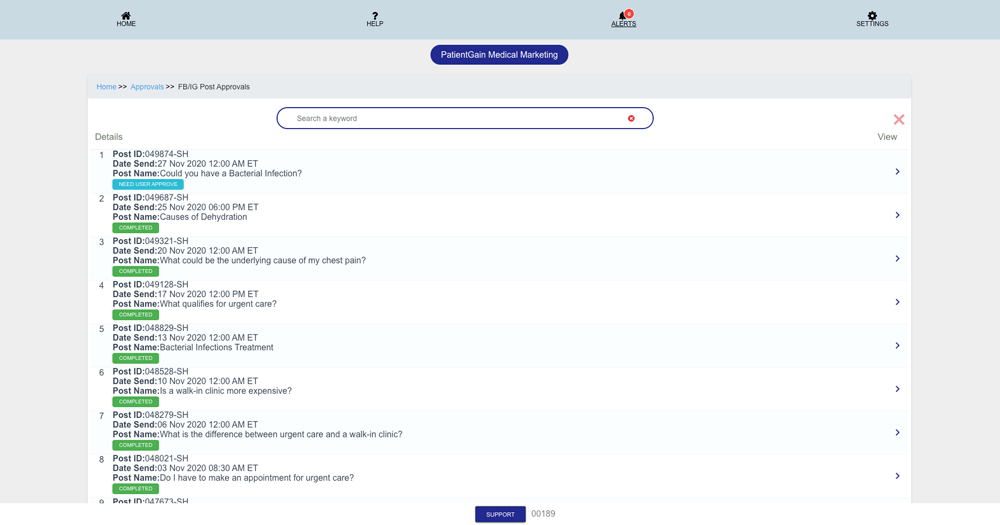
Then, click on the Post which you want to Approve.
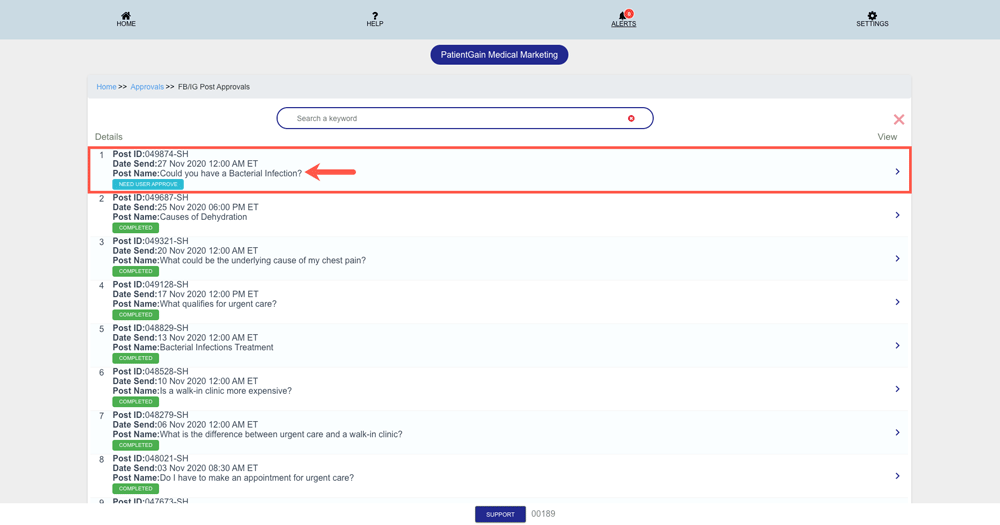
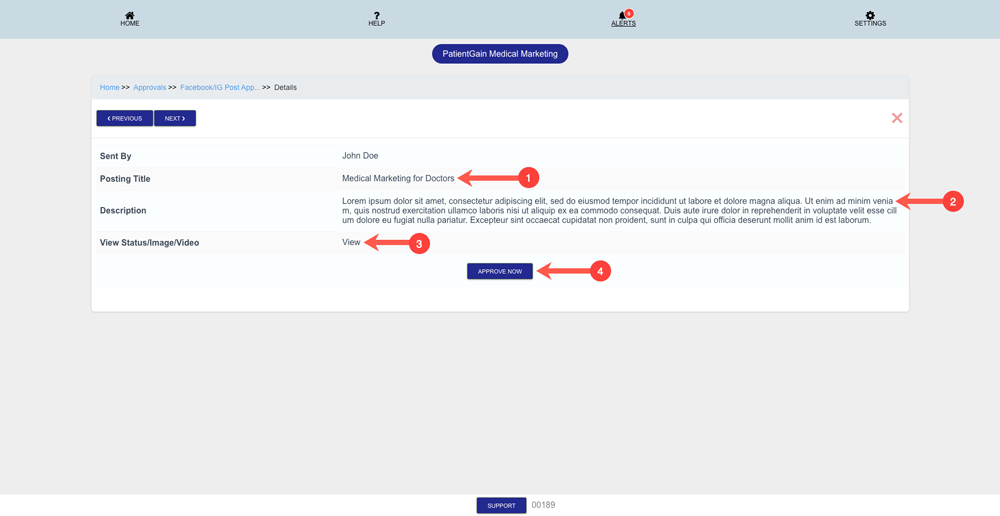
On the details page – You will see the following information:
- Posting Title: This area will display the Facebook Post title.
- Description: This area will display the content of the post.
- View Status Image: Click on the “View” link to view the post image.
- Approve Now: After you have reviewed the above mentioned information – Click on the “Approve Now” button to approve the post.
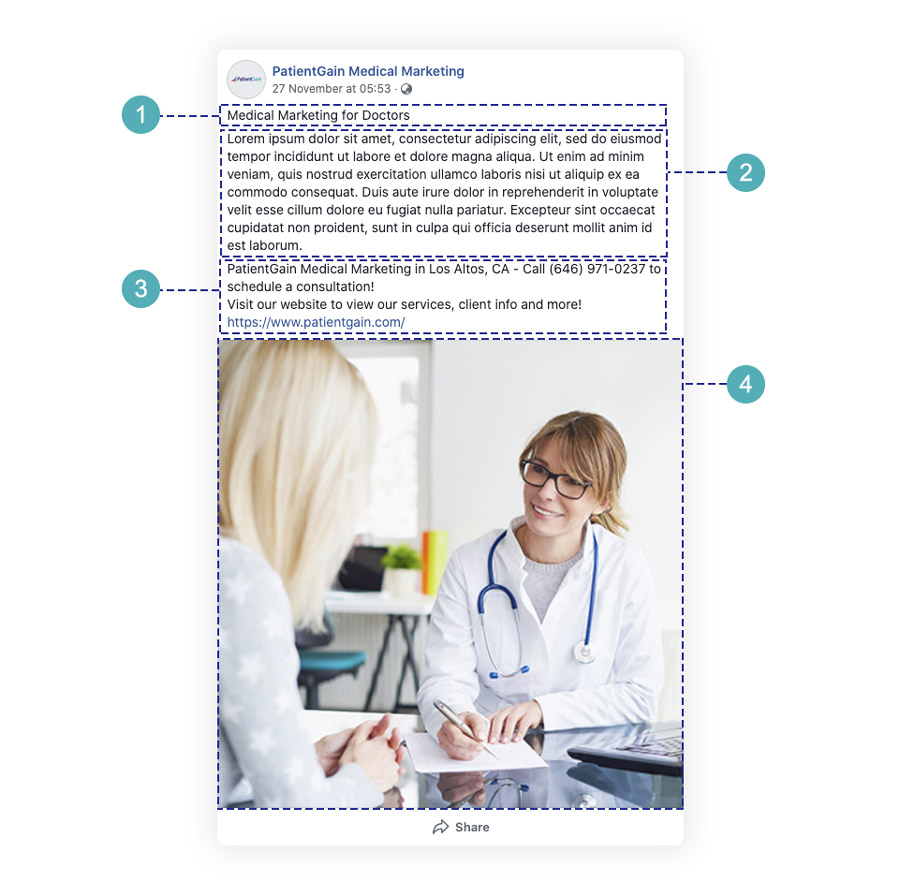
Final Facebook Post Preview:
- Post Title.
- Summary of the Post.
- Post Footer Content – Added By PatientGains App.
- Media/Image of the Post.