Connect Google Calendar with Appointments App
Easily manage your meetings with the appointment request app. An online booking system allows customers to request appointments through an online platform.
Google Calendar with Appointments App Guide
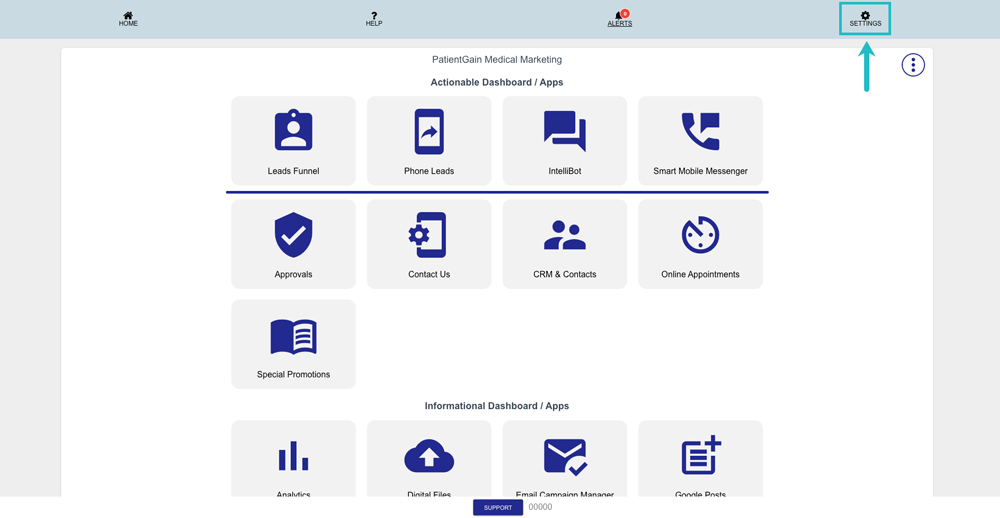
From your Main Dashboard – Click on the “Settings” from the top right corner.
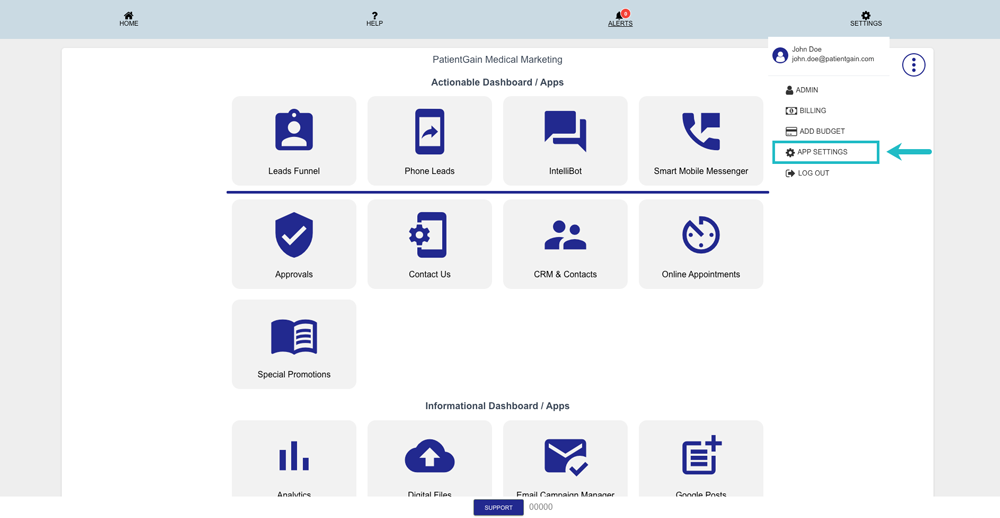
Then, Click on the “App Settings” from the drop-down menu.
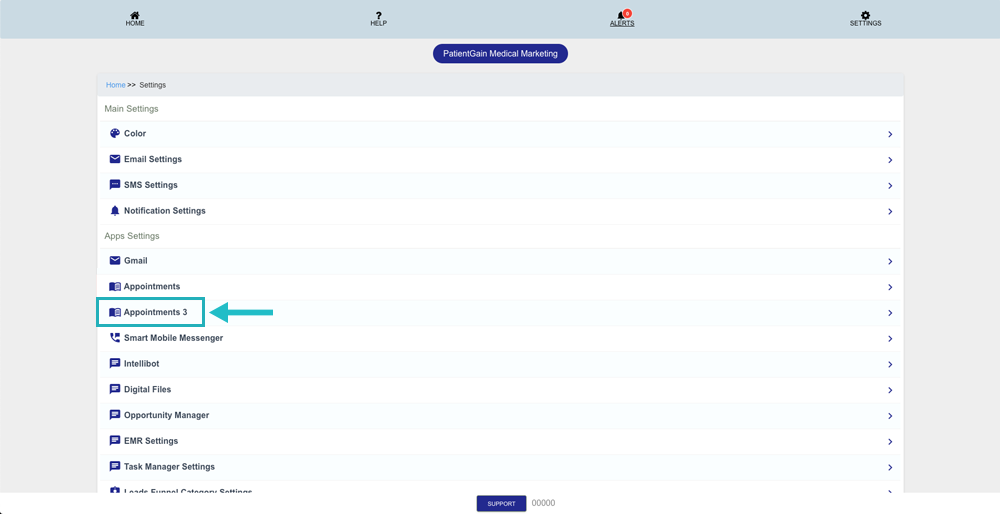
From the settings page, click on the “Appointments”.
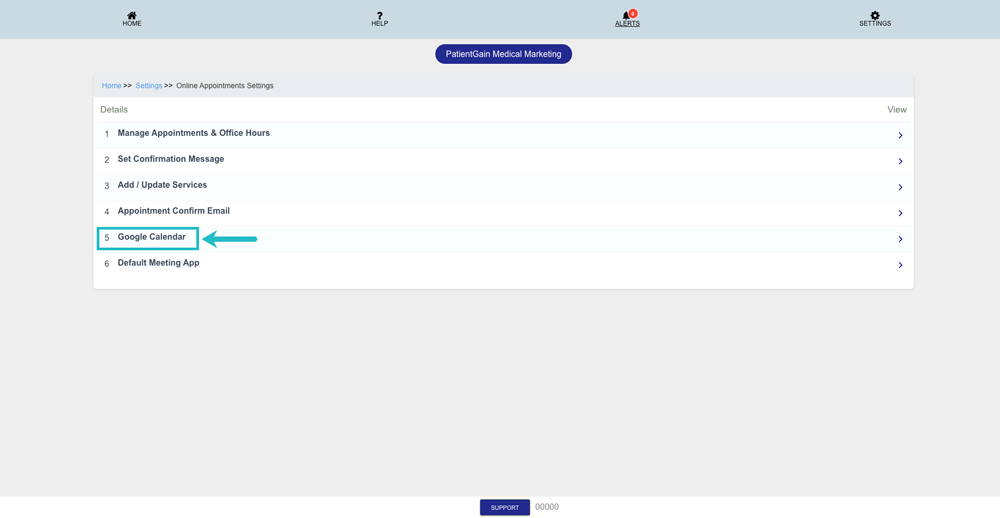
Then, click on the “Google Calendar”.
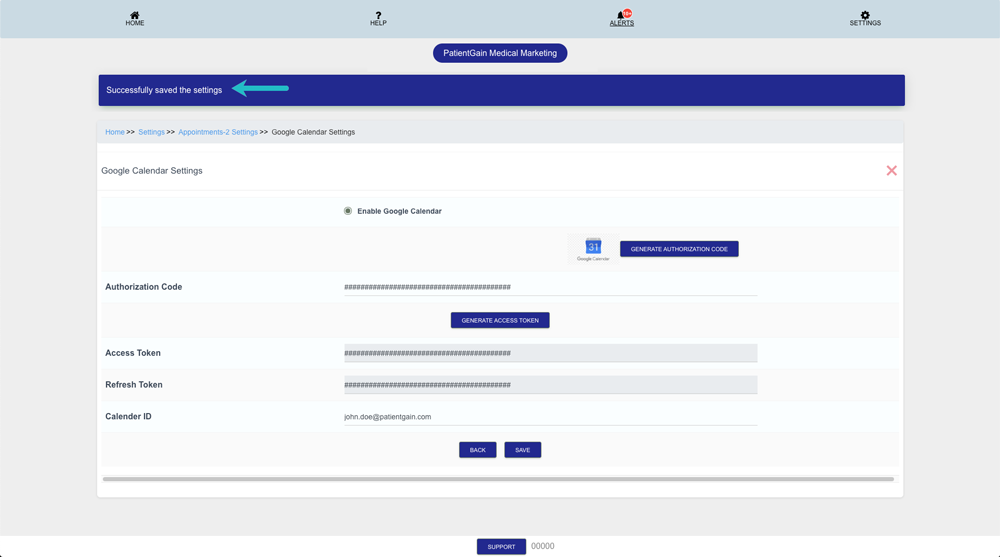
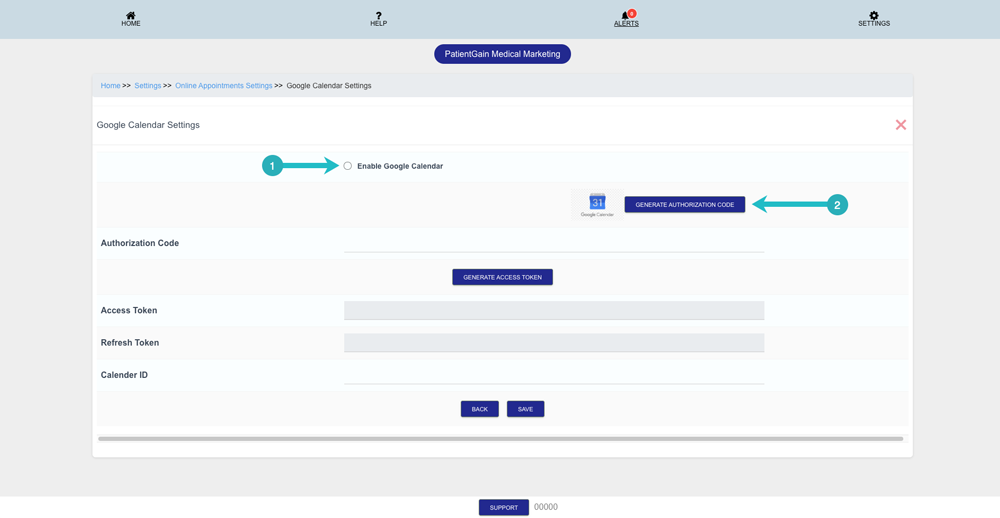
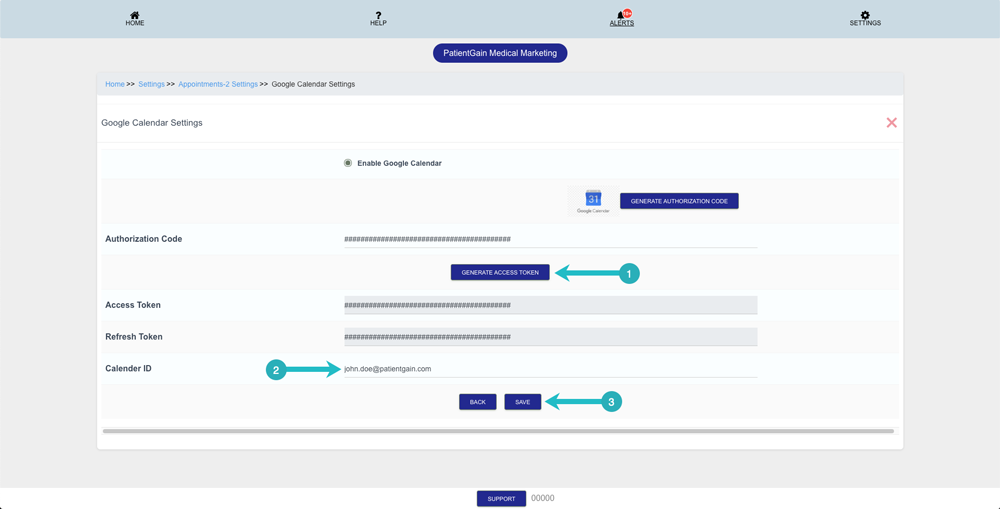
Now, on the Google Calendar settings page – do the following steps:
- Enable Google Calendar (Make sure its enabled).
- Then click on “Generate Authorization Code”.
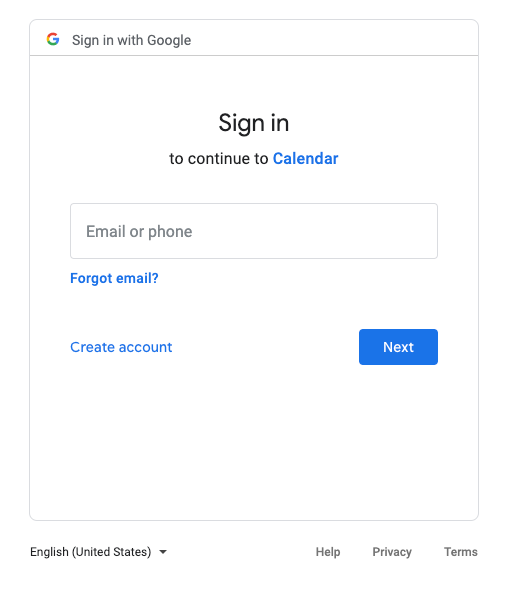
Then, you will see a new page where you will be ask to sign in to your “Google Account”. Please make sure you use the google account which you want to connect with your calendar.
Open a new Private/Incognito window in your browser (for e.g. Google Chrome or Firefox, etc)
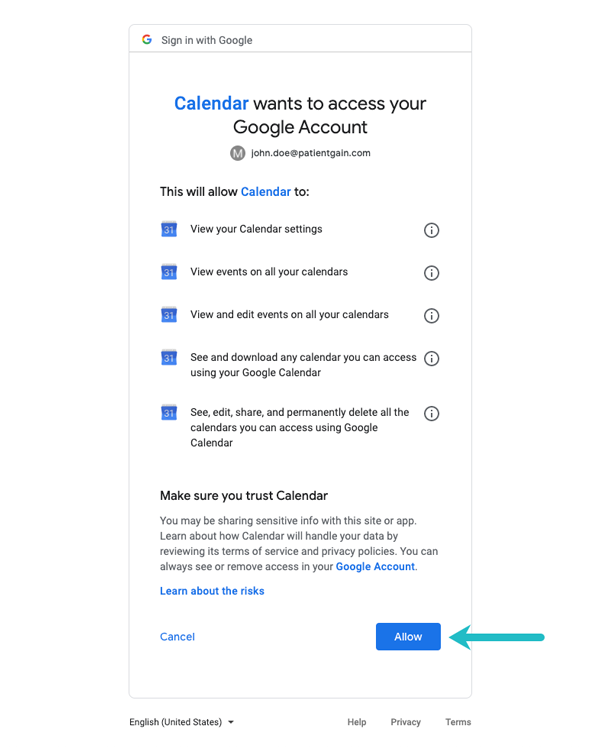
After you are logged in, click on the “Allow” button.
Once you are redirected back to our dashboard:
- Click on the “Generate Access Token”.
- Under Calendar ID – Enter the same google email address which you have used earlier to generate access token.
- Then click on the “Save” button.
Once you see the success message that means your Appointment Calendar is connected with your Google Calendar.