How to Check Summary From Phone Leads App
Check Summary From Phone Leads App
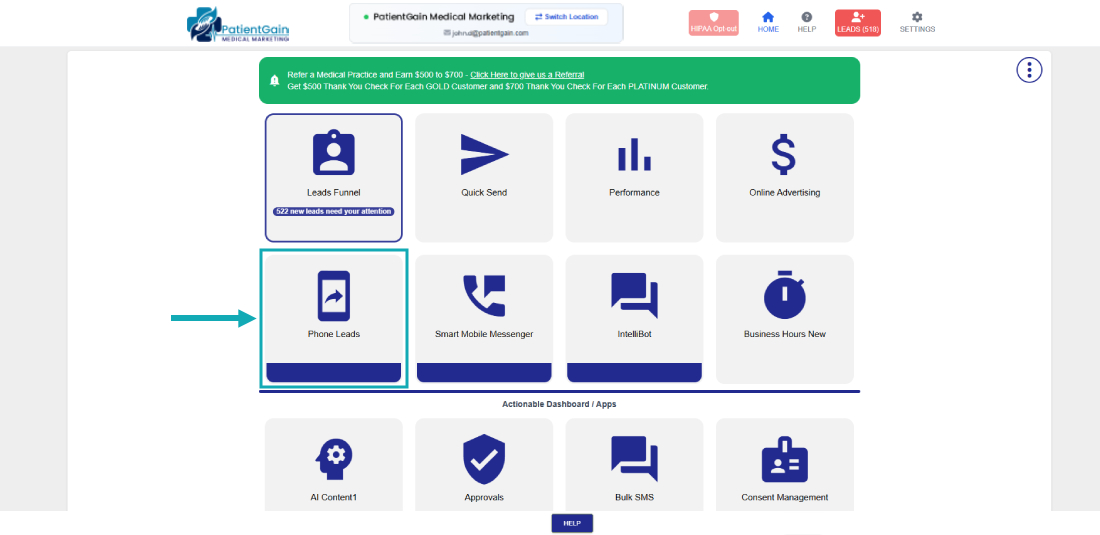
Login into the HS2 dashboard, Click on the “Phone Leads” icon.
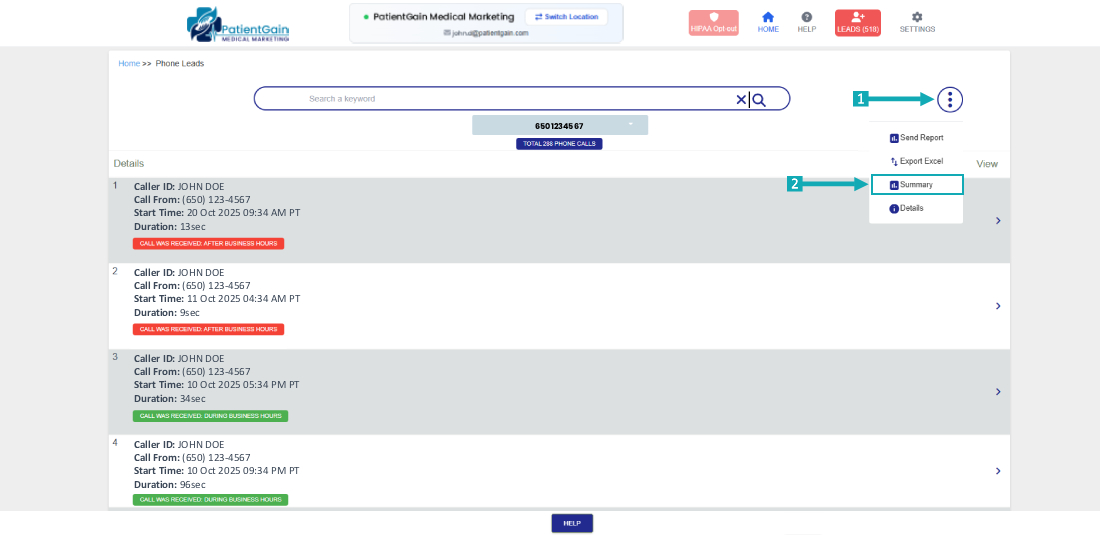
Click on the top right corner “Icon” and then select the “Summary” option.
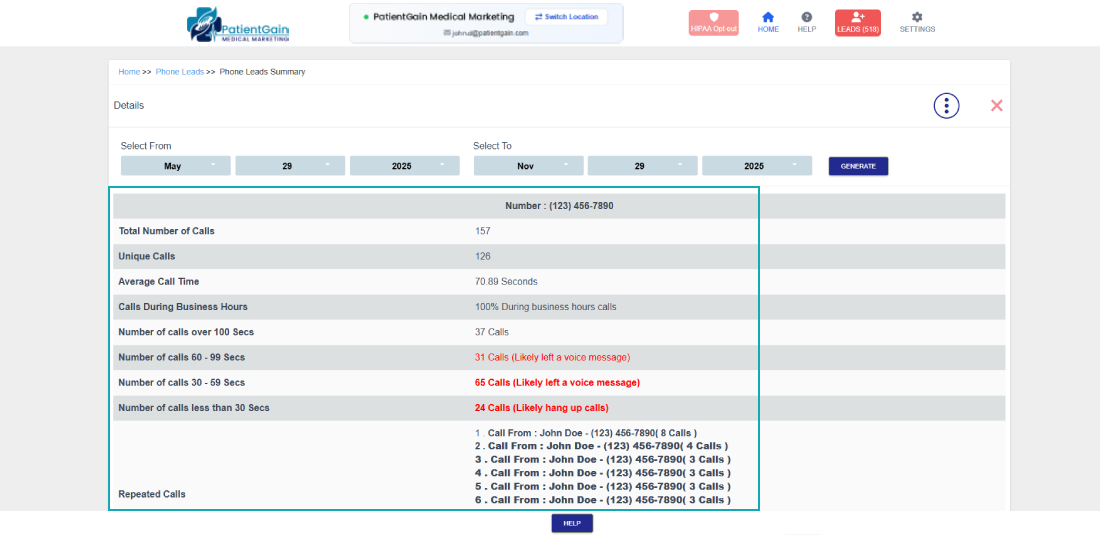
From here, select the time range first and then click on the “Generate” button.
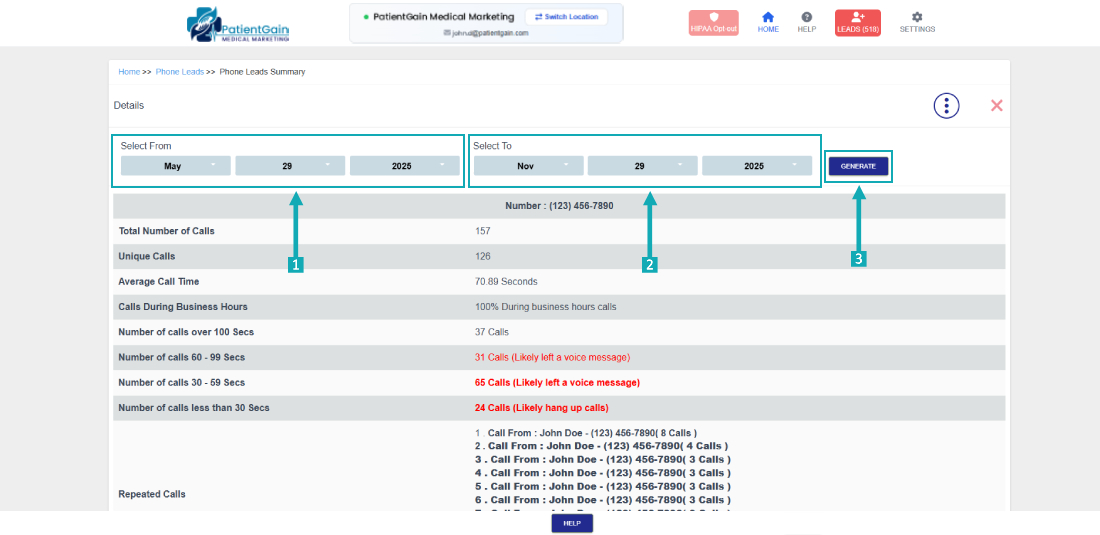
The Summary will be generated according to the selected time range.
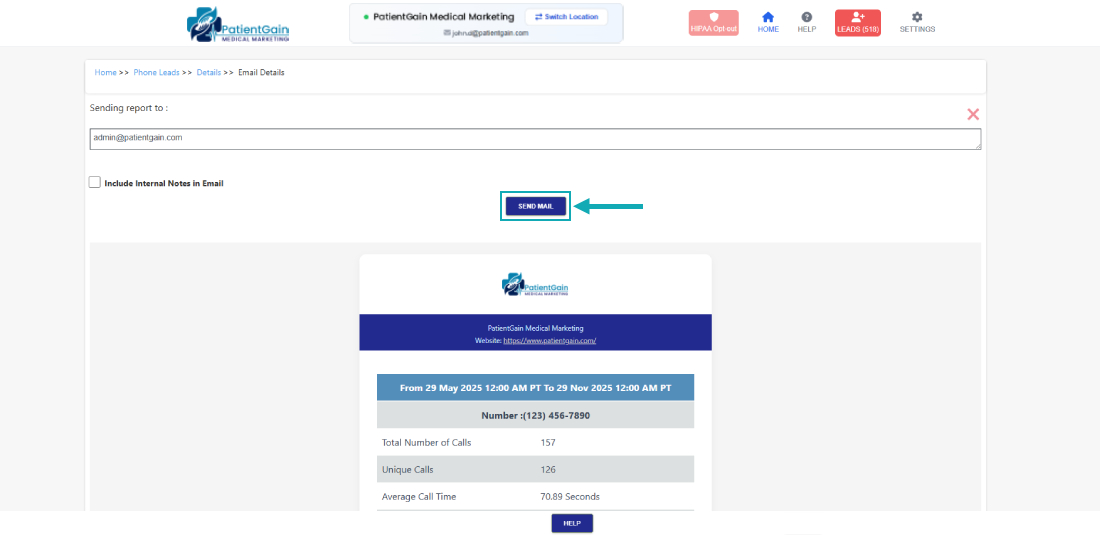
For Email report, click on the top right corner icon and select the “Email Details” option.
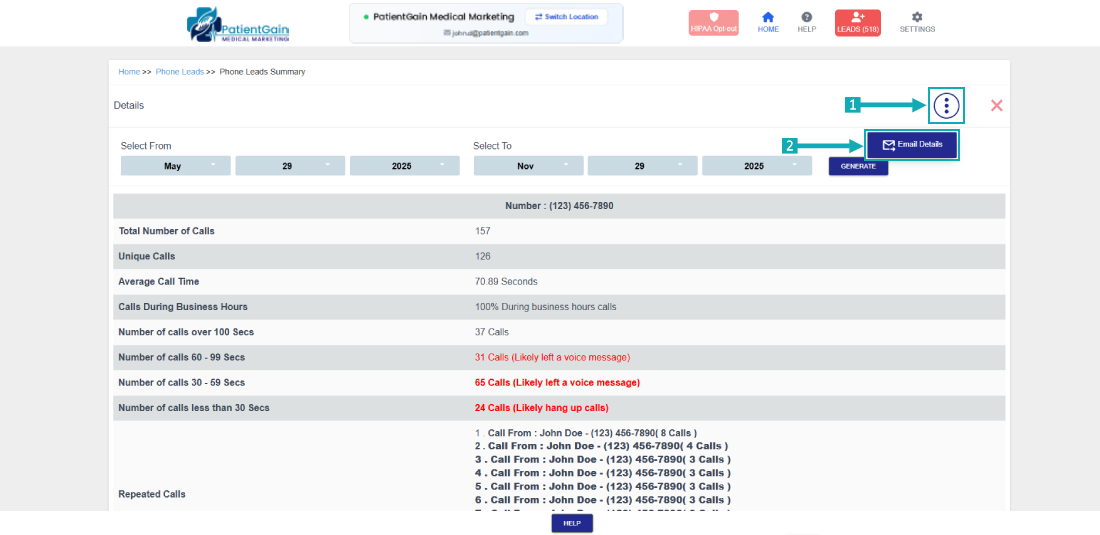
From here, click on the “Send Mail” button to send the email report.