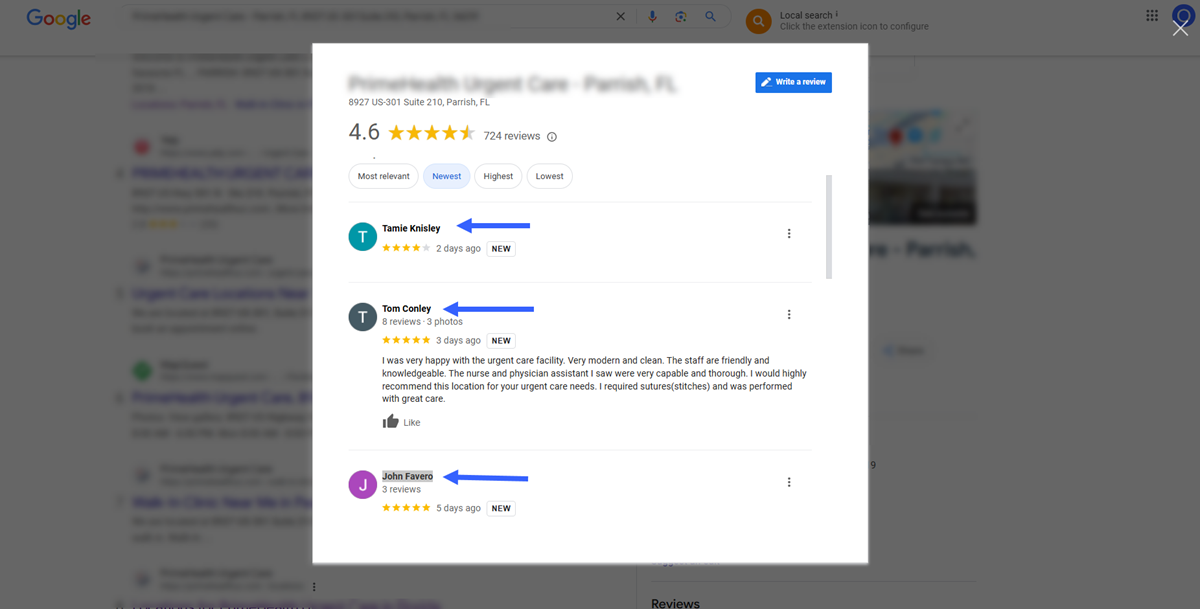
How To Use Quick Send For Reviews
Use Quick Send For Reviews
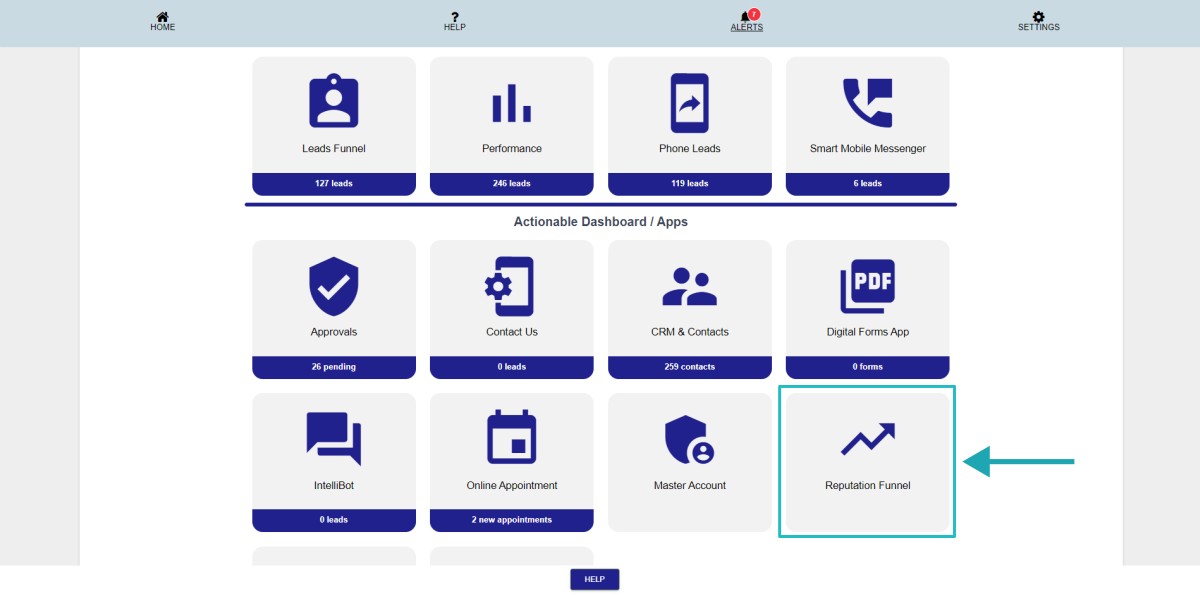
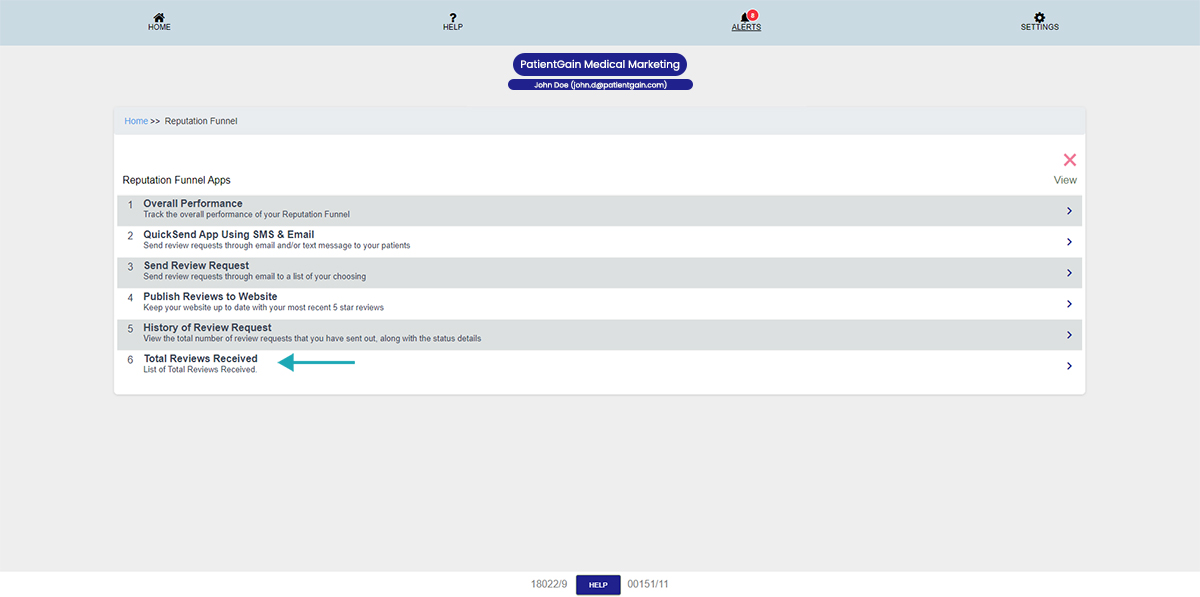
First, Login to your HIPAA Server Dashboard and in the Actionable Dashboard click on the “Reputation Funnel” app.
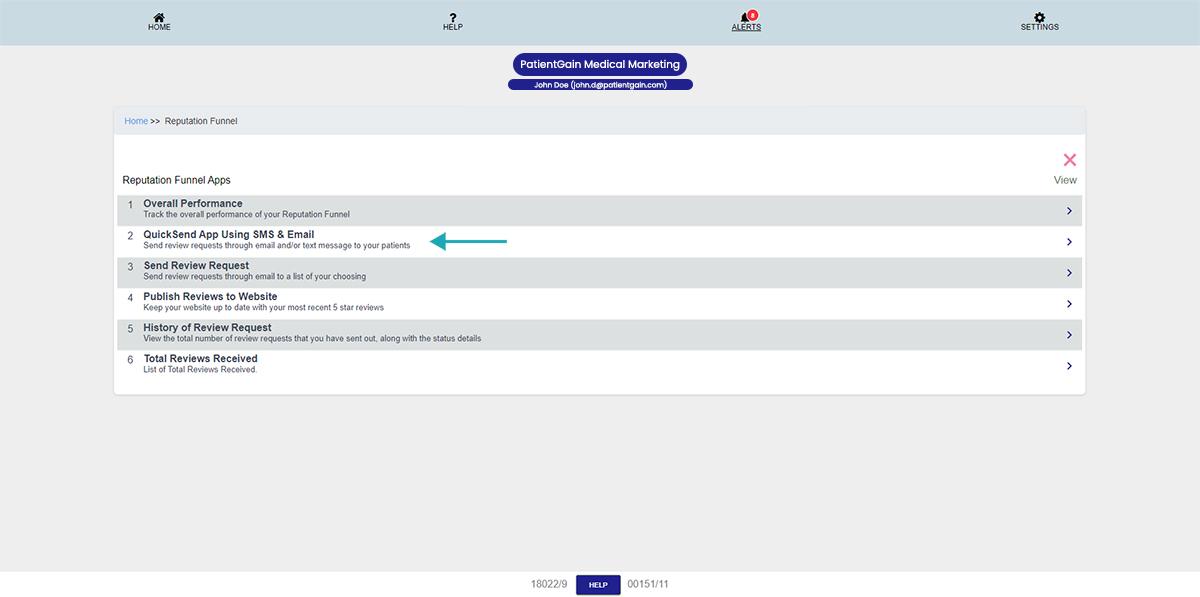
Now click on the “QuickSend App Using SMS & Email” option.
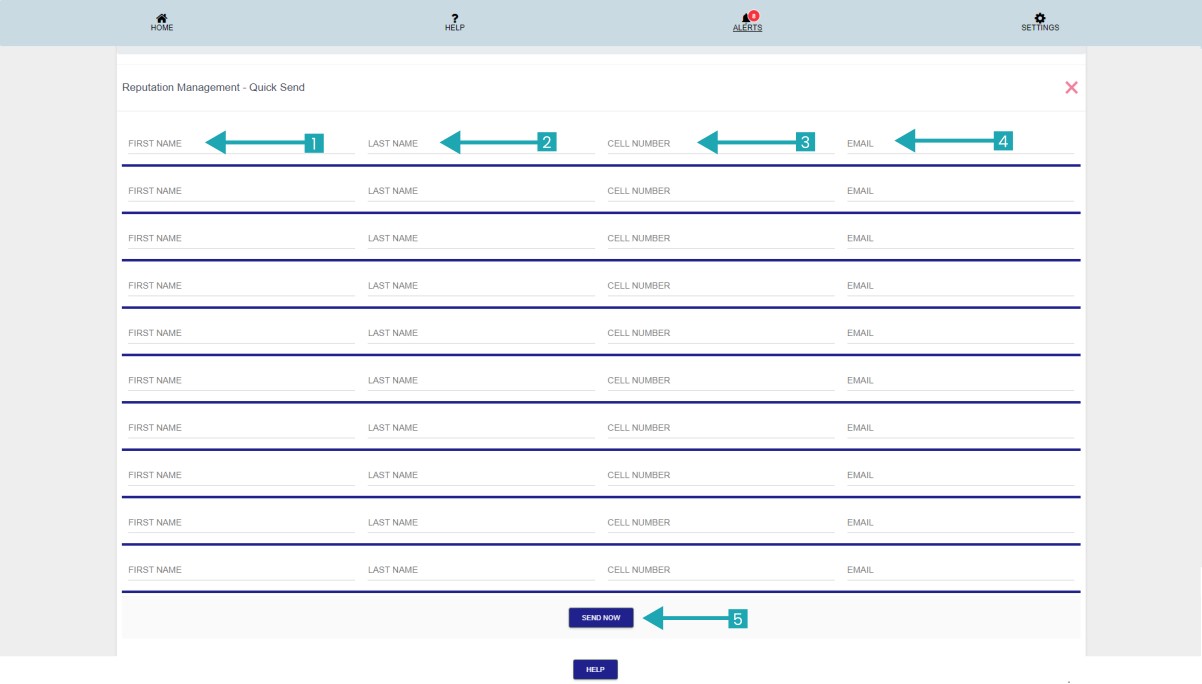
Now, you will see a form with following fields:
- First Name: Enter the first name of the patient which you want to send review request to.
- Last Name: Enter the last name of the patient.
- Cell Number: Enter the mobile number of the patient.
- Email: Enter the email address of the patient.
- Then click on “Send Now” button.
Note: You can send review request to up-to 10 patients at once.
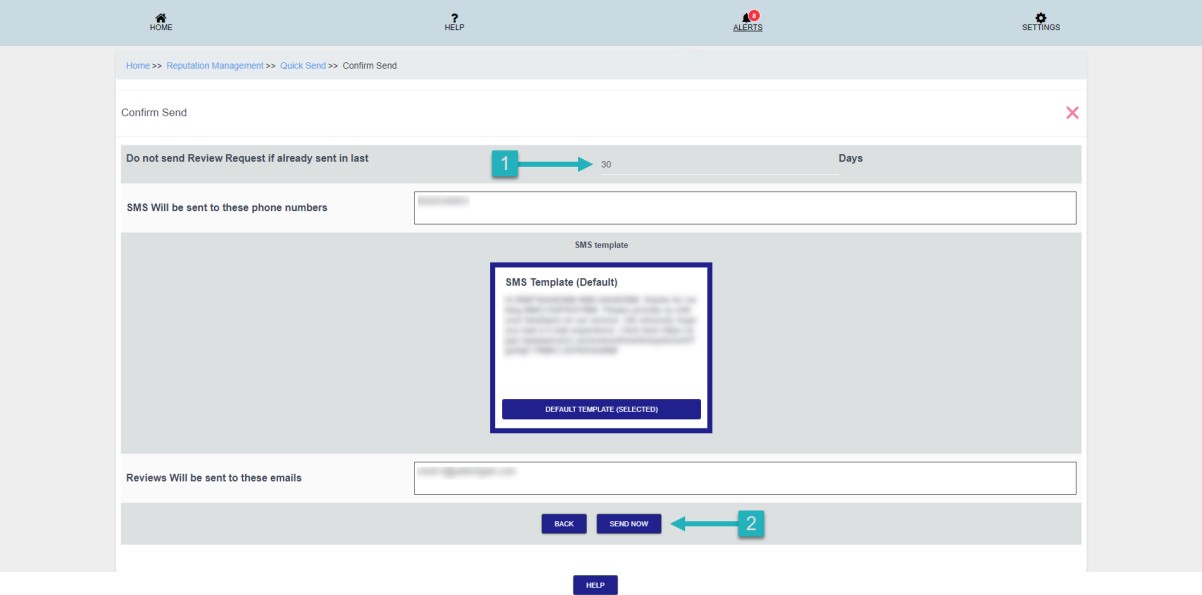
Then, on the confirmation page – You will see the following fields:
- Do not send Review Request if already sent in last: This value defines the number of days – So if you put 15 Days then system will not send the review request to the patients who has already received in last 15 days.
- SMS Will be sent to these phone numbers: You can confirm the SMS numbers from here.
- Reviews Will be sent to these emails: You can confirm the Email Address from here.
- Then click on the “Send Now” button.
In order to cross check the reviews please go back to the Reputation funnel app.
Now click on the “Total Reviews Received” option.
From this page you can check “Google My Business” and direct reviews are coming.
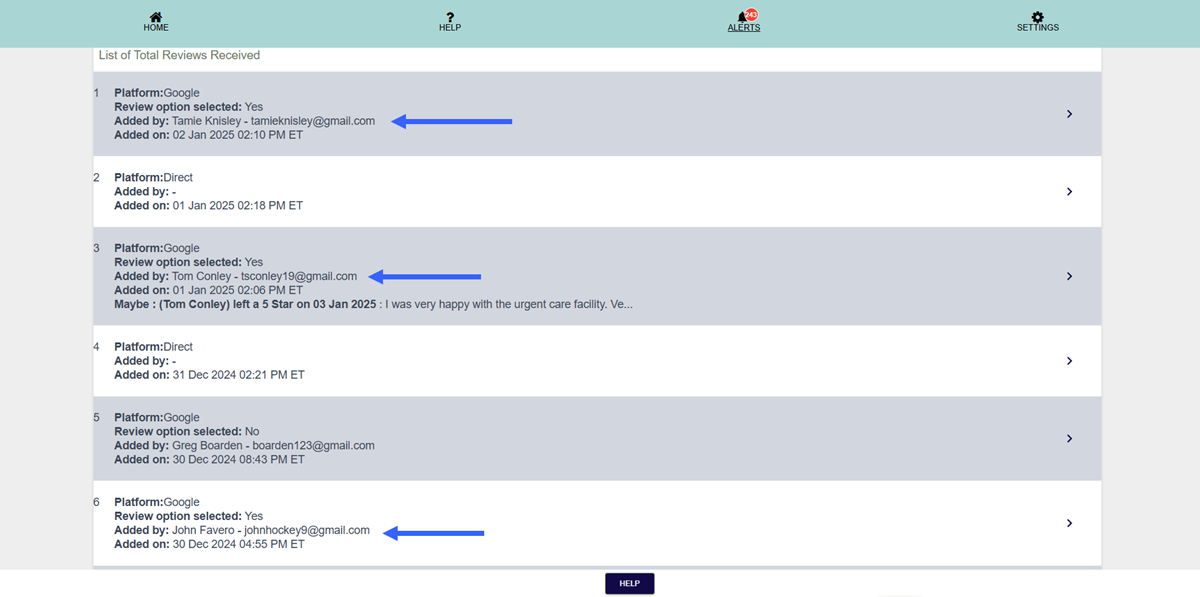
Here, you can match direct reviews from Google My Business using the Reputation Funnel app.