How to Check Billing Information
Check Billing Information

- Steps for Single Location Customers (Click here to view)
- Steps for Multi-Location Customers (Click here to view)
Steps for Single Location Customers
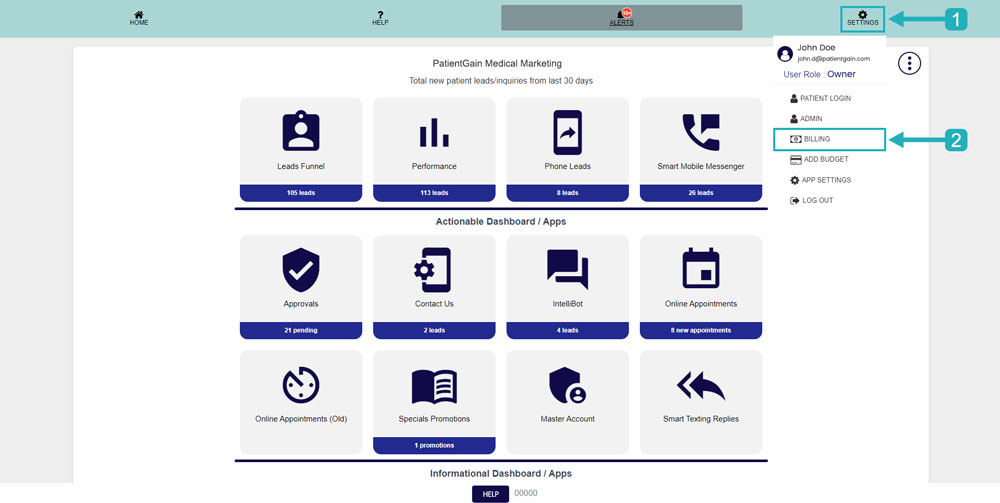
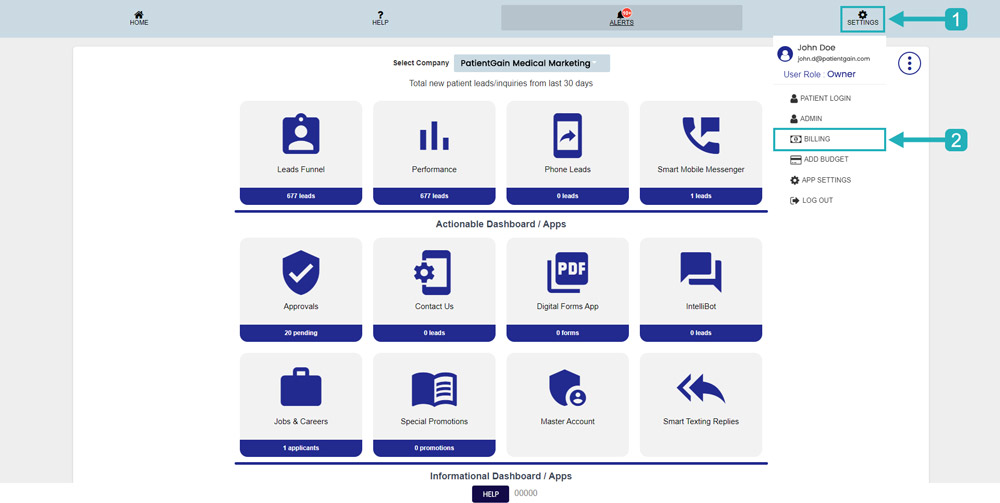
First, Login to your PatientGain/Logica7 Dashboard and from top right corner click on “Settings icon” and then from drop down click on the “Billing”.
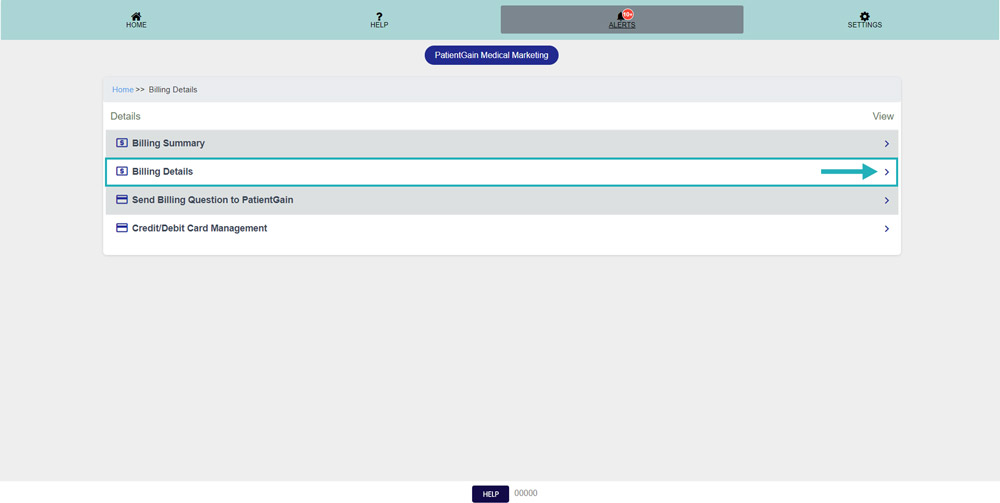
Click on the “Billing Details”.
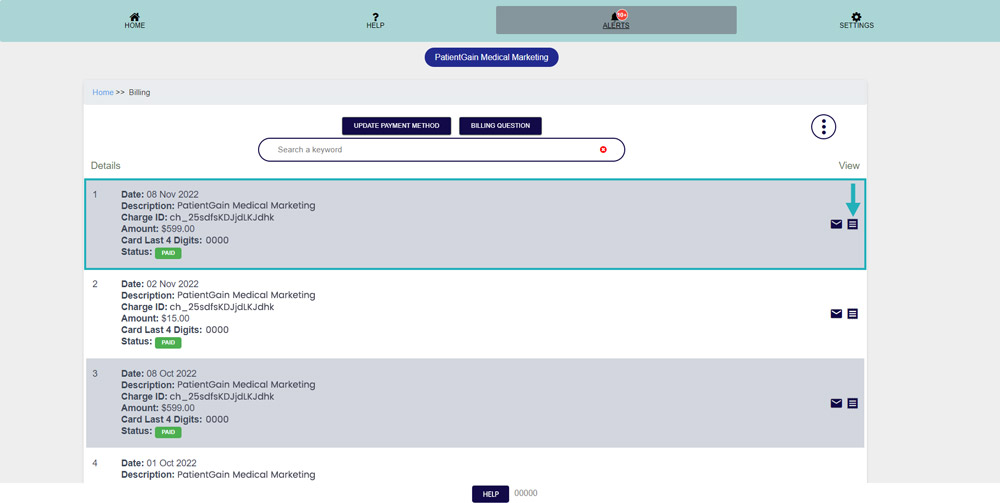
Now, you will see the history of all your payments – Including Successful and Failure payments.
Click on the “View Icon” to view the receipt of the payment.

Steps for Multi Location Customers
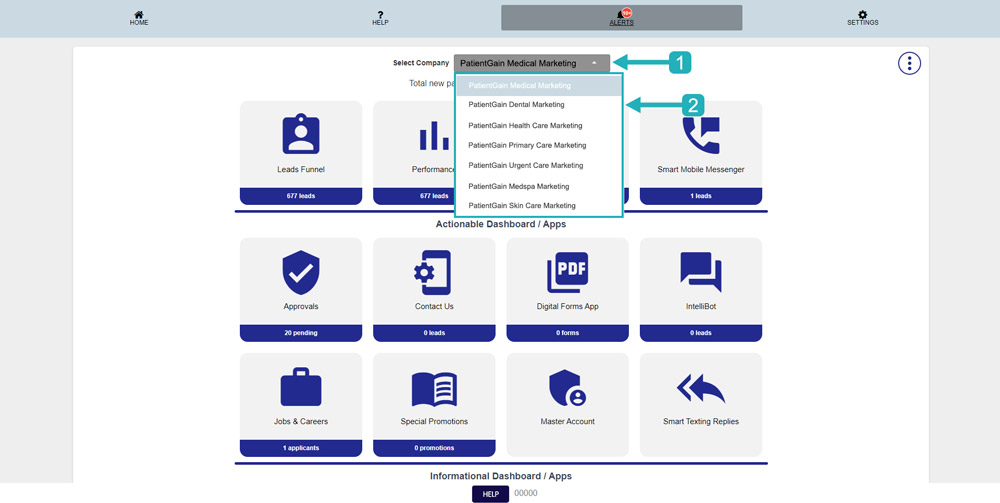
First, Login to your PatientGain/Logica7 Dashboard and from the Select Company drop down menu choose the location you want to check billing for.
Then, from top right corner click on “Settings icon” and then from drop down click on the “Billing”.
Click on the “Billing Details”.
Now, you will see the history of all your payments for this location – Including Successful and Failure payments.
Then, Click on the “View Icon” to view the receipt of the payment.
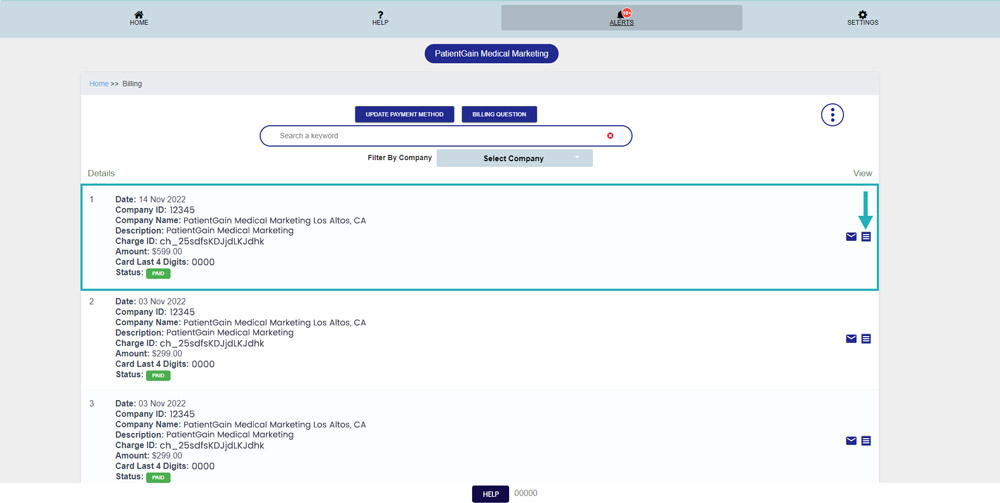
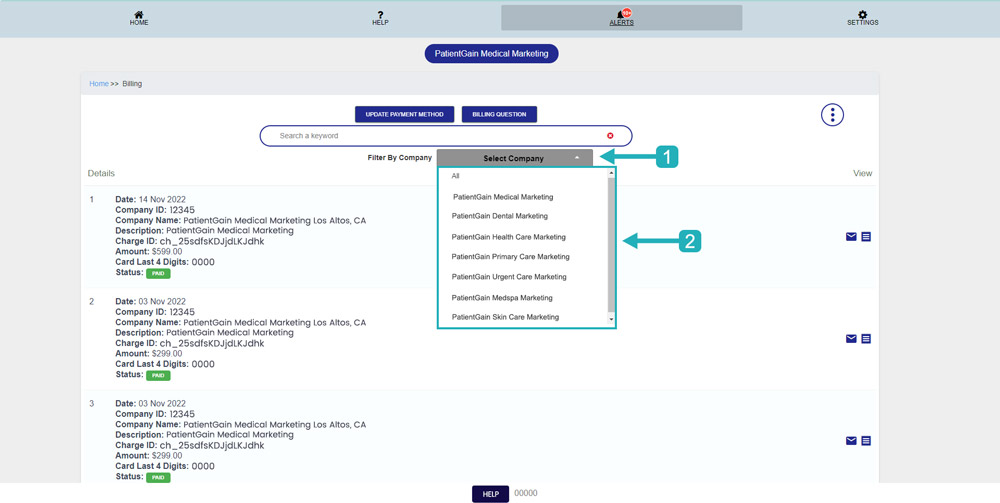
You can also switch the locations from this dropdown.