How to Create YouTube Channel & Provide Access to PatientGain
YouTube Channel Creation & Invite Users on Channel Guide

This Guide is divided into two parts:
Part 1: How to create a YouTube Channel (if you already have created the Channel – Click here to Skip to Part 2)
Part 2: How to provide access to PatientGain to your YouTube Channel
How to create a YouTube Channel (Part 1)
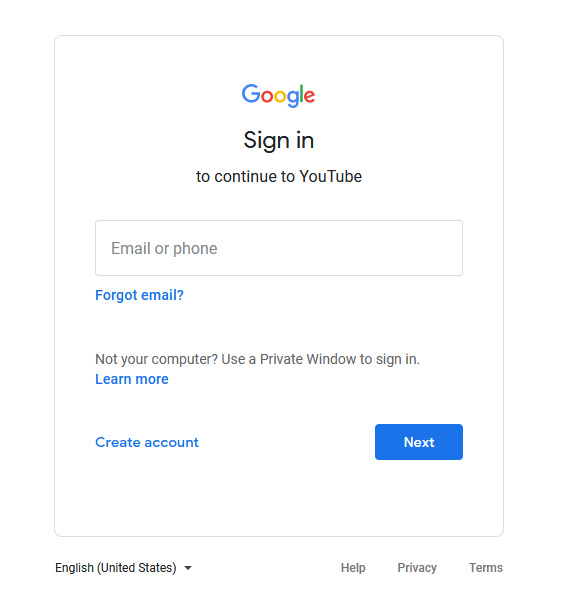
First, you need to Sign in to your Google Account. Click Here to Sign In.
Open a new Private/Incognito window in your browser (for e.g. Google Chrome or Firefox, etc)
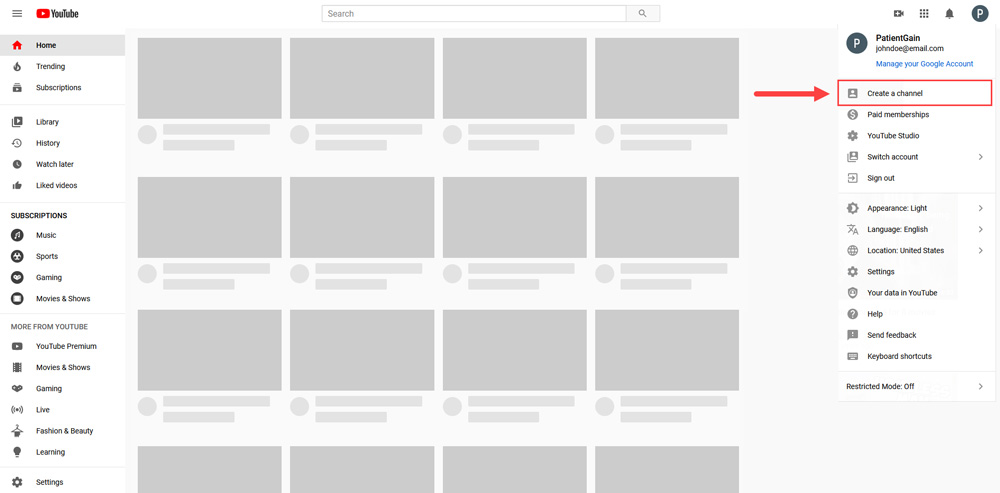
Then, click on the “User icon” from the Top right corner and then click on “Create a Channel”.
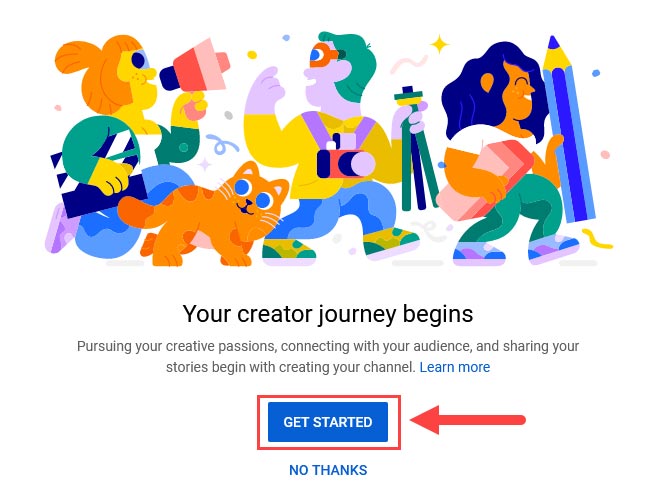
Then, Click on “Get Started” button.
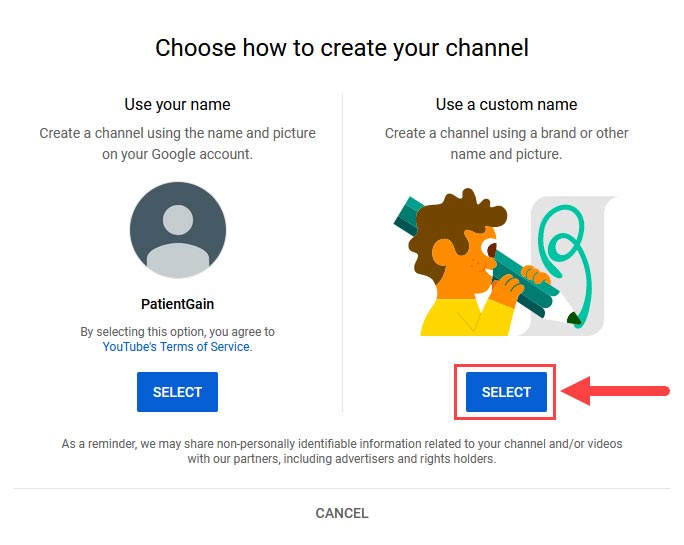
Now, You will see two options:
- Use your name
- Use a custom name (Please select this option)
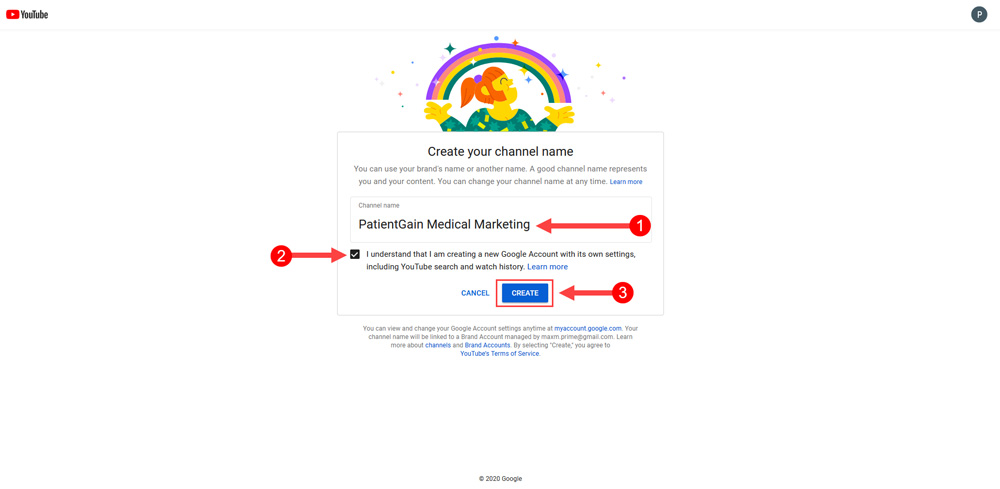
Enter the Name for your New YouTube Channel – For e.g. “PatientGain Medical Marketing”. Then click on the checkbox for “Terms and Conditions” and then click on the “Create” button.
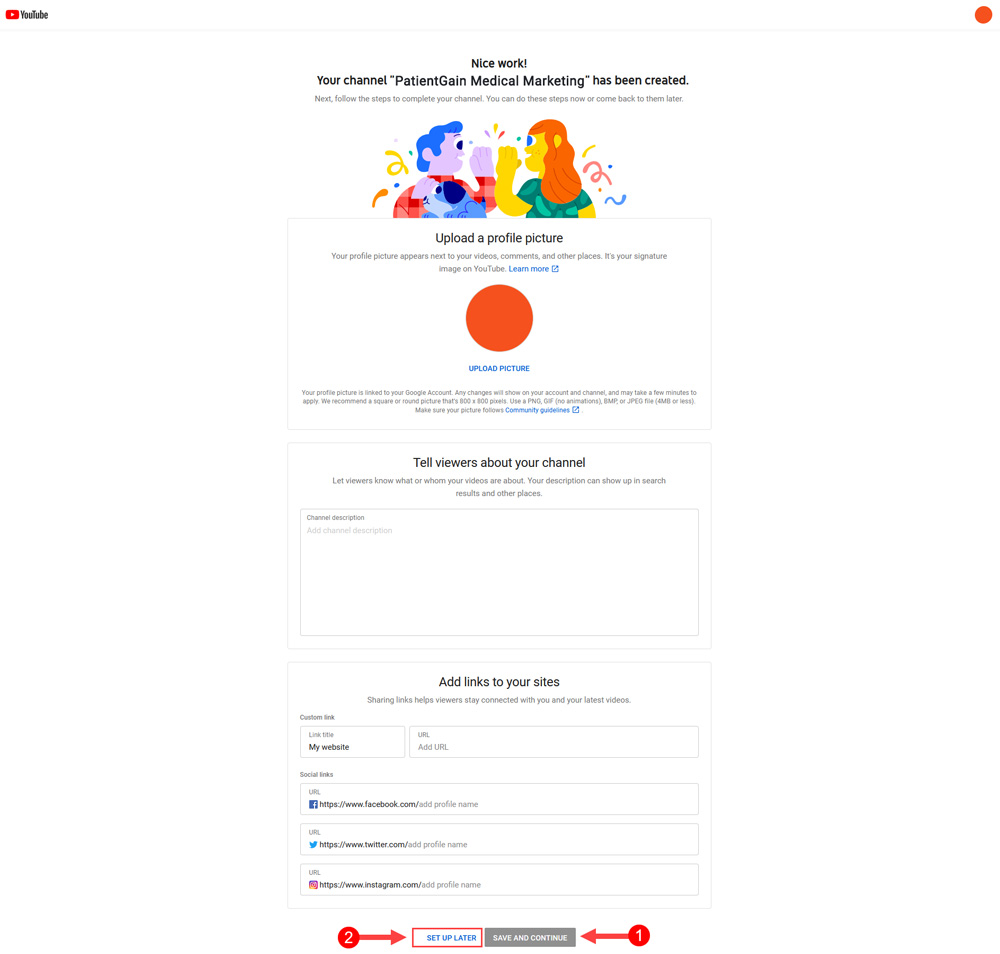
Now your channel has been successfully created. On the bottom of the screen you will see two buttons:
- “Save and Continue” – For this option You need to fill out the form (Display Picture, Channel Description etc.)
- “Set up Later” – For this option – You can skip the form part and move on to next page.
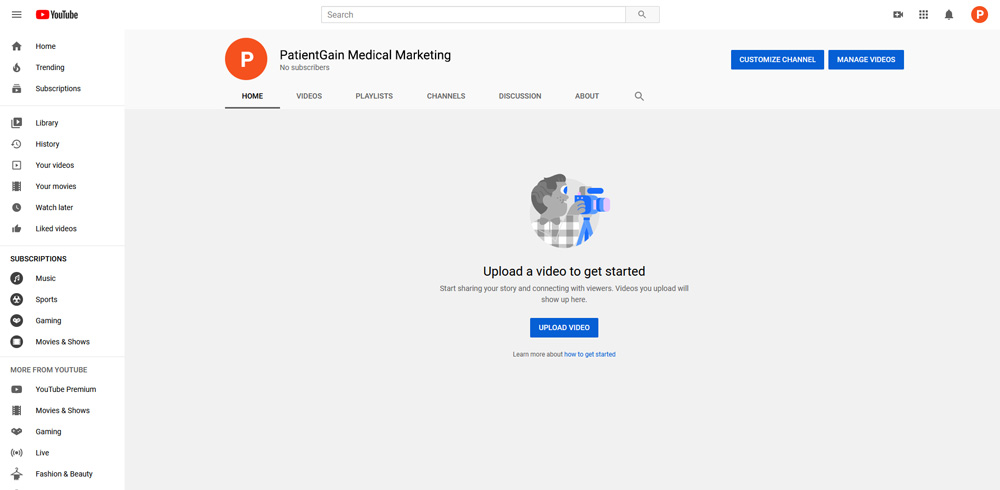
Now all the steps are are completed and Your new YouTube Channel is ready.
How to provide access to PatientGain to your YouTube Channel (Part 2)
Now, Go to YouTube Studio (studio.youtube.com)
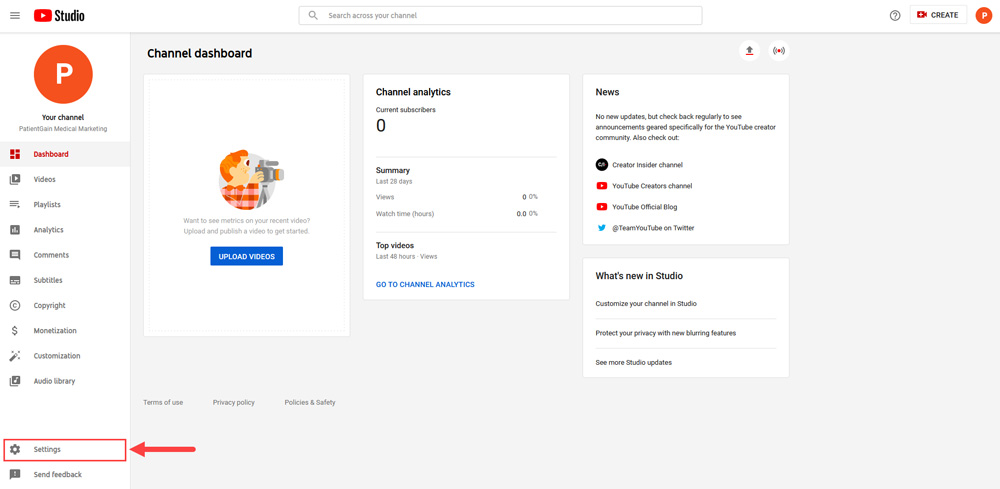
Then click on the “Settings” from the Left Sidebar menu.
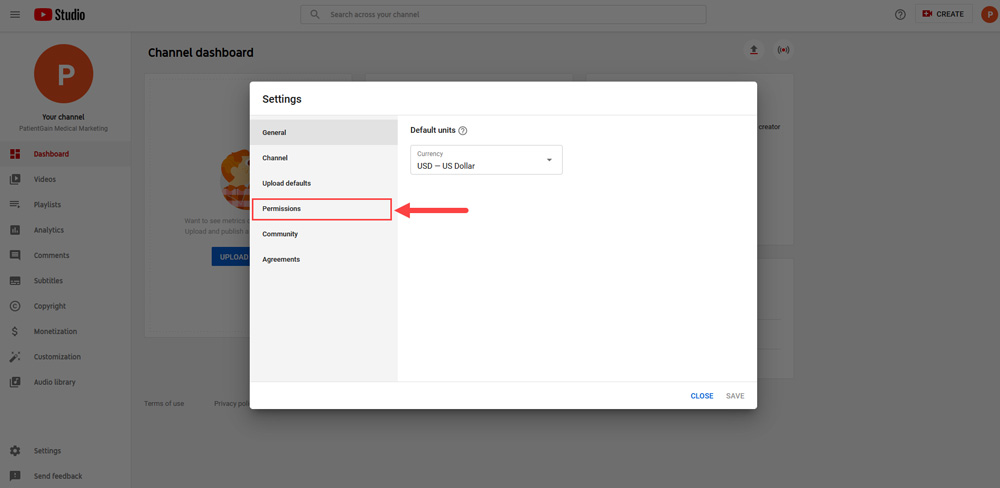
Then, Click on the “Permissions” tab.
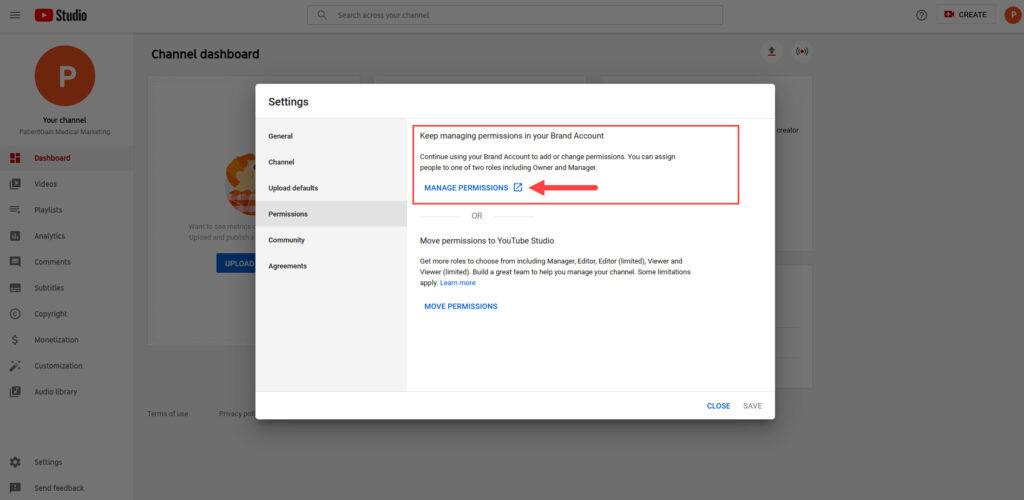
Under “Keep managing permissions in your Brand Account” section click on “Manage Permissions”.
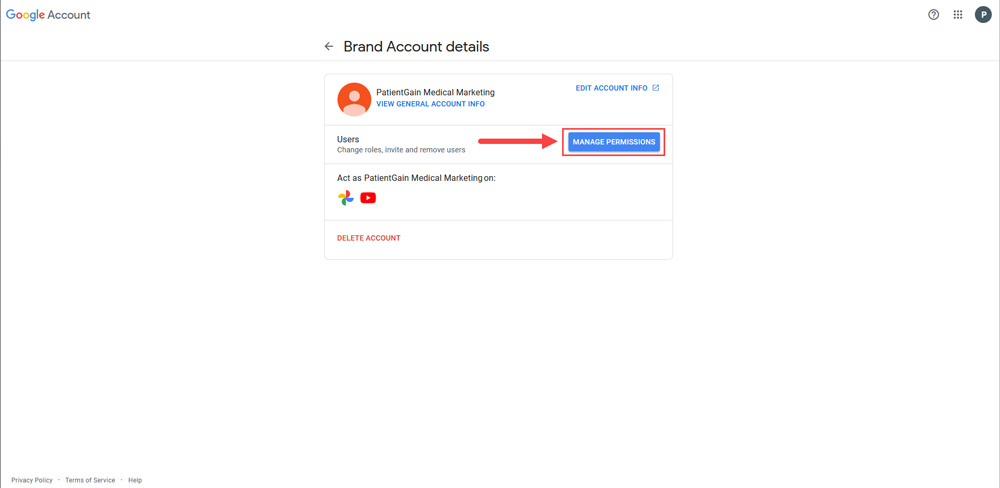
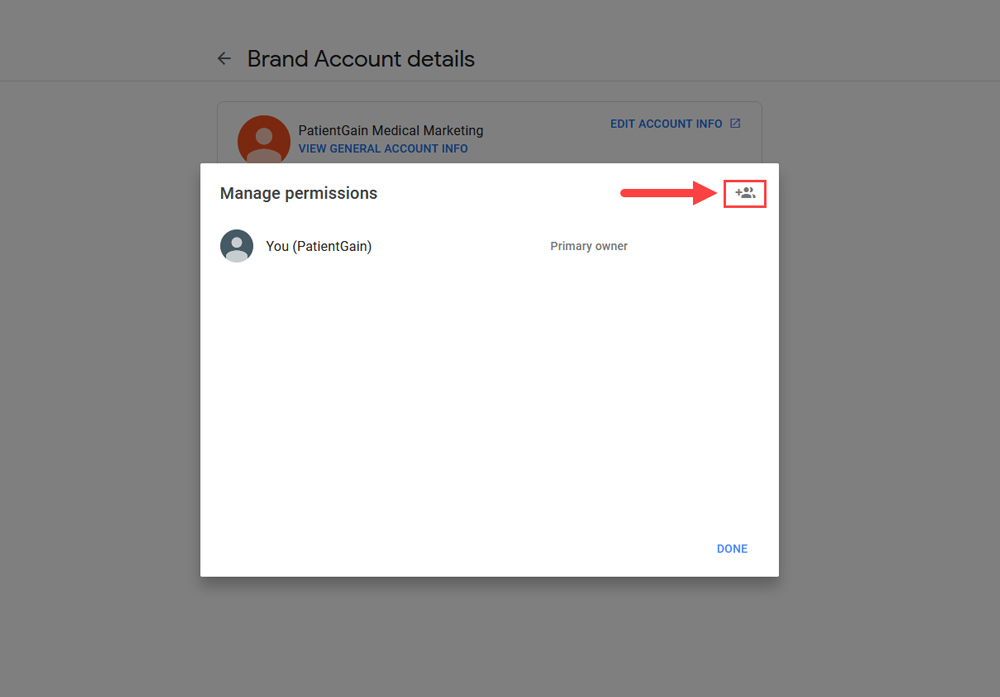
Now, click on the “Manage Permissions” button.
Click on the “Add User” icon from the right corner of popup.
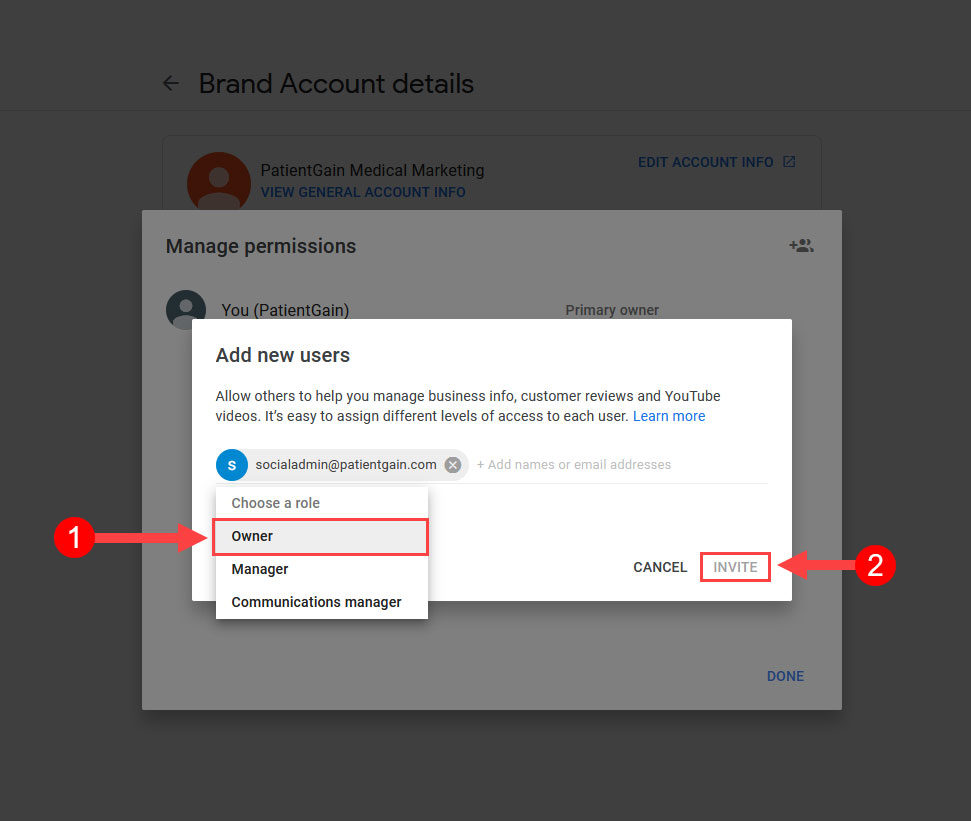
Add our email address “socialadmin@patientgain.com”.
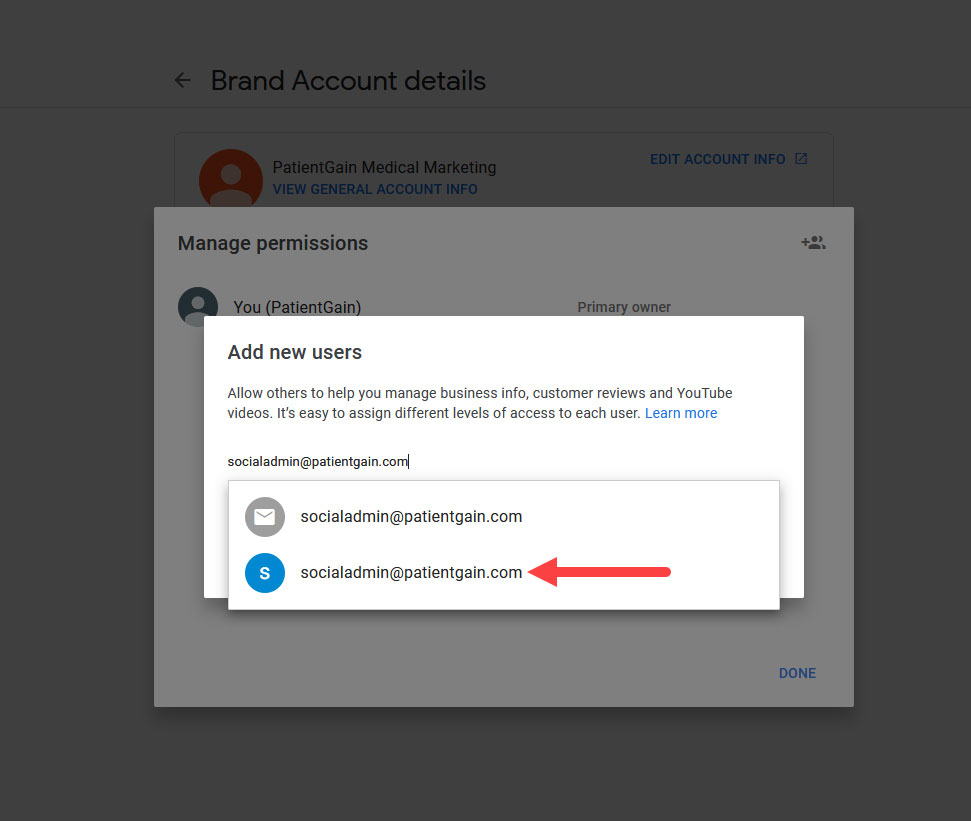
Choose the role as “Owner” and then click on Invite button.