
How to Provide Access to Your Google Business Page

Provide Access to Your Google Business Page
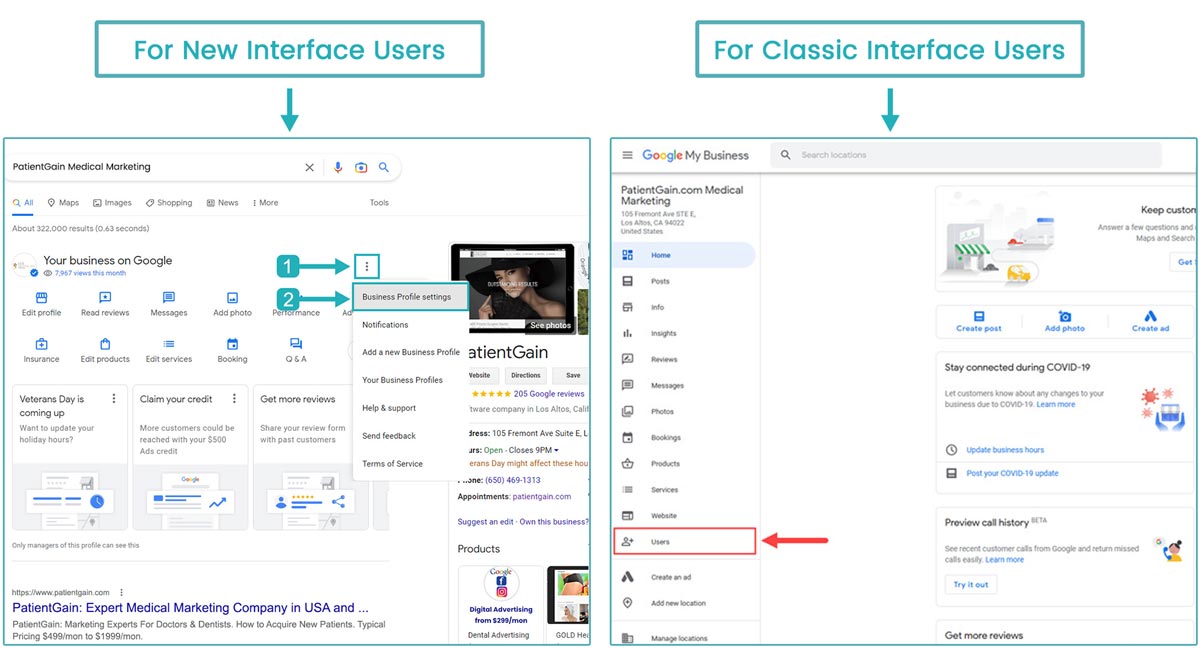
1) For New Interface Users
2) For Classic Interface Users
Provide Access to Your Google Business Page for New Interface Users
Open a new Private/Incognito window in your browser (for e.g. Google Chrome or Firefox, etc)
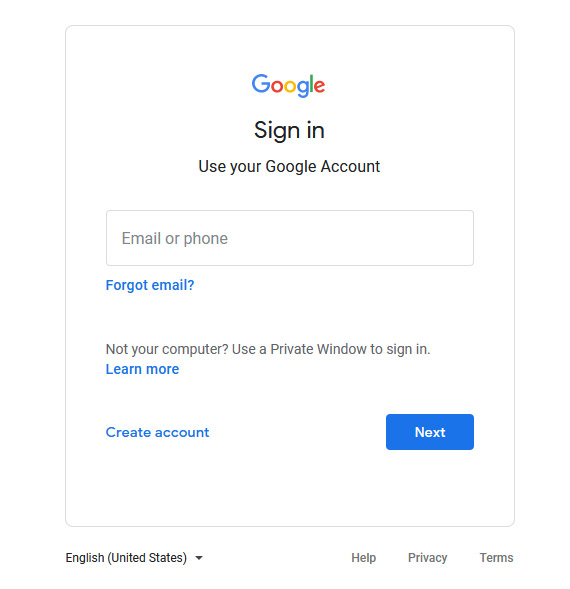
First, Sign in to your Google Account. Click Here to Sign In.
Note: You must sign in from that google account where you have google listings ownership.
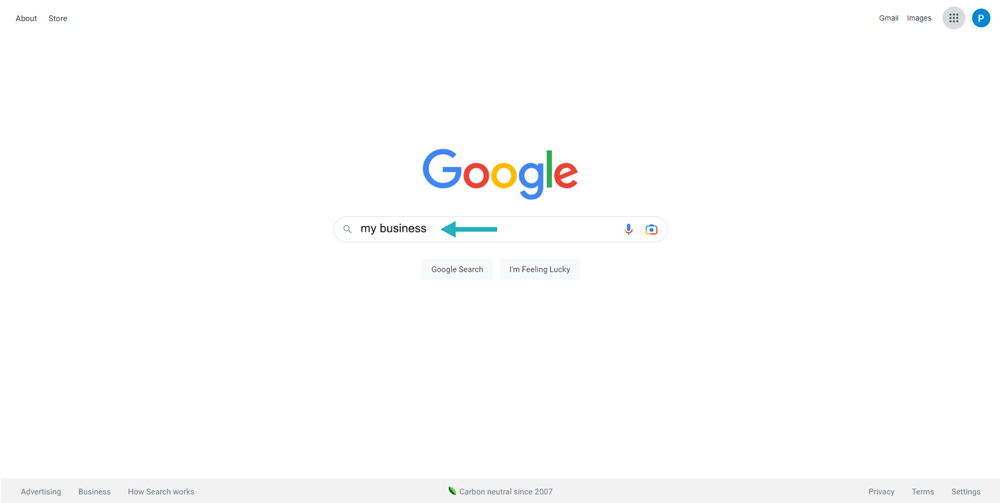
Then, Go to Google.com and type “my business” in google search bar.
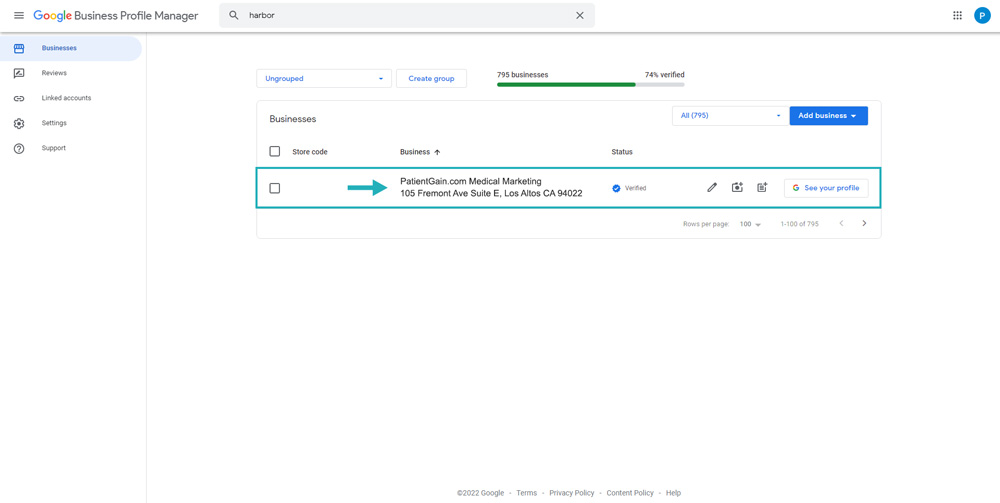
Then, You will see the list of all the listings you have in your Google Account – Now, Click on your listing.
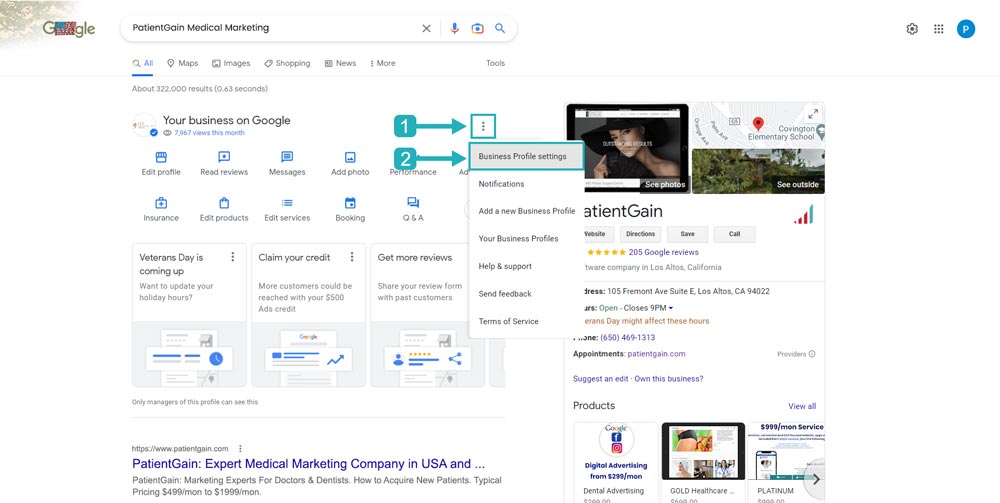
Now from here, click on the three dot menu icon and select “Business Profile settings” from the dropdown menu.
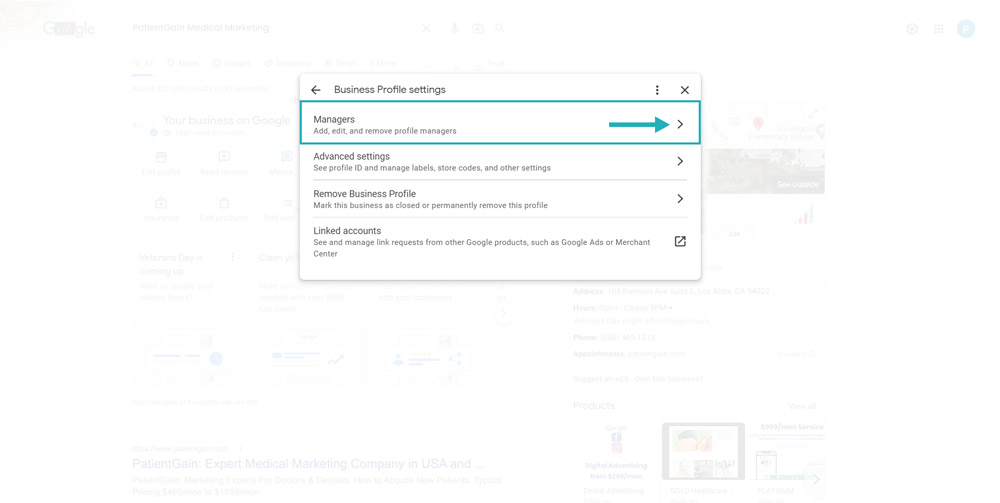
Select the “Managers” option from here.
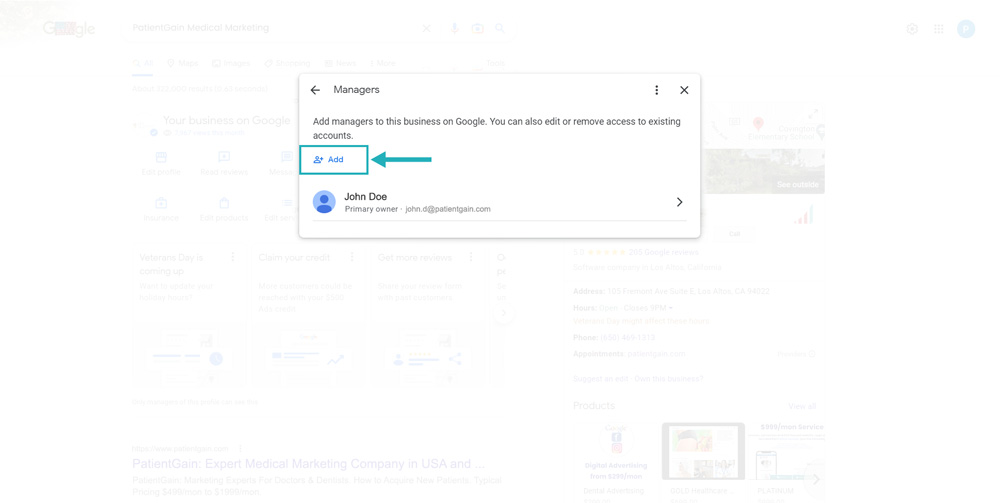
Click on the “Add” icon.
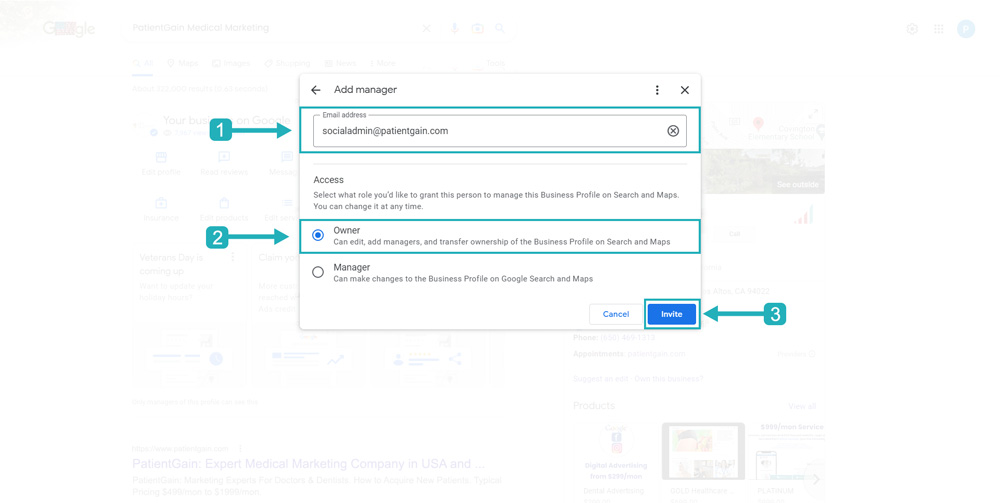
Now fill out the form like below:
Email Address: “socialadmin@patientgain.com”.
Choose a Role: “Owner”.
Then Click on the “Invite” button.
Note: Please inform your Project Manager, Once you have completed the above mentioned steps. Thank You

Provide Access to Your Google Business Page for Classic Interface Users
Open a new Private/Incognito window in your browser (for e.g. Google Chrome or Firefox, etc)
First, Sign in to your Google Account. Click Here to Sign In.
Note: You must sign in from that google account where you have google listings ownership.
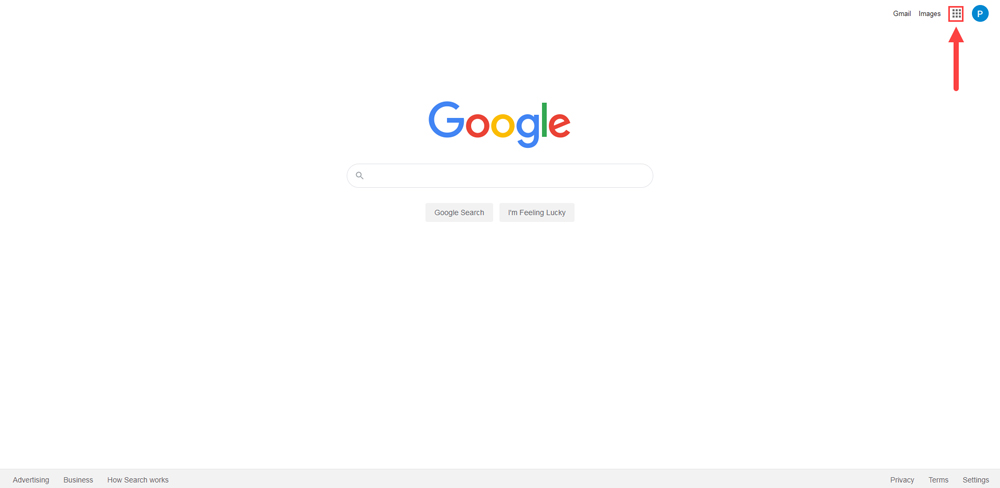
Then, Go to Google.com and Click on the icon from the Top right corner.
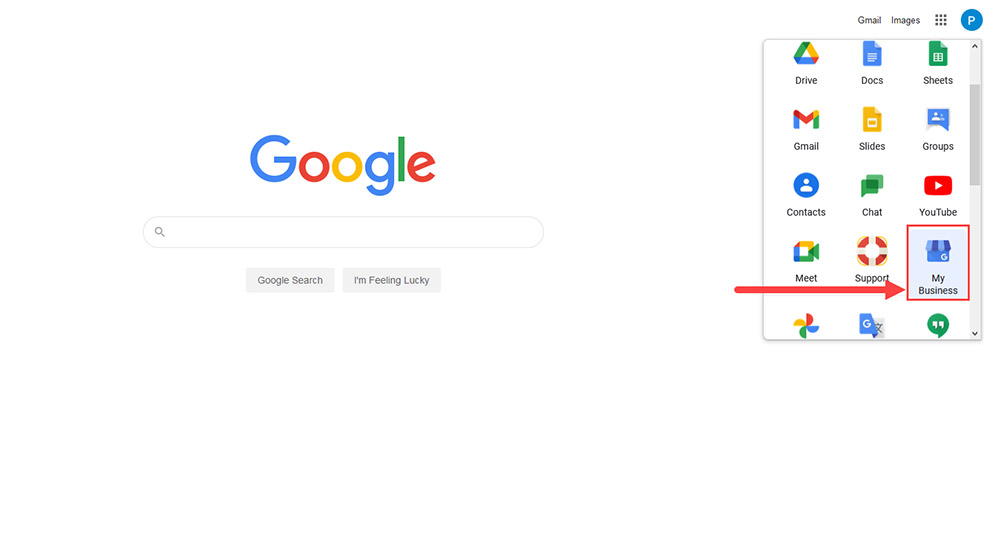
Now, Click on the “Google My Business” icon.
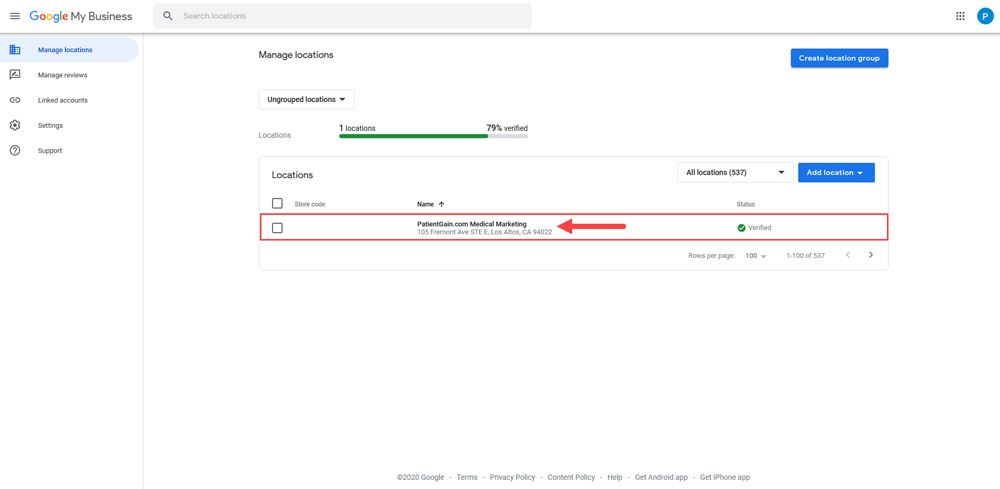
Then, You will see the list of all the listings you have in your Google Account – Now, Click on your listing.
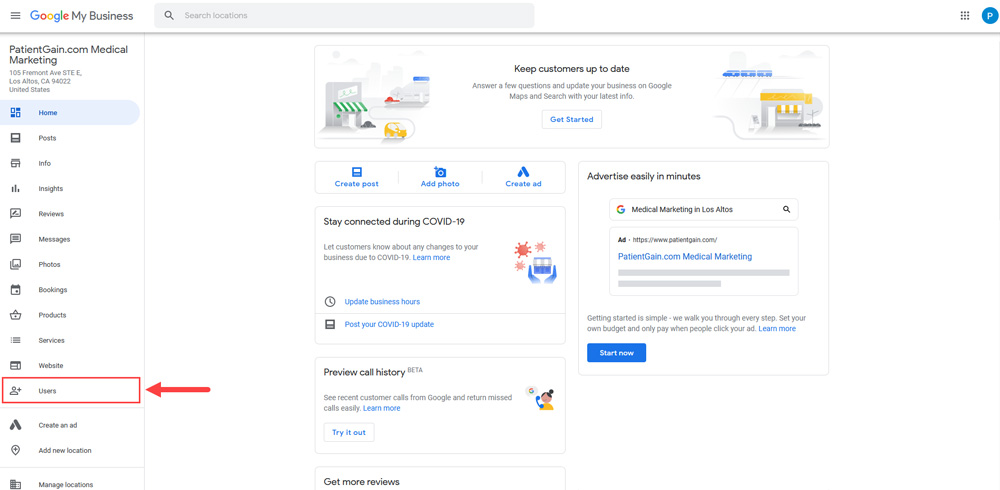
Now, Click on the “Users” from the Sidebar menu.
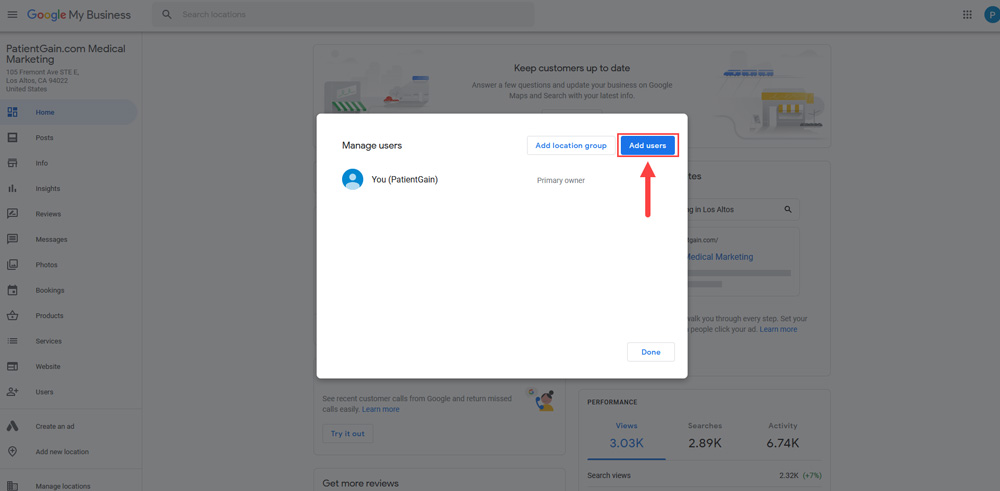
Click on the “Add Users” button from the top right corner.
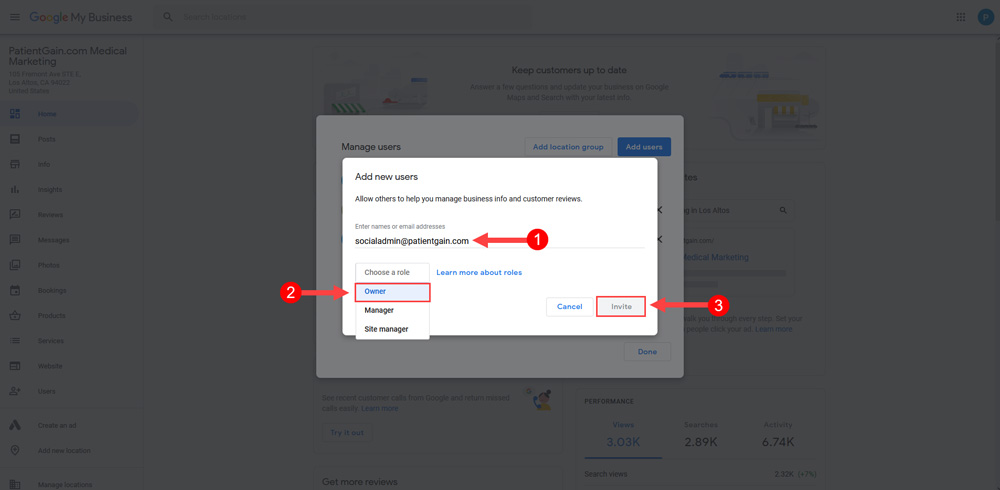
Now fill out the form like below:
- Email Address: “socialadmin@patientgain.com”.
- Choose a Role: “Owner”.
- Then Click on the “Invite” button.
Note: Please inform your Project Manager, Once you have completed the above mentioned steps. Thank You
